Getting Started
Getting started: signing in and finding your way around
1. Overview
This chapter shows you how to sign in to MicroFin, what to do if you forget your password or get locked out, how two-factor sign-in works, and how to read the main screen: the left-hand menu, the home dashboards, search, the notifications bell, the branch drop-down and the sign-out button.
Everything you see after signing in depends on who you are (your role), which branch you work in, what your company's plan includes, and which products your company uses (Gold loans, Microfinance (MFI) loans, or both). Two colleagues in the same company can therefore see different menus. That is normal.
2. Navigation
- Sign-in page: your company's MicroFin web address, which opens the Welcome Back screen. If your company uses a branded link, it ends with your company code and shows "Signing in to <your company>".
- Forgot password: link Forgot password? on the sign-in page.
- Two-factor set-up:
Administration > Security > Two-Factor Auth (MFA). - Home dashboard:
Dashboard > Overview. - Operations Dashboard:
Dashboard > Operations Dashboard. - Theme:
Administration > UI & Settings > Theme Settings, or the sidebar user menu. - Search: the search icon in the top bar, or Ctrl+K.
- Sign out: Logout at the bottom of the left menu.
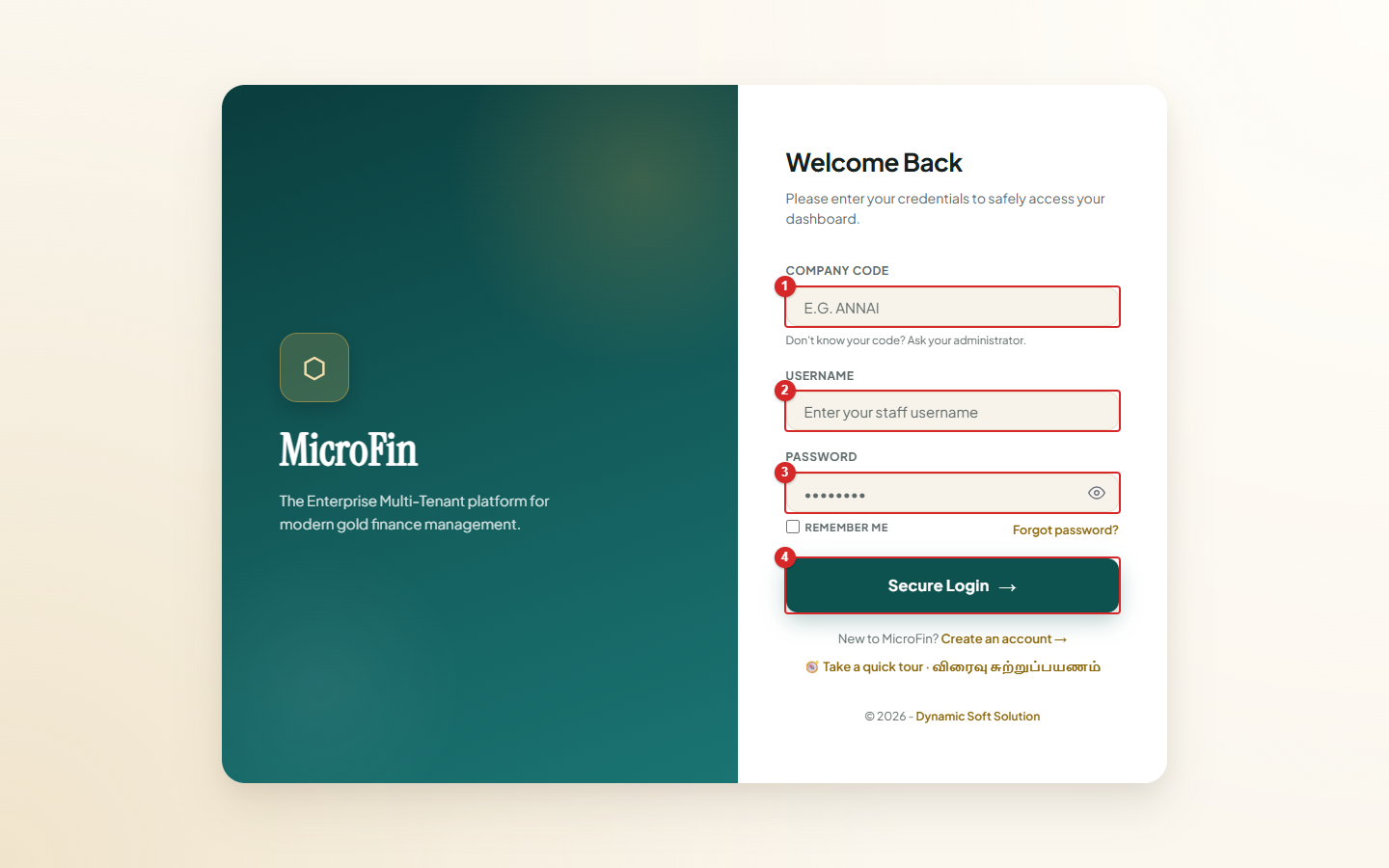
- Company code
- Username
- Password
- Secure Login
3. Before you start
- Your administrator gives you three things: the company code, your username and a first password. Ask the administrator if you do not know your company code (the sign-in page says "Don't know your code? Ask your administrator.").
- For password reset by e-mail, your own e-mail address must already be saved on your staff record.
- If your company has not paid its subscription and it has expired, you can still sign in, but every page takes you to the Billing page until an Admin renews. Tell your Admin.
- A sign-in code app (an authenticator app on your phone) is needed only if you choose to switch on two-factor sign-in.
4. Step-by-step instructions
Sign in
- Open the MicroFin sign-in page.
- Type the Company Code, your Username and your Password. Use the eye icon to check the password you typed.
- Tick Remember me only on your own device. It keeps you signed in across browser closes.
- Click Secure Login.
- If you have switched on two-factor sign-in, a second screen Two-Factor Verification asks for a code. Type the 6-digit code from your authenticator app (or one of your backup codes) and click Verify. You must do this within 5 minutes.
- You land on your home page. Field staff (people whose role sees only their own members and loans) land on My Performance; everyone else lands on Dashboard > Overview.
Forgot your password
- On the sign-in page click Forgot password?.
- Enter the Company Code and your Email Address, then click Send Reset Link.
- You will always see the same Check Your Email page, whether or not the address matched. This is intentional.
- Open the e-mail and click the link. It works once and for 1 hour.
- Enter a New Password (at least 6 characters) and Confirm Password, then click Update Password.
- Sign in with the new password. A reset also removes any lock on your account.
If the link says Link Expired or Invalid, ask for a new one from step 1.
Switch on two-factor sign-in (optional, any user)
- Open
Administration > Security > Two-Factor Auth (MFA). - Scan the QR picture with your authenticator app, or type the Manual entry key into it.
- Type the 6-digit code into Verify Code and click Enable 2FA.
- Save the 8 backup codes shown. They appear only once; each works one time if you lose your phone.
- From now on every web sign-in asks for a code. To stop, click Disable 2FA on the same page.
Find your way on the main screen
- Left menu (sidebar). Groups open into pages. Common groups are Dashboard, Loans, Customers, Collections, Centre Banking, Deposits, Finance, Reports, Compliance & Audit, HR & Payroll, Operations and Administration. You will see only the groups your role allows.
- Find menu... box at the top of the sidebar (shortcut Ctrl /) filters the menu as you type.
- Click the star on a page to make it a favourite; your favourites and a few Quick actions are listed near the top. They are personal to you.
- Search (Ctrl+K). Type at least 2 characters. It finds pages, members, loans (MFI and Gold), centres, vouchers, receipts, staff and more, limited to what you may see. Field staff find only their own members, loans and centres.
- Approvals is a fixed link at the top of the menu. A red number on it counts requests waiting for you. See the approvals chapter.
- Bell icon. Shows alerts. If you can open approvals, it has an Approvals tab and warns when approvals have been waiting over 48 hours.
- Branch drop-down. Appears at the top of the sidebar only if you can work in two or more branches. Pick a branch to switch; you see "Switched to <branch>." A head-office (HO) user can pick any branch of the company. Other users can pick their own branch and any branch granted to them. If you see the message "You do not have access to that branch.", ask your Admin for access.
- EN / hi / ta buttons at the bottom of the sidebar.
- Logout ends your session.
Read the home dashboards
Dashboard > Overviewshows tiles such as Portfolio (Gold + MFI), Arrears, Today Collections, Month Collections, Cash in Hand, Bank Balance, MFI Portfolio, Today's Demand, PAR > 30 days, Active Centres, Gold Pledged (Live), Repledge Exposure, NPA Loans and Gold Rate 22ct, plus quick buttons such as Disburse Gold Loan, Collect MFI, Add Member and Day Book.- Cash tiles need the accounts right; portfolio tiles need the loan or reports right; Gold tiles and MFI tiles appear only for the products your company uses.
- HO users and Admins can pick a branch or All Branches; branch users see their own branch.
Dashboard > Operations Dashboardhas 16 tiles (Total Branch, Total Members, Total Amount Disbursed, Total Principal Outstanding, Total Loan OD, Total Savings Outstanding, Total Income, Total Expenses and others) with range chips Today, Yesterday, This Week, Last Week, Last Month, Last 3 Months, Last 6 Months, One Year and All. Rejected, pending and voided loans are not counted as disbursed.
Change how MicroFin looks
- Open
Administration > UI & Settings > Theme Settings. - Choose a Preset (Classic Gold, Trust Navy, Forest Green, Slate Dark), Density (Comfortable or Compact) and Color Mode (Light, Dark or Auto).
- Click Save for me. Only you are affected.
- An Admin can also click Set as company default.
Sign out
Click Logout at the bottom of the left menu. Always sign out on shared computers.
5. Field explanation
| Field | Purpose | Required? | Expected input | Validation | Example |
|---|---|---|---|---|---|
| Company Code | Tells MicroFin which company you work for | Yes | The code your administrator gave you | Company must exist and be active, else "Company not found or inactive." | DEMO01 |
| Username | Your login name | Yes | As created by your Admin | Wrong name or password gives "Invalid username or password." | lakshmi.k |
| Password | Proves who you are | Yes | Your password | 5 wrong tries lock the account for 30 minutes | (hidden) |
| Remember me | Keeps you signed in | No | Tick box | Use only on your own device | — |
| Email Address (reset) | Where the reset link is sent | Yes | The e-mail saved on your staff record | Same page shown whatever you type | name@example.com |
| New Password / Confirm Password | Your new password | Yes | At least 6 characters | The two must match; no other complexity rule | — |
| Verify Code (two-factor set-up) | Proves your authenticator works | Yes | 6 digits | Must be current | 123456 |
| Verification Code (sign-in) | Second step at sign-in | Yes | 6 digits, or a backup code | Wrong codes count toward the same lock | — |
| Branch (drop-down) | Chooses the branch you work in | Only if shown | Pick from list | Only branches you may access | Main Branch |
| Search | Finds pages and records | No | 2 or more characters | Results limited by your role and branch | "Lakshmi" |
6. Buttons and actions
| Button | What it does |
|---|---|
| Secure Login | Signs you in. |
| Forgot password? | Opens the reset request page. |
| Send Reset Link -> | E-mails a one-hour, single-use reset link. |
| Update Password -> | Saves the new password and clears any lock. |
| Verify -> | Checks your two-factor code. |
| Back to Login | Returns to the sign-in page from the code screen. |
| Enable 2FA / Disable 2FA | Turns your own two-factor sign-in on or off. |
| Save for me | Saves your theme choice. |
| Logout | Ends your session. |
7. Business rules and validations
Settings > App Branding.Administration > Security > Security Center) offers "Enforce MFA", IP whitelist and geo-fence ticks. In the version audited these ticks are stored but do not block sign-in. Do not rely on them as protection; use the per-user two-factor set-up above.8. Expected result
After sign-in you reach your home page with the menu for your role. After setting a theme, your colours persist next time you sign in. After a reset, you can sign in with the new password straight away.
9. Troubleshooting
| Message or problem | Likely cause | What to do |
|---|---|---|
| "Company not found or inactive." | Wrong company code, or company switched off | Check the code with your administrator. |
| "Invalid username or password." | Typing error, or user disabled | Retype carefully; use Forgot password?; ask your Admin. |
| "Account is locked. Try again later." | 5 wrong tries | Wait 30 minutes, ask an Admin to unlock, or reset your password. |
| "Too many requests. Please wait a minute and try again." | Too many tries from this device | Wait a minute. |
| "This reset link is invalid or has already expired." / Link Expired or Invalid | Link older than 1 hour or already used | Ask for a new link. |
| No reset e-mail arrives | Your e-mail is not saved on your staff record, or it is in spam | Ask your Admin to check your e-mail on the user record. |
| Every page opens Billing | Company subscription has expired | Tell your Admin to renew on the Billing page. |
| A menu you expect is missing | Your role, plan or company products do not include it | Ask your Admin to check your role's access. |
| "You do not have access to that branch." | Branch not granted to you | Ask your Admin for branch access. |
| Lost your phone with the authenticator app | — | Use one of your 8 backup codes, then set up again; or ask an Admin. |
10. தமிழ் விளக்கம்
இந்த அத்தியாயத்தின் முழுத் தமிழ் வடிவம் கீழே உள்ளது.
11. Related modules
- Roles, users and branch access are set up by your Admin (see the administration chapters).
- Approvals (chapter 80) explains the Approval Inbox and the red badge on the menu.
- End of Day (chapter 81) explains the daily close that every branch must complete.
- Members (chapter 05) is the usual first screen after sign-in for a new employee.
தொடங்குதல்
தொடங்குதல்: உள்நுழைவு மற்றும் முதன்மைத் திரை
1. அறிமுகம்
இந்த அத்தியாயம் MicroFin-இல் எப்படி உள்நுழைவது, கடவுச்சொல் மறந்தால் அல்லது கணக்கு பூட்டப்பட்டால் என்ன செய்வது, இரண்டு-படி உள்நுழைவு எப்படி வேலை செய்கிறது என்பவற்றைச் சொல்கிறது. மேலும் முதன்மைத் திரையில் உள்ள இடப்புற மெனு, முகப்பு டாஷ்போர்டுகள், தேடல், அறிவிப்பு மணி, கிளை தேர்வுப் பெட்டி, வெளியேறும் பொத்தான் ஆகியவற்றை எப்படிப் பயன்படுத்துவது என்பதையும் விளக்குகிறது.
உள்நுழைந்த பிறகு நீங்கள் காண்பது நீங்கள் யார் (பணிப்பொறுப்பு), எந்தக் கிளையில் பணிபுரிகிறீர்கள், உங்கள் நிறுவனத்தின் திட்டத்தில் என்ன உள்ளது, எந்தத் தயாரிப்புகளை நிறுவனம் பயன்படுத்துகிறது (தங்கக் கடன், மைக்ரோஃபைனான்ஸ் (MFI) கடன், அல்லது இரண்டும்) என்பவற்றைப் பொறுத்தது. எனவே ஒரே நிறுவனத்தில் இருவருக்கு வெவ்வேறு மெனு தெரியலாம். இது இயல்பே.
2. வழிசெலுத்தல்
- உள்நுழைவுப் பக்கம்: உங்கள் நிறுவனத்தின் MicroFin இணைய முகவரி; அதைத் திறந்தால் Welcome Back திரை வரும். உங்கள் நிறுவனம் தன் பெயரிலான (branded) இணைப்பைப் பயன்படுத்தினால், அது நிறுவனக் குறியீட்டுடன் முடிந்து "Signing in to <உங்கள் நிறுவனம்>" எனக் காட்டும்.
- கடவுச்சொல் மறந்தால்: உள்நுழைவுப் பக்கத்தில் Forgot password?.
- இரண்டு-படி உள்நுழைவு அமைக்க:
Administration > Security > Two-Factor Auth (MFA). - முகப்பு டாஷ்போர்டு:
Dashboard > Overview. - செயல்பாட்டு டாஷ்போர்டு:
Dashboard > Operations Dashboard. - தோற்றம் (Theme):
Administration > UI & Settings > Theme Settings, அல்லது sidebar-இல் உள்ள பயனர் மெனு. - தேடல்: மேல் பட்டையில் தேடல் ஐகான் அல்லது Ctrl+K.
- வெளியேற: இடப்புற மெனுவின் அடியில் Logout.
- நிறுவனக் குறியீடு
- பயனர் பெயர்
- கடவுச்சொல்
- பாதுகாப்பான உள்நுழைவு
3. தொடங்குவதற்கு முன்
- நிர்வாகி உங்களுக்கு மூன்றைத் தருவார்: நிறுவனக் குறியீடு, பயனர் பெயர், முதல் கடவுச்சொல். நிறுவனக் குறியீடு தெரியாவிட்டால் நிர்வாகியிடம் கேளுங்கள் (உள்நுழைவுப் பக்கமே "Don't know your code? Ask your administrator." எனச் சொல்கிறது).
- மின்னஞ்சல் மூலம் கடவுச்சொல்லை மீட்டமைக்க, உங்கள் மின்னஞ்சல் உங்கள் பணியாளர் பதிவில் ஏற்கெனவே சேமிக்கப்பட்டிருக்க வேண்டும்.
- நிறுவனம் சந்தா செலுத்தாமல் அது காலாவதியாகிவிட்டாலும் நீங்கள் உள்நுழையலாம்; ஆனால் நிர்வாகி புதுப்பிக்கும் வரை எல்லாப் பக்கங்களும் Billing பக்கத்துக்கே செல்லும். நிர்வாகிக்குத் தெரிவியுங்கள்.
- இரண்டு-படி உள்நுழைவை இயக்க விரும்பினால் மட்டுமே, உள்நுழைவுக் குறியீடு தரும் செயலி (கைபேசியில் authenticator செயலி) தேவை.
4. படிப்படியான வழிமுறைகள்
உள்நுழைய
- MicroFin உள்நுழைவுப் பக்கத்தைத் திறங்கள்.
- Company Code, Username, Password ஆகியவற்றை உள்ளிடுங்கள். கண் ஐகானைச் சொடுக்கி, நீங்கள் உள்ளிட்ட கடவுச்சொல்லைச் சரிபார்க்கலாம்.
- Remember me-ஐ உங்கள் சொந்தச் சாதனத்தில் மட்டுமே டிக் செய்யுங்கள். டிக் செய்தால், உலாவியை மூடினாலும் உள்நுழைவு நீடிக்கும்.
- Secure Login சொடுக்குங்கள்.
- இரண்டு-படி உள்நுழைவை இயக்கியிருந்தால் Two-Factor Verification திரை குறியீடு கேட்கும். authenticator செயலியின் 6 இலக்கக் குறியீட்டை (அல்லது காப்புக் குறியீடுகளில் ஒன்றை) உள்ளிட்டு Verify சொடுக்குங்கள். இதை 5 நிமிடத்துக்குள் செய்ய வேண்டும்.
- உங்கள் முகப்புப் பக்கம் திறக்கும். களப்பணியாளர்களுக்கு (தங்கள் சொந்த உறுப்பினர்களையும் கடன்களையும் மட்டுமே காணும் பணிப்பொறுப்பு உள்ளவர்கள்) My Performance பக்கமும், மற்றவர்களுக்கு Dashboard > Overview பக்கமும் திறக்கும்.
கடவுச்சொல் மறந்தால்
- உள்நுழைவுப் பக்கத்தில் Forgot password? சொடுக்குங்கள்.
- Company Code, Email Address உள்ளிட்டு Send Reset Link சொடுக்குங்கள்.
- முகவரி பொருந்தினாலும் பொருந்தாவிட்டாலும் ஒரே Check Your Email பக்கமே தெரியும். இது வேண்டுமென்றே அமைக்கப்பட்டது.
- மின்னஞ்சலைத் திறந்து அதிலுள்ள இணைப்பைச் சொடுக்குங்கள். அது ஒருமுறை மட்டும், 1 மணி நேரம் வரை மட்டுமே வேலை செய்யும்.
- New Password (குறைந்தது 6 எழுத்துகள்), Confirm Password உள்ளிட்டு Update Password சொடுக்குங்கள்.
- புதிய கடவுச்சொல்லுடன் உள்நுழையுங்கள். மீட்டமைப்பு கணக்கின் பூட்டையும் நீக்கும்.
இணைப்பைத் திறக்கும்போது Link Expired or Invalid என்று வந்தால், படி 1-இலிருந்து தொடங்கிப் புதிய இணைப்பைக் கேளுங்கள்.
இரண்டு-படி உள்நுழைவை இயக்க (விருப்பம், எந்தப் பயனரும்)
Administration > Security > Two-Factor Auth (MFA)திறங்கள்.- QR படத்தை authenticator செயலியில் ஸ்கேன் செய்யுங்கள்; அல்லது Manual entry key-ஐ உள்ளிடுங்கள்.
- 6 இலக்கக் குறியீட்டை Verify Code-இல் உள்ளிட்டு Enable 2FA சொடுக்குங்கள்.
- காட்டப்படும் 8 காப்புக் குறியீடுகளை சேமித்து வையுங்கள். அவை ஒரே ஒரு முறைதான் காட்டப்படும்; கைபேசி தொலைந்தால், ஒவ்வொரு குறியீட்டையும் ஒருமுறை பயன்படுத்தலாம்.
- இனி ஒவ்வொரு இணைய உள்நுழைவும் குறியீடு கேட்கும். நிறுத்த, அதே பக்கத்தில் Disable 2FA சொடுக்குங்கள்.
முதன்மைத் திரையில் வழி கண்டறிய
- இடப்புற மெனு (sidebar). ஒவ்வொரு மெனு தொகுதியையும் சொடுக்கினால் அதன் பக்கங்கள் விரியும். பொதுவான தொகுதிகள்: Dashboard, Loans, Customers, Collections, Centre Banking, Deposits, Finance, Reports, Compliance & Audit, HR & Payroll, Operations, Administration. உங்கள் பணிப்பொறுப்புக்கு அனுமதிக்கப்பட்ட தொகுதிகள் மட்டுமே தெரியும்.
- மெனுவின் மேலுள்ள Find menu... பெட்டி (குறுக்குவழி Ctrl /) தட்டச்சு செய்யும்போதே மெனுவை வடிகட்டும்.
- ஒரு பக்கத்தில் நட்சத்திரத்தைச் சொடுக்கினால் அது விருப்பப் பக்கம் ஆகும்; உங்கள் விருப்பப் பக்கங்களும் சில Quick actions-உம் மேலே தெரியும். இவை உங்களுக்கு மட்டுமே.
- தேடல் (Ctrl+K). குறைந்தது 2 எழுத்துகள் தட்டச்சு செய்யுங்கள். பக்கங்கள், உறுப்பினர்கள், கடன்கள் (MFI, தங்கம்), மையங்கள், வவுச்சர்கள், ரசீதுகள், பணியாளர்கள் முதலியவற்றைத் தேடும்; நீங்கள் பார்க்க அனுமதி உள்ளவை மட்டுமே முடிவுகளில் வரும். களப்பணியாளர்களுக்குத் தங்கள் சொந்த உறுப்பினர்கள், கடன்கள், மையங்கள் மட்டுமே கிடைக்கும்.
- Approvals என்பது மெனுவின் மேலே எப்போதும் இருக்கும் இணைப்பு. அதன் மீதுள்ள சிவப்பு எண், உங்கள் ஒப்புதலுக்காகக் காத்திருக்கும் கோரிக்கைகளின் எண்ணிக்கையைக் காட்டும். ஒப்புதல் அத்தியாயத்தைப் பாருங்கள்.
- மணி ஐகான். எச்சரிக்கைகளைக் காட்டும். ஒப்புதல்களைத் திறக்க உங்களுக்கு அனுமதி இருந்தால் அதில் Approvals தாவல் இருக்கும்; ஒப்புதல்கள் 48 மணி நேரத்துக்கு மேல் காத்திருந்தால் எச்சரிக்கும்.
- கிளை தேர்வுப் பெட்டி. இரண்டு அல்லது அதற்கு மேற்பட்ட கிளைகளில் பணிபுரிய உங்களுக்கு அனுமதி இருந்தால் மட்டுமே sidebar-இன் மேலே தெரியும். மாற வேண்டிய கிளையைத் தேர்ந்தெடுத்தால் "Switched to <கிளை>." என்று வரும். தலைமை அலுவலக (HO) பயனர் நிறுவனத்தின் எந்தக் கிளையையும் தேர்ந்தெடுக்கலாம்; மற்றவர்கள் தங்கள் சொந்தக் கிளையையும் தமக்கு வழங்கப்பட்ட கிளைகளையும் மட்டுமே தேர்ந்தெடுக்கலாம். "You do not have access to that branch." என்று வந்தால் நிர்வாகியிடம் அணுகல் கேளுங்கள்.
- sidebar-இன் அடியில் EN / hi / ta பொத்தான்கள் இருக்கும்.
- Logout உங்கள் அமர்வை முடிக்கும்.
முகப்பு டாஷ்போர்டுகளைப் படிக்க
Dashboard > Overview-இல் Portfolio (Gold + MFI), Arrears, Today Collections, Month Collections, Cash in Hand, Bank Balance, MFI Portfolio, Today's Demand, PAR > 30 days, Active Centres, Gold Pledged (Live), Repledge Exposure, NPA Loans, Gold Rate 22ct போன்ற சதுரங்களும், Disburse Gold Loan, Collect MFI, Add Member, Day Book போன்ற விரைவுப் பொத்தான்களும் இருக்கும்.- பணச் சதுரங்களுக்குக் கணக்கு உரிமையும், கடன் இருப்புச் சதுரங்களுக்குக் கடன் அல்லது அறிக்கை உரிமையும் தேவை; தங்கம், MFI சதுரங்கள் நிறுவனம் பயன்படுத்தும் தயாரிப்புக்கு மட்டுமே தெரியும்.
- HO பயனர்களும் Admin-உம் ஒரு கிளையை அல்லது All Branches-ஐத் தேர்வு செய்யலாம்; கிளைப் பயனர்கள் தம் கிளையையே காண்பர்.
Dashboard > Operations Dashboard-இல் 16 சதுரங்கள் (Total Branch, Total Members, Total Amount Disbursed, Total Principal Outstanding, Total Loan OD, Total Savings Outstanding, Total Income, Total Expenses உள்ளிட்டவை) உள்ளன; Today, Yesterday, This Week, Last Week, Last Month, Last 3 Months, Last 6 Months, One Year, All என்ற கால வரம்புச் சிப்புகள் உண்டு. நிராகரிக்கப்பட்ட, நிலுவையில் உள்ள, ரத்தான கடன்கள் வழங்கப்பட்டவையாகக் கணக்கிடப்படாது.
தோற்றத்தை மாற்ற
Administration > UI & Settings > Theme Settingsதிறங்கள்.- Preset (Classic Gold, Trust Navy, Forest Green, Slate Dark), Density (Comfortable அல்லது Compact), Color Mode (Light, Dark, Auto) தேர்வு செய்யுங்கள்.
- Save for me சொடுக்குங்கள். மாற்றம் உங்களுக்கு மட்டுமே பொருந்தும்.
- நிர்வாகி (Admin) Set as company default-ஐயும் சொடுக்கலாம்.
வெளியேற
இடப்புற மெனுவின் அடியில் Logout சொடுக்குங்கள். பலர் பயன்படுத்தும் கணினியில் வேலை முடிந்ததும் தவறாமல் வெளியேறுங்கள்.
5. புலங்களின் விளக்கம்
| புலம் | நோக்கம் | கட்டாயமா? | எதிர்பார்க்கும் உள்ளீடு | சரிபார்ப்பு | எடுத்துக்காட்டு |
|---|---|---|---|---|---|
| Company Code | நீங்கள் எந்த நிறுவனத்தில் பணிபுரிகிறீர்கள் என்பதை MicroFin-க்குச் சொல்லும் | ஆம் | நிர்வாகி தந்த குறியீடு | அந்த நிறுவனம் பதிவில் இருக்க வேண்டும், செயலில் இருக்க வேண்டும்; இல்லையெனில் "Company not found or inactive." | DEMO01 |
| Username | உங்கள் உள்நுழைவுப் பெயர் | ஆம் | நிர்வாகி உருவாக்கியபடி | பெயர்/கடவுச்சொல் தவறினால் "Invalid username or password." | lakshmi.k |
| Password | நீங்கள்தான் என்பதை உறுதிப்படுத்தும் | ஆம் | உங்கள் கடவுச்சொல் | 5 முறை தவறாக உள்ளிட்டால் கணக்கு 30 நிமிடம் பூட்டப்படும் | (மறைக்கப்பட்டது) |
| Remember me | உள்நுழைவை நீடிக்கச் செய்யும் | இல்லை | டிக் பெட்டி | சொந்தச் சாதனத்தில் மட்டும் பயன்படுத்துங்கள் | — |
| Email Address (மீட்டமைப்பு) | மீட்டமைப்பு இணைப்பு செல்லும் இடம் | ஆம் | பணியாளர் பதிவில் உள்ள மின்னஞ்சல் | எதை உள்ளிட்டாலும் ஒரே பக்கமே காட்டப்படும் | name@example.com |
| New Password / Confirm Password | புதிய கடவுச்சொல் | ஆம் | குறைந்தது 6 எழுத்துகள் | இரண்டும் ஒன்றாக இருக்க வேண்டும்; வேறு எந்தக் கடவுச்சொல் விதியும் இல்லை | — |
| Verify Code (இரண்டு-படி அமைப்பு) | authenticator வேலை செய்வதை உறுதிசெய்யும் | ஆம் | 6 இலக்கம் | அப்போது செயலியில் காட்டப்படும் குறியீடாக இருக்க வேண்டும் | 123456 |
| Verification Code (உள்நுழைவு) | உள்நுழைவின் இரண்டாம் படி | ஆம் | 6 இலக்கம் அல்லது காப்புக் குறியீடு | தவறான குறியீடுகளும் அதே பூட்டு எண்ணிக்கையில் சேரும் | — |
| Branch (தேர்வுப் பெட்டி) | நீங்கள் பணிபுரியும் கிளையைத் தேர்ந்தெடுக்க | திரையில் தெரிந்தால் மட்டும் | பட்டியலிலிருந்து தேர்ந்தெடுங்கள் | உங்களுக்கு அனுமதிக்கப்பட்ட கிளைகள் மட்டும் | Main Branch |
| Search | பக்கங்களையும் பதிவுகளையும் தேடும் | இல்லை | 2 அல்லது அதற்கு மேற்பட்ட எழுத்துகள் | உங்கள் பணிப்பொறுப்புக்கும் கிளைக்கும் உட்பட்ட முடிவுகள் மட்டும் | "Lakshmi" |
6. பொத்தான்களும் செயல்களும்
| பொத்தான் | செய்வது |
|---|---|
| Secure Login | உங்களை உள்நுழையச் செய்யும். |
| Forgot password? | மீட்டமைப்புக் கோரிக்கைப் பக்கத்தைத் திறக்கும். |
| Send Reset Link -> | ஒரு மணி நேரம் மட்டும், ஒருமுறை மட்டும் பயன்படும் மீட்டமைப்பு இணைப்பை மின்னஞ்சலில் அனுப்பும். |
| Update Password -> | புதிய கடவுச்சொல்லைச் சேமித்து பூட்டை நீக்கும். |
| Verify -> | இரண்டு-படிக் குறியீட்டைச் சரிபார்க்கும். |
| Back to Login | குறியீடு கேட்கும் திரையிலிருந்து உள்நுழைவுப் பக்கத்துக்குத் திரும்பும். |
| Enable 2FA / Disable 2FA | உங்கள் இரண்டு-படி உள்நுழைவை இயக்கும் / நிறுத்தும். |
| Save for me | உங்கள் தோற்றத் தேர்வைச் சேமிக்கும். |
| Logout | அமர்வை முடிக்கும். |
7. வணிக விதிகளும் சரிபார்ப்புகளும்
Settings > App Branding-இல் இயக்குவார்.Administration > Security > Security Center) "Enforce MFA", IP whitelist, geo-fence ஆகிய டிக் பெட்டிகள் உள்ளன. ஆய்வு செய்த பதிப்பில் இந்தத் தேர்வுகள் சேமிக்கப்படுகின்றன; ஆனால் உள்நுழைவைத் தடுப்பதில்லை. இவற்றைப் பாதுகாப்பு என்று நம்பியிருக்க வேண்டாம்; மேலே சொன்ன, ஒவ்வொரு பயனரும் தனக்கு அமைத்துக்கொள்ளும் இரண்டு-படி உள்நுழைவைப் பயன்படுத்துங்கள்.8. எதிர்பார்க்கும் முடிவு
உள்நுழைந்ததும் உங்கள் பணிப்பொறுப்புக்கான மெனுவுடன் முகப்புப் பக்கம் திறக்கும். தோற்றத்தை அமைத்தால் அடுத்த முறையும் அதே வண்ணங்கள் இருக்கும். மீட்டமைப்புக்குப் பின் புதிய கடவுச்சொல்லுடன் உடனே உள்நுழையலாம்.
9. சிக்கல் தீர்வு
| செய்தி அல்லது சிக்கல் | சாத்தியமான காரணம் | செய்ய வேண்டியது |
|---|---|---|
| "Company not found or inactive." | தவறான நிறுவனக் குறியீடு, அல்லது நிறுவனம் செயலிழக்கம் செய்யப்பட்டுள்ளது | நிர்வாகியிடம் கேட்டுக் குறியீட்டைச் சரிபாருங்கள். |
| "Invalid username or password." | தட்டச்சுப் பிழை, அல்லது பயனர் முடக்கப்பட்டுள்ளார் | கவனமாக மீண்டும் உள்ளிடுங்கள்; Forgot password? பயன்படுத்துங்கள்; நிர்வாகியிடம் கேளுங்கள். |
| "Account is locked. Try again later." | 5 தவறான முயற்சிகள் | 30 நிமிடம் காத்திருங்கள், நிர்வாகியிடம் பூட்டு நீக்கக் கேளுங்கள், அல்லது கடவுச்சொல்லை மீட்டமையுங்கள். |
| "Too many requests. Please wait a minute and try again." | இந்தச் சாதனத்திலிருந்து அதிக முயற்சிகள் | ஒரு நிமிடம் காத்திருங்கள். |
| "This reset link is invalid or has already expired." / Link Expired or Invalid | இணைப்பு 1 மணி நேரத்தைக் கடந்தது அல்லது ஏற்கெனவே பயன்படுத்தப்பட்டது | புதிய இணைப்பு கேளுங்கள். |
| மீட்டமைப்பு மின்னஞ்சல் வரவில்லை | உங்கள் பணியாளர் பதிவில் மின்னஞ்சல் சேமிக்கப்படவில்லை, அல்லது மின்னஞ்சல் spam-இல் உள்ளது | பயனர் பதிவில் உங்கள் மின்னஞ்சலைச் சரிபார்க்குமாறு நிர்வாகியிடம் கேளுங்கள். |
| எந்தப் பக்கத்தைத் திறந்தாலும் Billing பக்கமே வருகிறது | நிறுவனத்தின் சந்தா காலாவதியாகிவிட்டது | Billing பக்கத்தில் புதுப்பிக்குமாறு நிர்வாகியிடம் தெரிவியுங்கள். |
| எதிர்பார்த்த மெனு தெரியவில்லை | உங்கள் பணிப்பொறுப்பிலோ, சந்தாத் திட்டத்திலோ, நிறுவனம் பயன்படுத்தும் தயாரிப்புகளிலோ அது இல்லை | உங்கள் பணிப்பொறுப்பின் அணுகலைச் சரிபார்க்குமாறு நிர்வாகியிடம் கேளுங்கள். |
| "You do not have access to that branch." | அந்தக் கிளை உங்களுக்கு வழங்கப்படவில்லை | நிர்வாகியிடம் கிளை அணுகலைக் கேளுங்கள். |
| authenticator செயலி உள்ள கைபேசி தொலைந்துவிட்டது | — | 8 காப்புக் குறியீடுகளில் ஒன்றைப் பயன்படுத்தி உள்நுழைந்து, பிறகு இரண்டு-படி உள்நுழைவை மீண்டும் அமைத்துக்கொள்ளுங்கள்; அல்லது நிர்வாகியிடம் கேளுங்கள். |
10. தமிழ் விளக்கம்
இந்த அத்தியாயத்தின் முழுத் தமிழ் வடிவம் இதுவே. ஆங்கிலப் பகுதியின் அதே பிரிவுகள் (1–9, 11) இங்கு தமிழில் தரப்பட்டுள்ளன; திரையில் தெரியும் பெயர்கள், பொத்தான்கள், மெனு வழிகள் ஆங்கிலத்திலேயே உள்ளன.
11. தொடர்புடைய தொகுதிகள்
- பணிப்பொறுப்பு, பயனர், கிளை அணுகல் ஆகியவற்றை உங்கள் நிர்வாகி அமைப்பார் (நிர்வாக அத்தியாயங்களைப் பாருங்கள்).
- ஒப்புதல்கள் (அத்தியாயம் 80): ஒப்புதல் உள்பெட்டி (Approval Inbox), மெனுவில் தெரியும் சிவப்பு எண் ஆகியவற்றை விளக்குகிறது.
- நாள் முடிவு (EOD) (அத்தியாயம் 81): ஒவ்வொரு கிளையும் தினமும் செய்து முடிக்க வேண்டிய நாள் முடிப்பை விளக்குகிறது.
- உறுப்பினர்கள் (அத்தியாயம் 05): புதிய பணியாளர் உள்நுழைந்த பின் வழக்கமாக முதலில் பயன்படுத்தும் திரை.