HR and Payroll
HR, payroll, incentives and staff operations
1. Overview
This chapter covers the HR & Payroll sidebar group: salary profiles, monthly salary and payslips, attendance, leave, staff incentives, travel claims, staff ID cards, and moving staff or their work between branches.
The usual month runs like this: mark attendance, approve incentives, generate or record the salary as a Draft, approve it, pay it, and the payslip is sent.
2. Navigation
- Staff and salary profiles:
HR & Payroll > Employees > Staff. - Salary:
HR & Payroll > Employees > Salary. Attendance:HR & Payroll > Employees > Attendance. - Incentives:
HR & Payroll > Employees > Incentives(older percentage method),Incentive RulesandIncentive Earnings(rules engine). - Leave:
HR & Payroll > Leave > Leave,Leave Approvals,Leave Types. - Travel claims:
HR & Payroll > Travel Claims > My Travel Claim,Travel Claims Register,Travel Claim Rules. - Operations:
HR & Payroll > Operations > Staff Transfer,Staff Handover,Daily Coverage. - Documents:
HR & Payroll > Documents > Documents,Letter Templates,Staff ID Cards. - Payslip layout:
Settings > General Settings > Quick Links > Payslip.
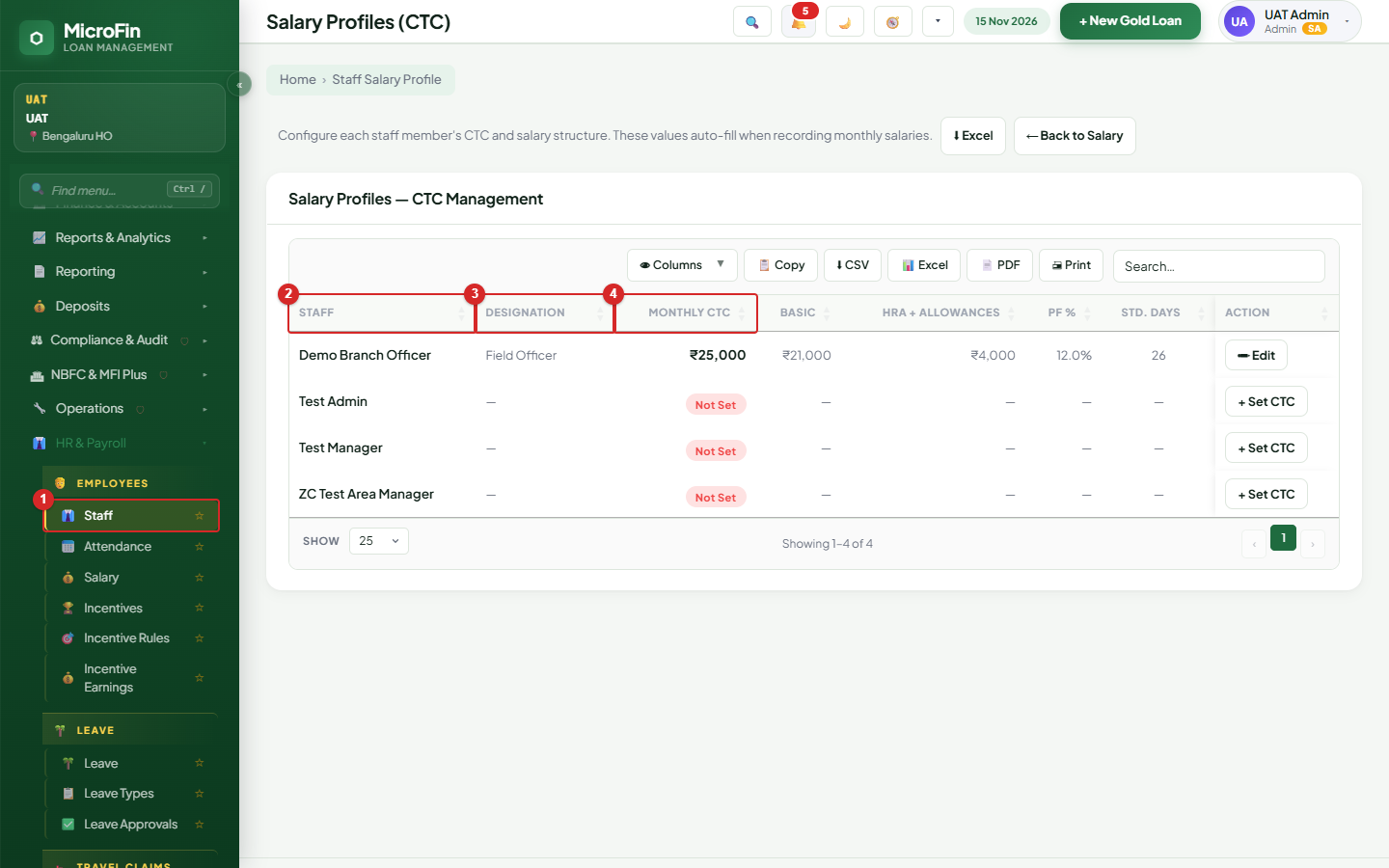
- HR & Payroll > Employees > Staff
- Staff member
- Designation
- Monthly cost to company
3. Before you start
- The whole HR & Payroll group is shown only to roles that hold the company-management right (CanManageCompany). Salary also needs the PAYROLL feature in your plan; otherwise you are sent to the upgrade page.
- Attendance marking, incentives and daily coverage need the payroll right (CanManagePayroll). Staff handover and staff ID cards need the user-management right (CanManageUsers). Travel Claim Rules needs the settings right (CanManageSettings); paying a claim needs the voucher right (CanAccessVouchers).
- Each staff member needs a login (see the previous chapter) and a salary profile.
- Weekly off days, time window and face/GPS rules are set by the Admin (Attendance screen and Accounting Policy).
4. Step-by-step instructions
Set up a salary profile
- Open
HR & Payroll > Employees > Staffand click Edit on the person. - Optionally type Monthly CTC (₹); the screen suggests a split: Basic 50% of CTC, HRA 40% of Basic, Conveyance ₹1,600, Medical ₹1,250, Other Allowances the balance. You can overtype any box.
- Check PF % of Basic (Employee) (default 12), TDS per Month (₹), Standard Working Days / Month (default 26) and the ticks Leave days counted as paid and Holiday days counted as paid.
- Click 💾 Save Profile. A yellow warning appears when Gross plus employer PF differs from the CTC by ₹1 or more.
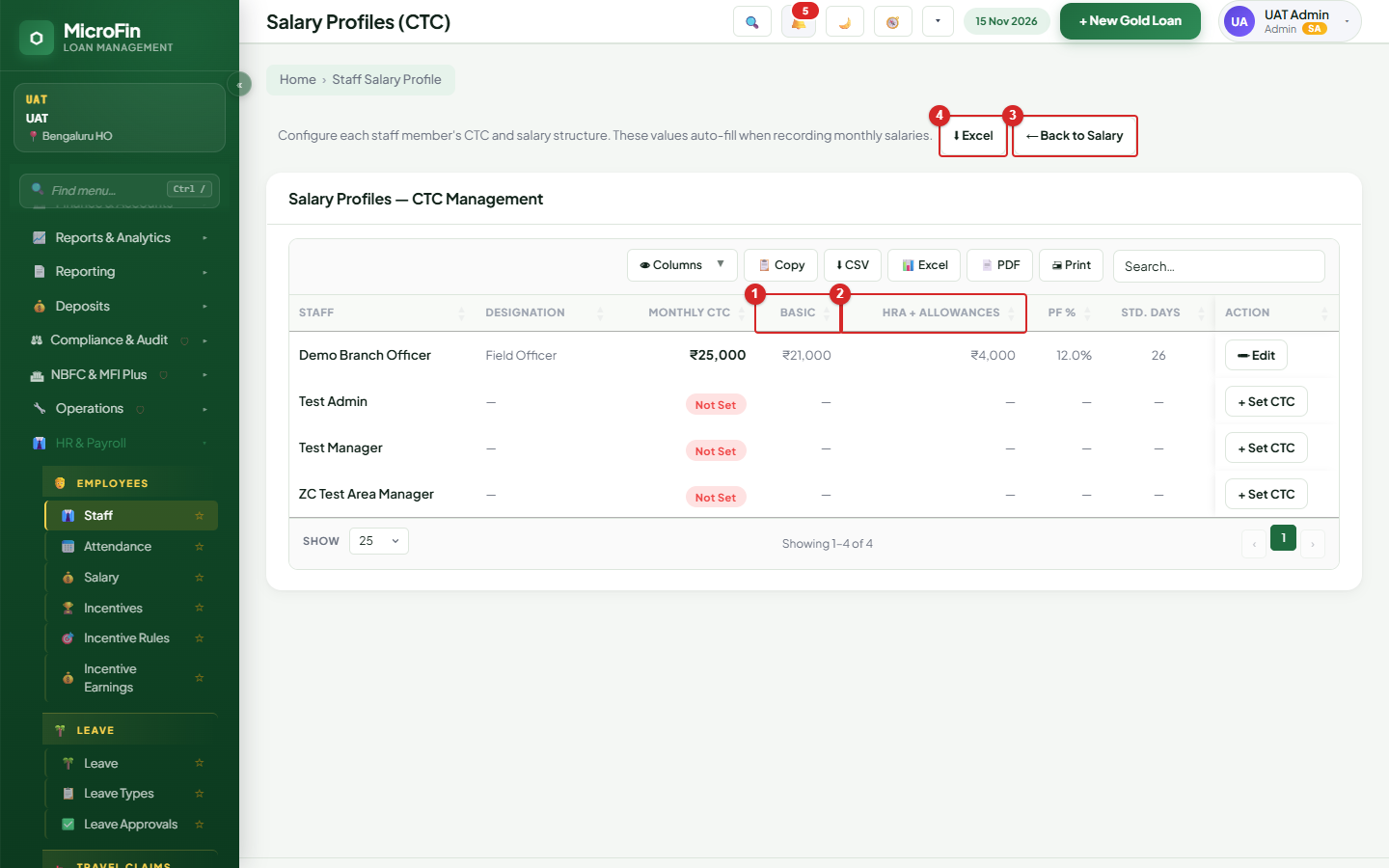
- Basic pay
- HRA and allowances
- Back to Salary
- Excel download
Mark attendance
- Open
HR & Payroll > Employees > Attendance. - Click a day cell for a person and choose Present, Absent, HalfDay, Leave or Holiday; In Time, Out Time and remarks are optional. Marking a cell again overwrites it.
- The Admin sets Weekly Off Days on the same screen (no entry means Sunday).
Run the monthly salary
- Make sure the month's attendance is complete and the month's incentive is approved.
- Open
HR & Payroll > Employees > Salary. Use Bulk Generate for many staff (Draft rows, up to 2,000 per run, skipping anyone who already has that month), or + Add Record for one person. - On Record Staff Salary choose Staff Member, Month, Year. The screen fills from the profile and attendance (Present, Absent, Half Day, Leave, Holiday, Std. Days). Check Basic Salary, Allowances / HRA, Other Earnings, TDS, PF Employee, ESI Employee (enter by hand if it applies), Other Deductions and Recovery Amount this Month (staff advance).
- Click 💾 Save as Draft. Only Draft salaries can be edited.
- Approve the Draft, then click Pay on the Approved row. Enter Payment Date, Payment Mode (Cash, Bank Transfer, UPI, Cheque, NEFT, RTGS) and Pay From Account (a cash or bank account of your branch); reference and remarks are optional.
- The salary becomes Paid, the incentive rows are marked Paid, and a payslip e-mail and SMS/WhatsApp message are attempted. Use ✉ Re-send to send again.
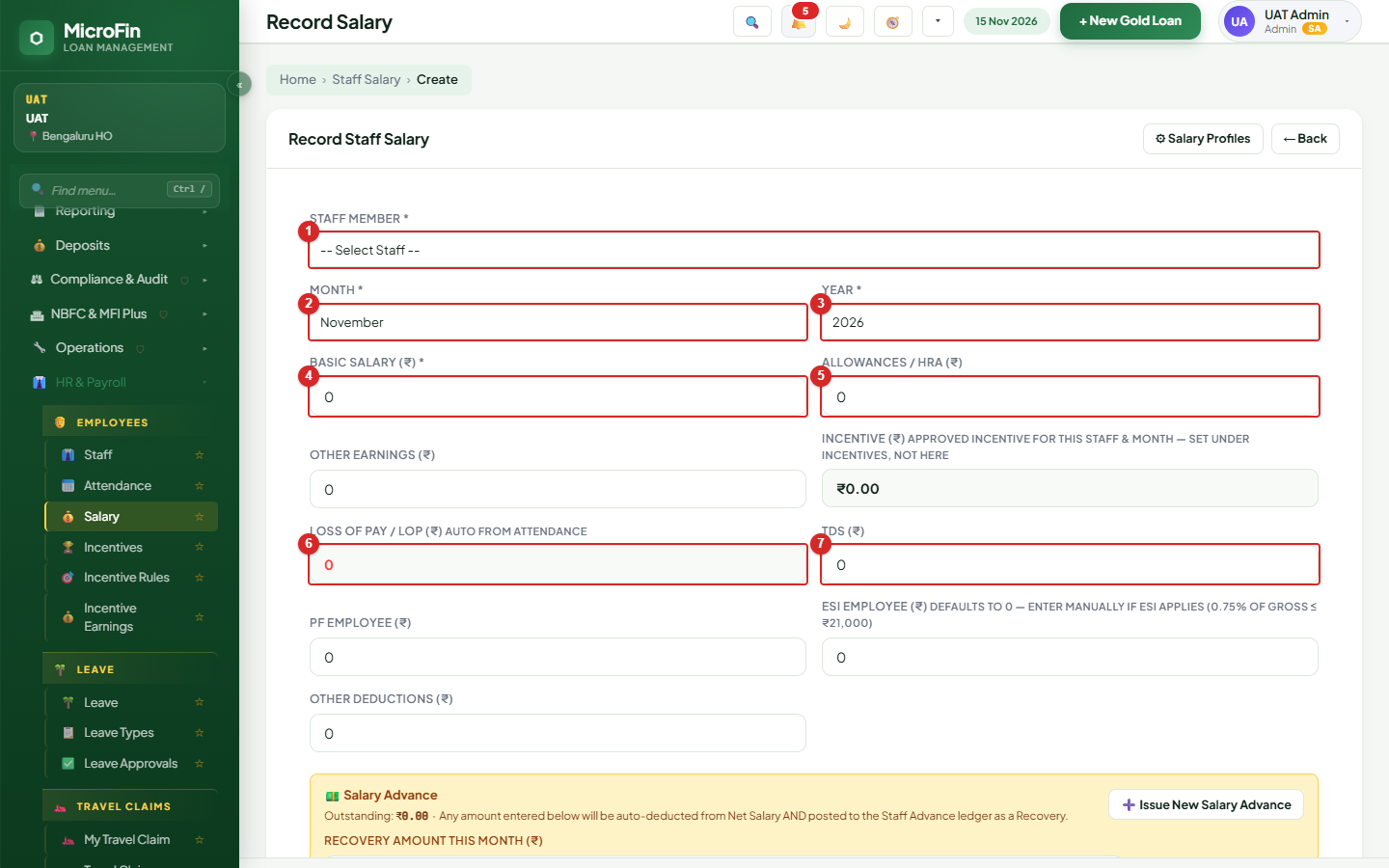
- Staff member
- Month
- Year
- Basic pay
- Allowances
- Loss of pay
- TDS
Reverse or delete a salary
- Reverse a Paid salary (Admin or SuperAdmin only): give a reason of at least 3 characters. It is refused if the staff member's branch has already locked the end of day for the payment date. The status goes back to Approved and the reversal is posted dated today.
- 🗑 Request delete on a Draft or Approved row sends a deletion request for approval with a mandatory reason; a Paid salary cannot be deleted.
Apply for and decide leave
- Staff open
HR & Payroll > Leave > Leave, click + Apply Leave, choose Leave Type, From Date, To Date, tick Half Day if needed, give a Reason (up to 500 characters) and click Submit Application. My Balance shows what is left. - The manager role opens Leave Approvals and approves or rejects. You cannot decide your own leave ("You cannot approve or reject your own leave — another approver must decide it.").
- Approved leave writes a "Leave" attendance entry for each day that has no entry yet.
- An applicant can Cancel a Pending leave; an Approved leave must be handled by HR.
- Admin: in Leave Types add types (Max Days/Year 1–365, Paid on/off) and click Seed Balances for the year so balances exist.
Incentives: legacy method
- Open
HR & Payroll > Employees > Incentives, choose the Gold or MFI tab, and click Calculate for a person, then Approve (only rows with a total above 0). - Set rates in ⚙ Config; see section 7 for the formula.
Incentives: rules engine
- Open
Incentive Rulesand create a rule (product MFI or Gold, who it pays, type, effective-from date). - Open
Incentive Earnings, choose Month, Year and Product, click Recalculate, review, then ✓ Approve the month. - Record Salary picks up only Approved incentive.
Travel claim
- The Admin switches the module on at
Travel Claim Rules(travel.Enabled) and sets rules per designation. - The staff member opens My Travel Claim, picks the month, and adds each day: Visit branch, Purpose, Bike / Bus / Train km and ₹, Food ₹, Visit details. The server prices each day.
- Click Submit for approval. The claim goes to the Approval Inbox. If returned, correct it and click Resubmit for approval.
- After approval, an accounts user opens Travel Claims Register, ticks Approved unpaid claims and pays them; a payment voucher is created for each.
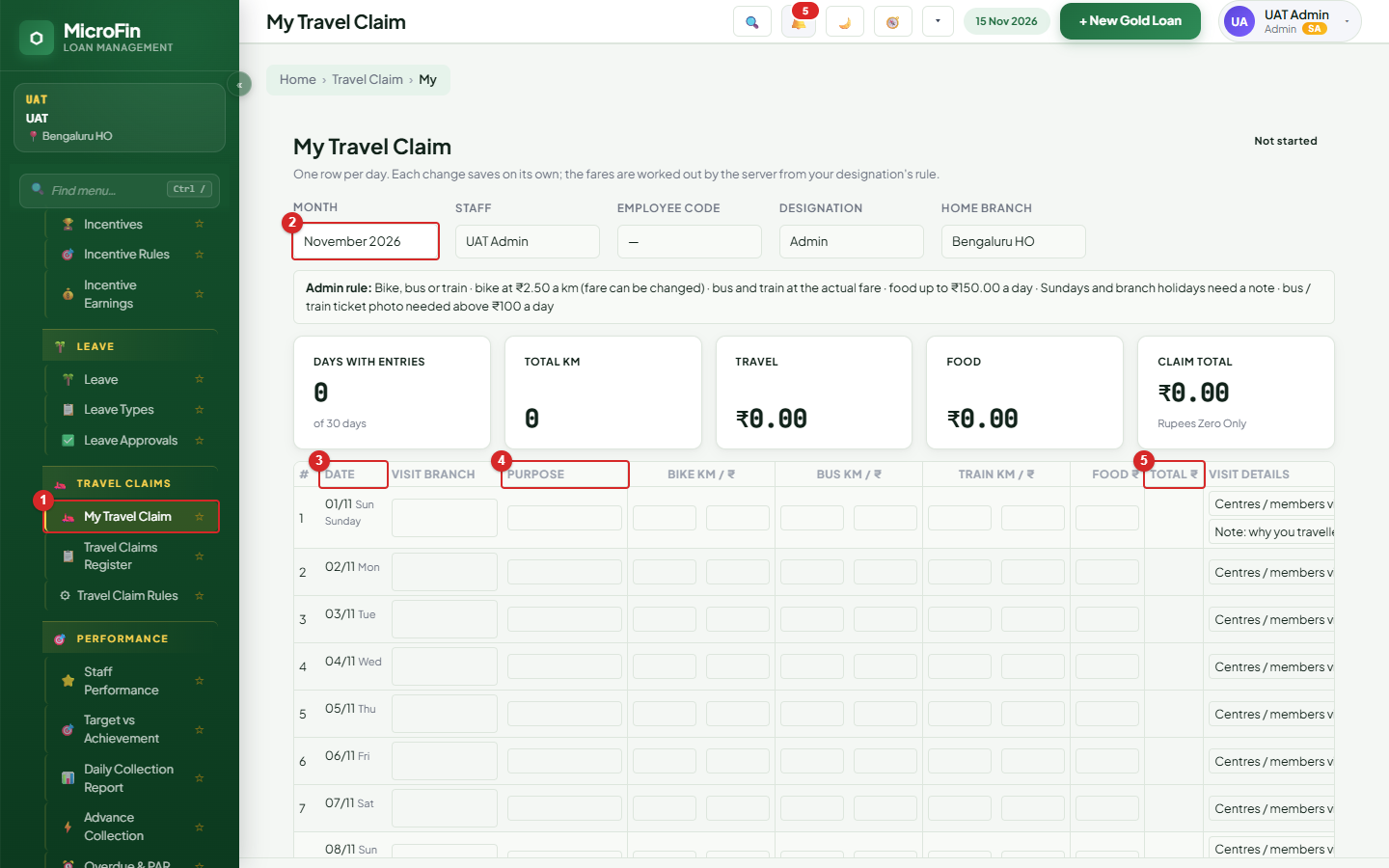
- HR & Payroll > Travel Claims > My Travel Claim
- Month of the claim
- Date of the visit
- Purpose of the visit
- Total for the day
Staff transfer and handover
- Staff Transfer: click + Request Transfer, choose staff, Transfer To Branch, Effective Date (default 7 days ahead), type (Permanent, Temporary, Deputation) and reason, then Submit Request. A reviewer opens Review, picks Approve or Reject, adds remarks and clicks Confirm.
- Staff Handover (permanent move of a person's work): choose From and To staff, mode Bulk (centres, MFI loans, gold loans, open collection targets, deactivate the From field-agent record) or Selective, then Preview the counts and Execute. It is permanent; there is no undo.
- Daily Coverage: record an absent person and the covering person for one date. This only affects who is credited with incentive.
Staff ID card
Open HR & Payroll > Documents > Staff ID Cards, tick staff, pick a colour and print front and back. Photo, blood group and emergency contact are entered on the user form.
5. Field explanation
| Field | Purpose | Required? | Expected input | Validation | Example |
|---|---|---|---|---|---|
| Monthly CTC (₹) | Total monthly cost; auto-splits the boxes | No | Rupees | Suggestion only; the server stores what you type | 18,000 |
| Standard Working Days / Month | Divisor for pay cut | No | 1–31 (default 26) | If 0, calendar days minus weekly offs are used | 26 |
| PF % of Basic (Employee) | Provident fund | No | Percent (default 12) | — | 12 |
| Staff Member / Month / Year | Whose salary | Yes | Pick | "Salary for m/yyyy already recorded." | Lakshmi Devi, 04/2027 |
| Basic Salary (₹) | Earned basic | Yes on the form | Rupees | Form-required | — |
| ESI Employee (₹) | ESI deduction | No | Rupees; default 0 | Never calculated for you | 0 |
| Recovery Amount this Month (₹) | Staff advance recovery | No | Rupees | Cannot exceed the outstanding advance | 500 |
| Payment Date / Mode / Pay From Account | Pay screen | Date and account yes | As labelled | Only Approved rows show Pay | — |
| Leave Type, From, To, Reason | Leave application | Yes | As labelled | "To-date cannot be before From-date."; "Insufficient leave balance." | Casual Leave |
| Max Days/Year | Leave quota | Yes | 1–365 (default 12) | — | 12 |
| Transfer To Branch, Effective Date | Transfer | Yes | Pick, date | — | — |
| Day, Purpose, Visit branch (travel) | Claim row | Yes when the day has money | As labelled | Today or earlier in the claim month | — |
6. Buttons and actions
| Button | What it does |
|---|---|
| Bulk Generate | Creates Draft salaries for all active staff without a record for the month |
| Approve / Pay | Approves a Draft; pays an Approved salary and posts cash and ledger entries |
| Reverse | Admin only; takes back a Paid salary with a reason |
| 🔄 Refresh from Attendance | Recalculates a Draft after attendance changes |
| Re-sync (incentive) | Updates a Draft or Approved salary to the current approved incentive; an Approved salary returns to Draft |
| Seed Balances | Creates yearly leave balances for the current year |
| Recalculate / ✓ Approve (Earnings) | Rebuilds Draft incentive for the month; approves it |
| Execute (Handover) | Moves the work permanently |
7. Business rules and validations
How a salary is worked out
- Full gross = Basic + HRA + Conveyance + Medical + Other Allowances from the profile.
- Unpaid days = Absent + half of each HalfDay + unpaid leave days + unpaid holiday days.
- Earned gross = Full gross − Full gross ÷ Standard days × Unpaid days. The cut is called LOP (loss of pay) and is shown on screen and on the payslip but is never subtracted a second time.
- PF = earned Basic × PF% ÷ 100. TDS is the fixed monthly figure from the profile. ESI is zero unless you type it.
- Gross = Basic + Allowances + Other Earnings + Incentive. Net = Gross − TDS − PF − ESI − Other Deductions − Advance Recovery.
- Incentive cannot be typed; it is the Approved incentive of that staff member and month.
Payslip: three layouts (Ribbon, Classic, Statement) chosen at Settings > Payslip for the whole company. Net pay in words appears on Statement only.
Attendance
Leave
Legacy incentive formula For each of disbursement, collection (principal collected) and interest (interest collected): without slabs, amount × its percentage (disbursement counts only if the month's disbursement reaches Min Disbursement to Qualify); with slabs, each tier's percentage applies to the part of the month's total inside that tier. Then Total = disbursement part + collection part + interest part − penalty, where penalty = number of overdue loans × the rupee figure in Penalty per Overdue Loan (₹). The total is never below 0. MFI counts loans where the staff member is the field agent and receipts they received or collected; Gold counts loans they handled and payments they received.
Rules engine
- Calculation types: flat per unit; percent of base (ticked Principal / Interest / Penalty); per unit above a count; percent above an amount; achievement ladder (the one band with the highest "reaches at least" floor that the achievement meets; Fixed pays its amount, Percent pays that percent of the amount collected); or a typed Formula.
- Achievement % = collected ÷ demand × 100 on the staff member's own loans for the month. Demand excludes arrears brought forward; collected counts principal and interest only. With no demand the ladder pays nothing. Ladders are MFI only.
- A collection is credited to the person who collected; if the counter collected, to the loan's field officer or that officer's Daily Coverage stand-in. Old-system migrated receipts earn nothing.
- The engine writes no cash or ledger entry; money moves only when the salary is paid.
Travel claims
- Bike = km × rate per km; bus and train = the fare typed; food = amount typed up to the daily cap; day total = bike + bus + train + food. A ticket photo is needed when a day's bus plus train fares exceed the set limit. The claim window opens on the last day of the month and closes on the set day of the next month.
- Statuses: Draft, In approval, Approved (then Paid or Unpaid), Rejected, or Returned for correction.
Staff transfer
Staff ID card
Documents: Offer, Appointment, Confirmation, Relieving, Experience and other letters are made from Letter Templates with ↺ Load Template. Relieving and Experience letters are refused while the staff member holds company assets. E-mail is blocked while a [Placeholder] remains.
8. Expected result
Each staff member has one salary per month, paid once, with a payslip; leave and attendance feed pay; approved incentive appears in the salary; claims are approved and paid by voucher; transfers and handovers move staff and work as planned.
9. Troubleshooting
| Message or problem | Likely cause | What to do |
|---|---|---|
| "Salary for m/yyyy already recorded." | A record exists for that month | Edit the Draft or reverse the Paid one |
| "Only Draft salaries can be edited." | Row is Approved or Paid | Use Re-sync (Approved) or Reverse (Paid, Admin) |
| "⚠ drift" and Pay is blocked | Incentive changed after the salary was saved | Click Re-sync, approve again, then Pay |
| Bulk Generate row with zero basic | No salary profile | Set the profile, then delete the Draft and record again |
| "Insufficient leave balance." | Balance row is lower than the days asked | Ask the Admin to adjust leave types or balances |
| No balance check on leave | Balances not seeded | Admin clicks Seed Balances |
| "Attendance can only be marked during the allowed window…" | Time-window rule on | Mark within the window or ask an Admin |
| "Travel claims are switched off for this company." | travel.Enabled is off | Admin switches it on at Travel Claim Rules |
| Staff transfer approved but branch unchanged | Effective date is in the future | Re-do the move on the effective date |
11. Related modules
- Previous chapter: users, roles and Settings (Payslip layout, Accounting Policy attendance rules).
- Approval Inbox: travel claims and salary deletion requests are decided there.
- Collections and loans: incentive measures come from disbursements and collections.
- Finance: salary payments appear in the cash book and ledger.
மனிதவளமும் ஊதியமும்
HR, சம்பளம், ஊக்கத்தொகை, ஊழியர் செயல்பாடுகள்
1. அறிமுகம்
இந்த அத்தியாயம் HR & Payroll பக்கப்பட்டியல் குழுவை விளக்குகிறது: சம்பள விவரம் (Salary Profile), மாதச் சம்பளம், சம்பளச் சீட்டு (payslip), வருகைப் பதிவு, விடுப்பு, ஊக்கத்தொகை, பயணப்படி கோரிக்கை, ஊழியர் அடையாள அட்டை, ஊழியரை அல்லது அவர் பணியைக் கிளைகளுக்கிடையே மாற்றுதல்.
வழக்கமான மாத நடைமுறை: வருகையைப் பதிவு செய்தல், ஊக்கத்தொகைக்கு ஒப்புதல் அளித்தல், சம்பளத்தை Draft ஆக உருவாக்குதல் அல்லது பதிவு செய்தல், அதற்கு ஒப்புதல் அளித்தல், செலுத்துதல்; பின்னர் சம்பளச் சீட்டு அனுப்பப்படும்.
2. வழிசெலுத்தல்
- ஊழியர், சம்பள விவரம்:
HR & Payroll > Employees > Staff. - சம்பளம்:
HR & Payroll > Employees > Salary. வருகை:HR & Payroll > Employees > Attendance. - ஊக்கத்தொகை:
HR & Payroll > Employees > Incentives(பழைய சதவீத முறை),Incentive Rules,Incentive Earnings(விதி இயந்திரம் — rules engine). - விடுப்பு:
HR & Payroll > Leave > Leave,Leave Approvals,Leave Types. - பயணப்படி:
HR & Payroll > Travel Claims > My Travel Claim,Travel Claims Register,Travel Claim Rules. - செயல்பாடுகள்:
HR & Payroll > Operations > Staff Transfer,Staff Handover,Daily Coverage. - ஆவணங்கள்:
HR & Payroll > Documents > Documents,Letter Templates,Staff ID Cards. - சம்பளச் சீட்டு வடிவம்:
Settings > General Settings > Quick Links > Payslip.
- மனிதவளம் & ஊதியம் > பணியாளர்கள் > ஊழியர்
- ஊழியர்
- பதவி
- மாதச் செலவு (CTC)
3. தொடங்குவதற்கு முன்
- HR & Payroll குழு முழுவதும், நிறுவன மேலாண்மை உரிமை (CanManageCompany) உள்ள பணிப்பொறுப்புகளுக்கு மட்டுமே தெரியும். சம்பளத்துக்கு உங்கள் plan-இல் PAYROLL வசதியும் வேண்டும்; இல்லையெனில் மேம்படுத்தல் (upgrade) பக்கத்துக்கு அனுப்பப்படுவீர்கள்.
- வருகை பதிவு, ஊக்கத்தொகை, Daily Coverage-க்கு சம்பள உரிமை (CanManagePayroll) வேண்டும். Staff Handover, Staff ID Cards-க்கு பயனர் மேலாண்மை உரிமை (CanManageUsers); Travel Claim Rules-க்கு அமைப்பு உரிமை (CanManageSettings); கோரிக்கையைச் செலுத்த வவுச்சர் உரிமை (CanAccessVouchers).
- ஒவ்வொரு ஊழியருக்கும் உள்நுழைவும் (முந்தைய அத்தியாயத்தைப் பார்க்கவும்) சம்பள விவரமும் (Salary Profile) தேவை.
- வாராந்திர விடுமுறை நாட்கள், நேர வரம்பு, முகம்/GPS விதிகளை Admin அமைப்பார் (Attendance திரை மற்றும் Accounting Policy).
4. படிப்படியான வழிமுறைகள்
சம்பள விவரம் அமைத்தல்
HR & Payroll > Employees > Staffதிறந்து நபரின் Edit அழுத்தவும்.- விருப்பமாக Monthly CTC (₹) உள்ளிடவும்; திரை ஒரு பிரிப்பைப் பரிந்துரைக்கும்: Basic = CTC-யில் 50%, HRA = Basic-இல் 40%, Conveyance ₹1,600, Medical ₹1,250, மீதி Other Allowances. எந்தப் பெட்டியின் மதிப்பையும் நீங்கள் மாற்றி உள்ளிடலாம்.
- PF % of Basic (Employee) (இயல்பு 12), TDS per Month (₹), Standard Working Days / Month (இயல்பு 26), Leave days counted as paid, Holiday days counted as paid தேர்வுகளைச் சரிபார்க்கவும்.
- 💾 Save Profile அழுத்தவும். Gross + நிறுவனப் பங்கு PF (employer PF), CTC-யிலிருந்து ₹1 அல்லது அதற்கு மேல் வேறுபட்டால் மஞ்சள் எச்சரிக்கை வரும்.
- அடிப்படைச் சம்பளம்
- HRA மற்றும் படிகள்
- சம்பளத்துக்குத் திரும்பு
- Excel பதிவிறக்கம்
வருகை பதிவு
HR & Payroll > Employees > Attendanceதிறக்கவும்.- நபரின் நாள் கட்டத்தை அழுத்தி Present, Absent, HalfDay, Leave அல்லது Holiday தேர்வு செய்யவும்; In Time, Out Time, குறிப்பு விருப்பம். மீண்டும் குறித்தால் முந்தையது மாறும்.
- Weekly Off Days-ஐ Admin இதே திரையில் அமைப்பார் (எதுவும் இல்லையெனில் ஞாயிறு).
மாதச் சம்பளம்
- அந்த மாத வருகைப் பதிவு முழுமையாக உள்ளதையும், அந்த மாத ஊக்கத்தொகைக்கு ஒப்புதல் அளிக்கப்பட்டுள்ளதையும் உறுதி செய்யவும்.
HR & Payroll > Employees > Salaryதிறக்கவும். பலருக்கு Bulk Generate (Draft வரிசைகள்; ஒரு முறைக்கு 2,000 வரை; அந்த மாதம் ஏற்கெனவே உள்ளவர்கள் தவிர்க்கப்படுவர்); ஒருவருக்கு + Add Record.- Record Staff Salary-இல் Staff Member, Month, Year தேர்வு செய்யவும். விவரமும் வருகையும் (Present, Absent, Half Day, Leave, Holiday, Std. Days) தானாக நிரம்பும். Basic Salary, Allowances / HRA, Other Earnings, TDS, PF Employee, ESI Employee (பொருந்தினால் கைமுறையாக உள்ளிடவும்), Other Deductions, Recovery Amount this Month (ஊழியர் முன்பணம்) சரிபார்க்கவும்.
- 💾 Save as Draft அழுத்தவும். Draft மட்டுமே திருத்தலாம்.
- Draft-ஐ Approve செய்து, Approved வரிசையில் Pay அழுத்தவும். Payment Date, Payment Mode (Cash, Bank Transfer, UPI, Cheque, NEFT, RTGS), Pay From Account (உங்கள் கிளையின் பணம் அல்லது வங்கிக் கணக்கு) உள்ளிடவும்; reference, குறிப்பு ஆகியவை விருப்பம்.
- சம்பளம் Paid ஆகும்; ஊக்கத்தொகை வரிசைகளும் Paid எனக் குறிக்கப்படும்; சம்பளச் சீட்டு மின்னஞ்சலும் SMS/WhatsApp செய்தியும் அனுப்ப முயற்சிக்கப்படும். மீண்டும் அனுப்ப ✉ Re-send பயன்படுத்தவும்.
- ஊழியர்
- மாதம்
- ஆண்டு
- அடிப்படைச் சம்பளம்
- படிகள்
- சம்பள இழப்பு
- TDS
சம்பளத்தைத் திருப்பிக் கழித்தல் (Reverse) அல்லது நீக்குதல்
- Paid சம்பளத்தை Reverse செய்ய (Admin அல்லது SuperAdmin மட்டும்): குறைந்தது 3 எழுத்துகள் கொண்ட காரணம் தரவும். செலுத்திய தேதிக்கு ஊழியரின் கிளையில் நாள் முடிவு (EOD) ஏற்கெனவே பூட்டப்பட்டிருந்தால் மறுக்கப்படும். நிலை Approved-க்குத் திரும்பும்; திருப்பிக் கழித்தல் பதிவு இன்றைய தேதியில் பதிவாகும்.
- Draft அல்லது Approved வரிசையில் 🗑 Request delete: கட்டாயக் காரணத்துடன் நீக்கக் கோரிக்கை ஒப்புதலுக்குச் செல்லும்; Paid சம்பளத்தை நீக்க முடியாது.
விடுப்பு விண்ணப்பமும் முடிவும்
- ஊழியர்
HR & Payroll > Leave > Leaveதிறந்து + Apply Leave அழுத்தி Leave Type, From Date, To Date, தேவையெனில் Half Day, Reason (500 எழுத்து வரை) நிரப்பி Submit Application அழுத்தவும். My Balance மீதியைக் காட்டும். - மேலாளர் பணிப்பொறுப்பில் உள்ளவர் Leave Approvals திறந்து ஒப்புதல் அளிப்பார் அல்லது நிராகரிப்பார். உங்கள் சொந்த விடுப்பை நீங்களே முடிவு செய்ய முடியாது ("You cannot approve or reject your own leave — another approver must decide it.").
- ஒப்புதல் பெற்ற விடுப்பு, இன்னும் பதிவு இல்லாத ஒவ்வொரு நாளுக்கும் "Leave" வருகைப் பதிவை எழுதும்.
- விண்ணப்பித்தவர் Pending விடுப்பை Cancel செய்யலாம்; Approved விடுப்பை HR-தான் கையாள வேண்டும்.
- Admin: Leave Types-இல் வகைகளைச் சேர்க்கவும் (Max Days/Year 1–365, Paid On/Off); ஆண்டுக்கான இருப்பு உருவாக Seed Balances அழுத்தவும்.
ஊக்கத்தொகை: பழைய முறை
HR & Payroll > Employees > Incentivesதிறந்து, Gold அல்லது MFI தாவலைத் தேர்வு செய்து, நபருக்கு Calculate, பிறகு Approve அழுத்தவும் (மொத்தம் 0-க்கு மேல் உள்ள வரிசைகளுக்கு மட்டும்).- விகிதங்களை ⚙ Config-இல் அமைக்கவும்; சூத்திரத்துக்குப் பிரிவு 7-ஐப் பார்க்கவும்.
ஊக்கத்தொகை: விதி இயந்திரம்
Incentive Rules-இல் விதி உருவாக்கவும் (தயாரிப்பு MFI/Gold, யாருக்கு, வகை, செயல்படும் தேதி).Incentive Earnings-இல் Month, Year, Product தேர்வு செய்து Recalculate, சரிபார்த்து, மாதத்தை ✓ Approve செய்யவும்.- Record Salary, Approved ஊக்கத்தொகையை மட்டுமே எடுக்கும்.
பயணப்படி கோரிக்கை
Travel Claim Rules-இல் Admin travel.Enabled-ஐ இயக்கி, பதவிவாரி விதிகளை அமைப்பார்.- ஊழியர் My Travel Claim-இல் மாதம் தேர்ந்து, ஒவ்வொரு நாளையும் சேர்ப்பார்: Visit branch, Purpose, Bike / Bus / Train km மற்றும் ₹, Food ₹, Visit details. நாளின் தொகையைச் சேவையகம் கணக்கிடும்.
- Submit for approval அழுத்தவும்; கோரிக்கை Approval Inbox-க்குச் செல்லும். திருப்பி அனுப்பப்பட்டால் திருத்தி Resubmit for approval.
- ஒப்புதலுக்குப் பிறகு கணக்குப் பிரிவுப் பயனர் Travel Claims Register திறந்து, Approved நிலையில் உள்ள, இன்னும் செலுத்தப்படாத கோரிக்கைகளைக் குறித்துச் செலுத்துவார்; ஒவ்வொன்றுக்கும் ஒரு செலுத்தல் வவுச்சர் உருவாகும்.
- மனிதவளம் & ஊதியம் > பயணக் கோரிக்கைகள் > என் பயணக் கோரிக்கை
- கோரிக்கை மாதம்
- பயணத் தேதி
- பயண நோக்கம்
- அன்றைய மொத்தம்
ஊழியர் இடமாற்றமும் பொறுப்பு ஒப்படைப்பும்
- Staff Transfer: + Request Transfer அழுத்தி ஊழியர், Transfer To Branch, Effective Date (இயல்பாக இன்றிலிருந்து 7 நாட்கள் கழித்து), வகை (Permanent, Temporary, Deputation), காரணம் நிரப்பி Submit Request. மதிப்பாய்வாளர் Review திறந்து Approve/Reject தேர்ந்து, குறிப்புடன் Confirm.
- Staff Handover (ஒருவர் பணியை நிரந்தரமாக மாற்ற): From, To ஊழியர்கள், முறை Bulk (மையங்கள், MFI கடன்கள், தங்கக் கடன்கள், திறந்த வசூல் இலக்குகள், From நபரின் field-agent பதிவை முடக்குதல்) அல்லது Selective; Preview-இல் எண்ணிக்கை பார்த்து Execute. இது நிரந்தரம்; இதைத் திரும்ப மாற்ற முடியாது.
- Daily Coverage: ஒரு தேதிக்கு, வராத நபரையும் அவருக்குப் பதிலாகப் பணி செய்பவரையும் பதிவு செய்யவும். இது ஊக்கத்தொகை யாருக்கு என்பதை மட்டுமே பாதிக்கும்.
ஊழியர் அடையாள அட்டை
HR & Payroll > Documents > Staff ID Cards திறந்து ஊழியர்களைக் குறித்து, நிறம் தேர்ந்து, முன்-பின் பக்கங்களை அச்சிடவும். புகைப்படம், இரத்த வகை, அவசரத் தொடர்பு எண் ஆகியவை பயனர் படிவத்தில் உள்ளிடப்படும்.
5. புல விளக்கம்
| புலம் | நோக்கம் | கட்டாயமா? | உள்ளீடு | சரிபார்ப்பு | எடுத்துக்காட்டு |
|---|---|---|---|---|---|
| Monthly CTC (₹) | மாதச் செலவு; பெட்டிகளைப் பிரிக்கும் | இல்லை | ரூபாய் | ஆலோசனை மட்டும்; நீங்கள் தட்டச்சியதே சேமிக்கப்படும் | 18,000 |
| Standard Working Days / Month | சம்பளக் குறைப்புக்கான வகுத்தி | இல்லை | 1–31 (இயல்பு 26) | 0 எனில் மாத நாட்கள் − வார விடுமுறை | 26 |
| PF % of Basic (Employee) | வருங்கால வைப்பு நிதி | இல்லை | சதவீதம் (இயல்பு 12) | — | 12 |
| Staff Member / Month / Year | யாருக்கு | ஆம் | தேர்வு | "Salary for m/yyyy already recorded." | Lakshmi Devi, 04/2027 |
| Basic Salary (₹) | ஈட்டிய அடிப்படை | படிவத்தில் ஆம் | ரூபாய் | படிவம் கோரும் | — |
| ESI Employee (₹) | ESI பிடித்தம் | இல்லை | ரூபாய்; இயல்பு 0 | தானாகக் கணக்கிடப்படாது | 0 |
| Recovery Amount this Month (₹) | முன்பணம் பிடித்தம் | இல்லை | ரூபாய் | நிலுவை முன்பணத்தை மீறக்கூடாது | 500 |
| Payment Date / Mode / Pay From Account | செலுத்தும் திரை | தேதி, கணக்கு ஆம் | குறித்தபடி | Approved வரிசையில் மட்டுமே Pay | — |
| Leave Type, From, To, Reason | விடுப்பு விண்ணப்பம் | ஆம் | குறித்தபடி | "To-date cannot be before From-date."; "Insufficient leave balance." | Casual Leave |
| Max Days/Year | விடுப்பு ஒதுக்கீடு | ஆம் | 1–365 (இயல்பு 12) | — | 12 |
| Transfer To Branch, Effective Date | இடமாற்றம் | ஆம் | தேர்வு, தேதி | — | — |
| Day, Purpose, Visit branch (பயணம்) | கோரிக்கை வரிசை | நாளில் தொகை இருந்தால் ஆம் | குறித்தபடி | கோரிக்கை மாதத்தில் இன்று அல்லது முன் | — |
6. பொத்தான்களும் செயல்களும்
| பொத்தான் | செயல் |
|---|---|
| Bulk Generate | அந்த மாதம் பதிவு இல்லாத எல்லா செயலில் உள்ள ஊழியர்களுக்கும் Draft சம்பளம் உருவாக்கும் |
| Approve / Pay | Draft-க்கு ஒப்புதல் அளிக்கும்; Approved சம்பளத்தைச் செலுத்தி, பணம் மற்றும் பேரேட்டுப் பதிவுகளை இடும் |
| Reverse | Admin மட்டும்; காரணத்துடன் Paid சம்பளத்தைத் திரும்பப் பெறும் |
| 🔄 Refresh from Attendance | வருகை மாறிய பின் Draft-ஐ மீண்டும் கணக்கிடும் |
| Re-sync (incentive) | Draft அல்லது Approved சம்பளத்தை, தற்போது ஒப்புதல் பெற்றுள்ள ஊக்கத்தொகைக்கு ஏற்பப் புதுப்பிக்கும்; Approved சம்பளம் மீண்டும் Draft ஆகும் |
| Seed Balances | நடப்பு ஆண்டுக்கான விடுப்பு இருப்பை உருவாக்கும் |
| Recalculate / ✓ Approve (Earnings) | அந்த மாதத்தின் Draft ஊக்கத்தொகையை மீண்டும் கணக்கிட்டு உருவாக்கும்; அதற்கு ஒப்புதல் அளிக்கும் |
| Execute (Handover) | பணியை நிரந்தரமாக மாற்றும் |
7. வணிக விதிகளும் சரிபார்ப்புகளும்
சம்பளம் எப்படிக் கணக்கிடப்படுகிறது
- முழு மொத்தச் சம்பளம் (Full gross) = சம்பள விவரத்திலுள்ள Basic + HRA + Conveyance + Medical + Other Allowances.
- சம்பளமில்லா நாட்கள் = Absent + HalfDay-இன் பாதி + சம்பளமற்ற விடுப்பு நாட்கள் + சம்பளமற்ற விடுமுறை நாட்கள்.
- ஈட்டிய மொத்தச் சம்பளம் (Earned gross) = முழு மொத்தச் சம்பளம் − (முழு மொத்தச் சம்பளம் ÷ Standard days × சம்பளமில்லா நாட்கள்). இந்தக் குறைப்புதான் சம்பளமில்லா நாள் குறைப்பு (LOP — Loss of Pay); அது திரையிலும் சம்பளச் சீட்டிலும் காட்டப்படும்; ஆனால் இரண்டாம் முறை ஒருபோதும் கழிக்கப்படாது.
- PF = ஈட்டிய Basic × PF% ÷ 100. TDS = விவரத்தில் உள்ள மாதாந்திர நிலையான தொகை. ESI நீங்கள் உள்ளிடாவிட்டால் 0.
- Gross = Basic + Allowances + Other Earnings + Incentive. Net = Gross − TDS − PF − ESI − Other Deductions − Advance Recovery.
- Incentive-ஐத் தட்டச்சு செய்ய முடியாது; அது அந்த ஊழியரின் அந்த மாத Approved ஊக்கத்தொகையே.
சம்பளச் சீட்டு: Ribbon, Classic, Statement என மூன்று வடிவங்கள்; Settings > Payslip-இல் நிறுவனம் முழுவதற்கும் தேர்வு. நிகரத் தொகை எழுத்தில் Statement-இல் மட்டும்.
வருகை
விடுப்பு
பழைய ஊக்கத்தொகை சூத்திரம் வழங்கல், வசூலான அசல், வசூலான வட்டி ஆகிய மூன்றுக்கும்: அடுக்குகள் இல்லையெனில் தொகை × அதன் சதவீதம் (மாத வழங்கல் Min Disbursement to Qualify-ஐ எட்டினால் மட்டுமே வழங்கல் பகுதி); அடுக்குகள் இருந்தால் மாத மொத்தத்தில் ஒவ்வொரு அடுக்குக்குள் வரும் பகுதிக்கு அந்த அடுக்கின் சதவீதம். பிறகு மொத்தம் = வழங்கல் பகுதி + வசூல் பகுதி + வட்டிப் பகுதி − அபராதம்; அபராதம் = நிலுவைக் கடன்களின் எண்ணிக்கை × Penalty per Overdue Loan (₹) ரூபாய். மொத்தம் 0-க்குக் கீழ் போகாது. MFI-இல், அந்த ஊழியர் field agent ஆக உள்ள கடன்களும் அவர் பெற்ற அல்லது வசூலித்த ரசீதுகளும்; Gold-இல் அவர் கையாண்ட கடன்களும் பெற்ற பணங்களும் எண்ணப்படும்.
விதி இயந்திரம்
- கணக்கீட்டு வகைகள்: ஓர் அலகுக்கு நிலையான தொகை; அடிப்படையின் சதவீதம் (குறித்த Principal / Interest / Penalty); எண்ணிக்கைக்கு மேல் ஓர் அலகுக்கு; தொகைக்கு மேல் சதவீதம்; சாதனை படிக்கட்டு (ladder) (சாதனை எட்டியுள்ள அடுக்குகளில், மிக உயர்ந்த "reaches at least" கீழ்வரம்பு கொண்ட ஒரே அடுக்கு மட்டும்; Fixed அதன் தொகையை வழங்கும், Percent வசூலான தொகையில் அந்தச் சதவீதத்தை வழங்கும்); அல்லது தட்டச்சு செய்த Formula.
- சாதனை % = வசூல் ÷ தேவை × 100, ஊழியரின் சொந்தக் கடன்களுக்கு அந்த மாதம். தேவையில் முந்தைய நிலுவை சேராது; வசூலில் அசலும் வட்டியும் மட்டும். தேவை இல்லையெனில் ladder எதுவும் வழங்காது. Ladder MFI-க்கு மட்டும்.
- வசூல், வசூலித்தவருக்கு வரவு; கவுண்டரில் வசூலித்தால் கடனின் களப்பணி அலுவலருக்கு (field officer) அல்லது அவருக்கான Daily Coverage மாற்றுப் பணியாளருக்கு. பழைய முறைமையிலிருந்து மாற்றிய ரசீதுகளுக்கு ஊக்கத்தொகை இல்லை.
- இயந்திரம் பணம் அல்லது பேரேட்டுப் பதிவு எழுதாது; சம்பளம் செலுத்தும்போதுதான் பணம் நகரும்.
பயணப்படி
- Bike = km × ஒரு km-க்கான விகிதம்; Bus, Train = தட்டச்சு செய்த கட்டணம்; Food = தட்டச்சு செய்த தொகை (நாள் உச்ச வரம்பு வரை); நாள் மொத்தம் = Bike + Bus + Train + Food. ஒரு நாளின் Bus + Train கட்டணம் அமைக்கப்பட்ட வரம்பை மீறினால் டிக்கெட் புகைப்படம் தேவை. கோரிக்கைக் காலம் (claim window) மாதத்தின் கடைசி நாளில் திறந்து, அடுத்த மாதத்தின் அமைக்கப்பட்ட நாளில் மூடும்.
- நிலைகள்: Draft, In approval, Approved (பின் Paid அல்லது Unpaid), Rejected, அல்லது Returned for correction (திருத்தத்துக்குத் திருப்பப்பட்டது).
ஊழியர் இடமாற்றம்
ஊழியர் அடையாள அட்டை
ஆவணங்கள்: Offer, Appointment, Confirmation, Relieving, Experience மற்றும் பிற கடிதங்கள் Letter Templates-இலிருந்து ↺ Load Template மூலம் உருவாகும். நிறுவனச் சொத்து ஊழியரிடம் இருந்தால் Relieving, Experience கடிதங்கள் மறுக்கப்படும். [Placeholder] மீதமிருந்தால் மின்னஞ்சல் தடுக்கப்படும்.
8. எதிர்பார்க்கும் முடிவு
ஒவ்வொரு ஊழியருக்கும் மாதம் ஒரு சம்பளம், ஒரு முறை செலுத்தல், சம்பளச் சீட்டுடன்; விடுப்பும் வருகையும் சம்பளத்தில் பிரதிபலிக்கும்; ஒப்புதல் பெற்ற ஊக்கத்தொகை சம்பளத்தில் சேரும்; பயணப்படி கோரிக்கைகள் ஒப்புதல் பெற்று வவுச்சர் மூலம் செலுத்தப்படும்; இடமாற்றம், பொறுப்பு ஒப்படைப்பு திட்டப்படி நடக்கும்.
9. சிக்கல் தீர்வு
| செய்தி / சிக்கல் | சாத்தியமான காரணம் | செய்ய வேண்டியது |
|---|---|---|
| "Salary for m/yyyy already recorded." | அந்த மாதம் பதிவு உள்ளது | Draft-ஐத் திருத்தவும் அல்லது Paid சம்பளத்தைத் திருப்பிக் கழிக்கவும் (Reverse) |
| "Only Draft salaries can be edited." | வரிசை Approved அல்லது Paid | Re-sync (Approved) அல்லது Reverse (Paid, Admin) |
| "⚠ drift", Pay தடுக்கப்பட்டது | சம்பளம் சேமித்த பின் ஊக்கத்தொகை மாறியது | Re-sync, மீண்டும் Approve, பிறகு Pay |
| Bulk Generate-இல் Basic 0 | Salary Profile இல்லை | விவரம் அமைத்து, Draft-ஐ நீக்கி மீண்டும் பதியவும் |
| "Insufficient leave balance." | இருப்பு கேட்ட நாட்களை விடக் குறைவு | விடுப்பு வகைகளை அல்லது இருப்பைச் சரிசெய்யுமாறு Admin-இடம் கேளுங்கள் |
| விடுப்பில் இருப்புச் சோதனை இல்லை | இருப்பு உருவாக்கப்படவில்லை | Admin Seed Balances அழுத்தவும் |
| "Attendance can only be marked during the allowed window…" | நேர வரம்பு விதி இயக்கத்தில் | வரம்புக்குள் பதியவும் அல்லது Admin-ஐக் கேளுங்கள் |
| "Travel claims are switched off for this company." | travel.Enabled அணைப்பு | Admin Travel Claim Rules-இல் இயக்கவும் |
| இடமாற்றத்துக்கு ஒப்புதல் கிடைத்தும் கிளை மாறவில்லை | செயல்படும் தேதி எதிர்காலம் | அந்தத் தேதியில் மீண்டும் மாற்றவும் |
10. தமிழ் விளக்கம்
இந்த அத்தியாயத்தின் முழுத் தமிழ் வடிவம் இதுவே. ஆங்கிலப் பகுதியில் மேலே உள்ள அதே பிரிவுகள் (1–9, 11) இங்கு தமிழில் தரப்பட்டுள்ளன.
11. தொடர்புடைய தொகுதிகள்
- முந்தைய அத்தியாயம்: பயனர்கள், பணிப்பொறுப்புகள், அமைப்புகள் (Payslip வடிவம், Accounting Policy-இல் உள்ள வருகை விதிகள்).
- Approval Inbox: பயணப்படி, சம்பள நீக்கக் கோரிக்கைகள் அங்கே முடிவு செய்யப்படும்.
- வசூலும் கடன்களும்: ஊக்கத்தொகை அளவீடுகள் வழங்கல், வசூலிலிருந்து வரும்.
- நிதி: சம்பளச் செலுத்தல்கள் பணப் புத்தகத்திலும் பேரேட்டிலும் தெரியும்.