End of Day
End of Day (EOD): closing the day
1. Overview
End of Day (EOD) is the daily close of a branch. Each working day the branch counts its cash, checks its bank balances, clears pending work, and then presses Lock EOD. Locking proves that the day's money, receipts and postings agree and freezes that day so nobody can change it quietly afterwards.
This chapter covers the EOD screen and its cards, the cash count, the bank tally, what blocks a lock, how a locked day is unlocked, what happens when a branch misses a day (the entry block and reopen requests), the reminders, and, in one short section, which Compliance and Audit screens are real calculations and which are not.
2. Navigation
- EOD history and Lock:
Operations > Day Close > EOD Closure, then + Lock Today. The same screen opens from the EOD panel on the dashboard and from the strip that appears above every page when your branch is overdue ("Open EOD →"). - Print: 🖨 Print EOD on the Lock screen and on each history row ("EOD Statement").
- Reopen requests:
Operations > Day Close > EOD Reopen Requests. - Settings that control EOD (Admin):
Settings > EOD Work Settings. - Compliance screens:
Compliance & AuditandNBFC & MFI Plus > Capital & Risk(see section 7).
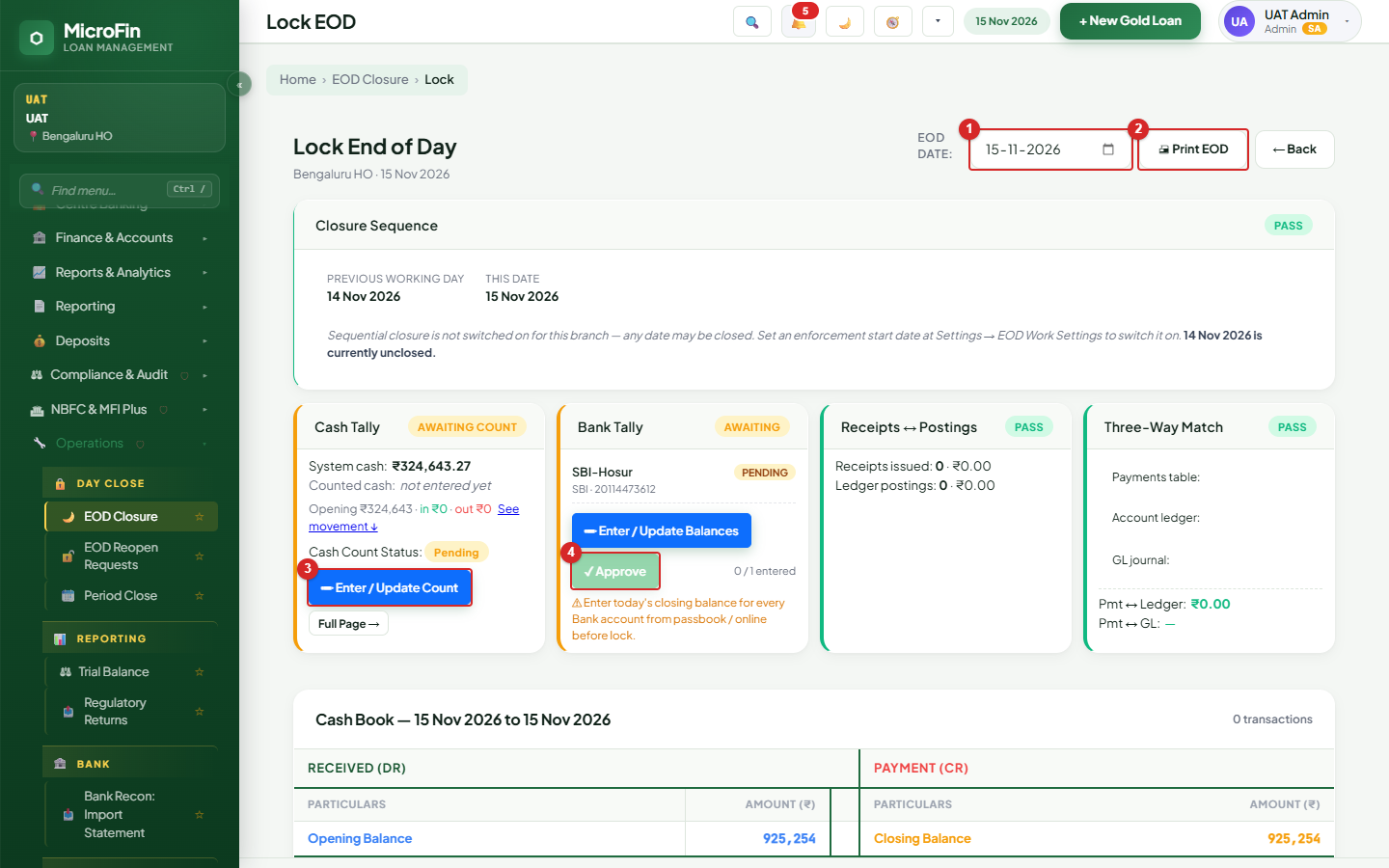
- Day to close
- Print EOD
- Enter or update the cash count
- Approve
3. Before you start
- Menu access: the Operations menu group appears only for roles with the company-management right (usually Admin and managers). If you cannot see it, ask your Admin.
- Branch: a branch user always works on their own branch. A head-office (HO) user picks the branch at the top of the Lock screen.
- Finish the day's entries first. Post all receipts, vouchers and collections for the day, approve waiting collections (see the approvals chapter) and have the cash drawer ready to count.
- Earlier days first. If your company has "closure sequence" on, earlier required days must be locked before today.
- Bank passbook balances of every bank account you use, as at the end of the day.
4. Step-by-step instructions
Close the day (Lock EOD)
- Open
Operations > Day Close > EOD Closureand click + Lock Today. HO users choose the Branch first. The EOD date is today, or the oldest day still owed when sequencing is on. - Read the cards. Each shows a badge: PASS, FAIL, AWAITING COUNT, AWAITING, N/A, APPROVED, BLOCKED, AWAITING ENTRY or NOT COMPUTED. Cards marked optional do not block the lock.
- Cash Tally. Click ✏ Enter / Update Count. For each denomination (notes ₹500, ₹200, ₹100, ₹50, ₹20, ₹10, coins ₹20, ₹10, ₹5, ₹2, ₹1; ₹2000 notes appear only if already counted) enter the quantity. Amounts and the variance against the system balance calculate as you type. Add a note if useful. Click 💾 Save Count, then ✓ Approve on the card. An Admin or Manager may use ✓ Save & Approve to do both at once.
- Bank Tally. Click ✏ Enter / Update Balances, type the Actual Passbook ₹ for each bank account and click 💾 Submit Balances for Approval. If a variance is ₹1 or more, click ⚡ Quick Adjust to post a correcting entry (see below). When the variances are under ₹1, a user with the company-management right clicks ✓ Approve.
- Clear everything in Pending Work: draft vouchers, vouchers awaiting approval, collection sheets still in Draft or waiting for approval, pre-closures still Pending, and repledge batches still Initiated.
- Fix any FAIL in Receipts ↔ Postings, Three-Way Match or Cross-Day Continuity.
- Type optional Notes ("Any remarks for tonight's lock") under Confirm EOD Lock.
- The button reads Lock EOD when nothing blocks. If it reads "Cannot Lock — N check(s) failing", the list "Still blocking this lock:" tells you what is left.
- Click Lock EOD. The day shows Locked.
Post a bank correction (Quick Adjust)
- On the Bank Tally card click ⚡ Quick Adjust.
- Choose the direction (In or Out), the Bank Account, the Amount ₹ and the head (Income / Source Head or Expense Head), and type a Narration. All are required.
- Save, then re-enter the bank balances if needed.
Unlock a locked day
- On the EOD Closure history, find the Locked day. An Admin clicks Request Unlock and types a reason of at least 5 characters.
- The status becomes UnlockRequested. The head-office Admins, Auditors and Compliance staff are told by SMS.
- An approver clicks Approve (with an optional approval note) and confirms "This REOPENS a locked day for editing. The action is logged against your name." The status becomes Unlocked and you can correct the day.
- Lock the day again from the Lock screen when done.
If your branch missed a day (entry block)
- If a required earlier day was never locked and your company has the block switched on, your next save is refused and you are taken to Entries are blocked.
- Under Ask an Admin to reopen, type why the day was not closed ("Why was the EOD for dd MMM yyyy not closed?") and click Send reopen request.
- An Admin opens
Operations > Day Close > EOD Reopen Requestsand clicks ✓ Approve or ✕ Reject (rejection needs a note, which the branch reads). - After approval the branch has a time-limited pass. Use Open EOD for dd MMM ›, enter whatever is missing for that day and lock it. Locking lifts the block at once.
- The raiser can click Withdraw while the request is pending.
5. Field explanation
| Field | Purpose | Required? | Expected input | Validation | Example |
|---|---|---|---|---|---|
| Branch | Which branch is being closed | Yes | HO picks; branch user is fixed | Active branch | Main Branch |
| EOD date | The day being closed | Yes | Date | Not in the future; earlier required days must be locked first | Today |
| Denomination quantities | Physical cash counted | Yes (blank = 0) | Whole numbers | Total = sum of quantity × value | 12 × ₹500 |
| Count notes | Remark about the count | No | Text | — | "Bundle of 100s short by 1" |
| Actual Passbook ₹ | Real bank balance | Yes, per bank account | Amount | Variance against expected must be under ₹1 to approve | 125000.00 |
| Quick Adjust: Bank Account / Amount ₹ / Narration / Head | Corrects a bank difference | Yes | As labelled | Amount above zero; "Pick an Account Head."; "Narration is required for an audit trail." | — |
| Notes (Lock) | Remarks for the lock | No | Text | — | "Cash short ₹10, explained" |
| Reason (Request Unlock) | Why the day must reopen | Yes | At least 5 characters | "Unlock reason must be at least 5 characters." | "Wrong receipt date" |
| Approval note | Remark on unlock | No | Text | — | — |
| Reopen reason | Why the day was missed | Yes | 5 to 500 characters | "Give a reason of at least 5 characters — the Admin decides on it." | "Power cut, branch closed" |
| Reject note (reopen) | Why a reopen was refused | Yes on reject | 5 to 500 characters | "Say why it is rejected (at least 5 characters) — the branch reads it." | — |
6. Buttons and actions
| Button | What it does |
|---|---|
| + Lock Today | Opens the Lock screen for today (or the oldest day owed). |
| ✏ Enter / Update Count, 💾 Save Count | Records the cash count (status Submitted). |
| ✓ Approve (cash card) | Approves the count. |
| ✓ Save & Approve | Saves and approves in one step (Admin or Manager). The screen warns "there is no second pair of eyes after this." |
| ✏ Enter / Update Balances, 💾 Submit Balances for Approval | Records bank passbook balances. |
| ⚡ Quick Adjust | Posts a correcting bank entry. |
| ✓ Approve (bank card) | Approves the bank tally ("This locks today's bank tally. It cannot be edited afterwards."). |
| Lock EOD | Locks the day when nothing blocks. |
| 🖨 Print EOD | Prints the EOD Statement: Cash Book for the day, cash and bank balances and the denomination sheet. |
| Request Unlock / Approve | Unlock workflow for a locked day. |
| Send reopen request / ✓ Approve / ✕ Reject / Withdraw | The missed-day workflow. |
7. Business rules and validations
The checks
| Check | What it tests | Blocks the lock by default? |
|---|---|---|
| Previous working day closed (Closure Sequence) | Earlier required days are locked | Always |
| Cash Tally | Counted cash equals system cash within ₹1, and the count is Approved | Yes |
| Bank Tally | Every bank account within ₹1; balances entered (approval is not needed to lock) | Yes |
| Receipts ↔ Postings | Receipts and their cash postings agree within ₹1 | Yes |
| Three-Way Match | Payments, ledger and general ledger agree within ₹1 (an empty general-ledger leg passes) | Yes |
| Pending Work | No draft vouchers, unapproved vouchers or collection sheets, pending pre-closures, or initiated repledge batches | Yes |
| Cross-Day Continuity | No ledger account drifts by ₹1 or more from yesterday's closing | Yes |
| Staff Attendance | Attendance recorded | No (optional) |
| Entered = Cash Book | Entered totals equal the Cash Book | No (optional) |
| Cash Movement, Cash Book cards | Information only | Never |
Settings > EOD Work Settings (setting eod.MandatoryChecks). The table shows the defaults. "Previous working day closed" is always mandatory.Compliance and audit screens: what is real
These are not part of the daily close, but they appear in the Compliance & Audit group. This is what the audited version does.
8. Expected result
After Lock EOD the day shows Locked in the history with who locked it and when, the next day becomes the branch's working day, and the EOD statement can be printed. After an approved unlock the day shows Unlocked and can be corrected and locked again. After an approved reopen the branch can enter and lock the missed day, and the block disappears.
9. Troubleshooting
| Message or problem | Likely cause | What to do |
|---|---|---|
| "Cannot Lock — N check(s) failing" | A mandatory check is red | Open "Still blocking this lock:" and fix each item. |
| Cash Tally is AWAITING COUNT | No count, or the count is not approved | Enter the count, save and approve it. |
| "N account(s) have variance > ₹1. Resolve via Quick Adjust before approving." | Passbook and system balance differ | Find the difference, or post ⚡ Quick Adjust. |
| "Nothing to approve. Submit bank balances first." | Balances not submitted | Submit balances, then approve. |
| "No balances entered." | Empty submit | Type the passbook balance of each account. |
| "Previous working day EOD (<date>) has not been closed…" | An earlier day is still open | Lock the earlier day first. |
| "<date> is in the future…" | Future date | Lock only up to today. |
| Pending Work lists items | Drafts or waiting approvals | Complete, approve or cancel them. |
| "Unlock reason must be at least 5 characters." | Reason too short | Write a fuller reason. |
| "Only a Locked closure can have an unlock requested." | Day is not locked | Nothing to unlock. |
| "Entries are blocked" page | A required day was not locked | Send a reopen request; the Admin approves. |
| "A reopen request (#n) is already waiting for an Admin." | Duplicate | Wait for the Admin. |
| "You raised this request, so someone else must approve it." | Same person | Ask another Admin (Admin or SuperAdmin may approve their own). |
| "<Branch> is working on <date> — the EOD for that day is not locked yet…" | Branch working date is on | Enter the allowed date, or lock the earlier day. |
| "<Branch>: the EOD for <today> is already locked…" | Day already closed | Request an unlock to correct today. |
| Operations menu is missing | Role lacks the company-management right | Ask your Admin. |
10. தமிழ் விளக்கம்
இந்த அத்தியாயத்தின் முழுத் தமிழ் வடிவம் கீழே உள்ளது.
11. Related modules
- Approvals (chapter 80): collections and vouchers waiting for approval show up as Pending Work.
- Cash Book and Day Book: the EOD Statement uses the same figures.
- Collection chapters: collections must be posted and approved before the day can lock.
- Settings > EOD Work Settings: weekly and monthly off days, start date (anchor), mandatory checks, entry block, reopen window, working-date rule, deadline and reminders.
நாள் முடிவு
நாள் முடிவு (EOD): நாளை முடித்தல்
1. அறிமுகம்
நாள் முடிவு (EOD) என்பது ஒரு கிளையின் தினசரி முடிப்பு. ஒவ்வொரு வேலை நாளிலும் கிளை பணத்தை எண்ணி, வங்கி இருப்புகளைச் சரிபார்த்து, நிலுவையில் உள்ள வேலைகளை முடித்து, Lock EOD அழுத்தும். பூட்டுவதால், அந்த நாளின் பணம், ரசீதுகள், பதிவுகள் ஒன்றுக்கொன்று பொருந்துவது உறுதியாகிறது; அதன் பிறகு யாரும் சத்தமில்லாமல் மாற்ற முடியாதபடி அந்த நாள் முடக்கப்படுகிறது.
இந்த அத்தியாயம் EOD திரை, அதன் அட்டைகள், பணம் எண்ணுதல், வங்கி ஒப்பீடு, எது பூட்டுதலைத் தடுக்கும், பூட்டிய நாளை எப்படித் திறப்பது, ஒரு கிளை ஒரு நாளைத் தவறவிட்டால் என்ன நடக்கும் (பதிவுத் தடை, மீண்டும் திறக்கும் கோரிக்கைகள்), நினைவூட்டல்கள் ஆகியவற்றை விளக்குகிறது. மேலும், Compliance & Audit திரைகளில் எவை உண்மையான கணக்கீடுகள், எவை இல்லை என்பதை ஒரு சிறு பிரிவில் சொல்கிறது.
2. வழிசெலுத்தல்
- EOD வரலாறு மற்றும் Lock:
Operations > Day Close > EOD Closure, பின் + Lock Today. டாஷ்போர்டின் EOD பலகத்திலிருந்தும், கிளை தாமதமானால் ஒவ்வொரு பக்கத்தின் மேலும் தோன்றும் பட்டையிலிருந்தும் ("Open EOD →") இதே திரை திறக்கும். - அச்சு: Lock திரையிலும் வரலாற்று வரிசைகளிலும் 🖨 Print EOD ("EOD Statement").
- மீண்டும் திறக்கும் கோரிக்கைகள்:
Operations > Day Close > EOD Reopen Requests. - EOD-ஐக் கட்டுப்படுத்தும் அமைப்புகள் (Admin):
Settings > EOD Work Settings. - இணக்கத் திரைகள்:
Compliance & Auditமற்றும்NBFC & MFI Plus > Capital & Risk(பிரிவு 7).
- முடிக்க வேண்டிய நாள்
- EOD அச்சிடு
- ரொக்க எண்ணிக்கை பதிவு/புதுப்பி
- ஒப்புதல்
3. தொடங்குவதற்கு முன்
- மெனு அணுகல்: Operations மெனு குழு, நிறுவன-மேலாண்மை உரிமை உள்ள பணிப்பொறுப்புகளுக்கு (பொதுவாக Admin, மேலாளர்கள்) மட்டுமே தெரியும். தெரியாவிட்டால் Admin-ஐக் கேளுங்கள்.
- கிளை: கிளைப் பயனர் எப்போதும் தம் கிளையிலேயே பணிபுரிவார். தலைமை அலுவலக (HO) பயனர் Lock திரையின் மேலே கிளையைத் தேர்வு செய்வார்.
- அன்றைய பதிவுகளை முதலில் முடியுங்கள். எல்லா ரசீதுகள், வவுச்சர்கள், வசூல்களையும் பதிவு செய்யுங்கள்; காத்திருக்கும் வசூல்களுக்கு ஒப்புதல் அளியுங்கள் (ஒப்புதல்கள் அத்தியாயத்தைப் பார்க்கவும்); எண்ணுவதற்குப் பணப்பெட்டியைத் தயாராக வைத்திருங்கள்.
- முந்தைய நாட்கள் முதலில். "closure sequence" இயக்கத்தில் இருந்தால், இன்றைய நாளைப் பூட்டும் முன் தேவையான முந்தைய நாட்கள் பூட்டப்பட்டிருக்க வேண்டும்.
- நீங்கள் பயன்படுத்தும் ஒவ்வொரு வங்கிக் கணக்கின், நாள் முடிவில் உள்ள வங்கி பாஸ்புக் இருப்பு.
4. படிப்படியான வழிமுறைகள்
நாளை முடிக்க (Lock EOD)
Operations > Day Close > EOD Closureதிறந்து + Lock Today சொடுக்குங்கள். HO பயனர்கள் முதலில் Branch தேர்ந்தெடுக்க வேண்டும். EOD date இன்றைய தேதி; அல்லது sequencing இயக்கத்தில் இருந்தால், இன்னும் முடிக்கப்படாத மிகப் பழைய நாள்.- அட்டைகளைப் படியுங்கள். ஒவ்வொன்றிலும் ஒரு நிலைக்குறி (badge) இருக்கும்: PASS, FAIL, AWAITING COUNT, AWAITING, N/A, APPROVED, BLOCKED, AWAITING ENTRY, NOT COMPUTED. optional எனக் குறிக்கப்பட்ட அட்டைகள் பூட்டுதலைத் தடுக்காது.
- Cash Tally. ✏ Enter / Update Count சொடுக்குங்கள். ஒவ்வொரு மதிப்புக்கும் (நோட்டுகள் ₹500, ₹200, ₹100, ₹50, ₹20, ₹10, நாணயங்கள் ₹20, ₹10, ₹5, ₹2, ₹1; ₹2000 நோட்டு ஏற்கெனவே எண்ணப்பட்டிருந்தால் மட்டும் தெரியும்) எண்ணிக்கையை உள்ளிடுங்கள். தட்டச்சு செய்யும்போதே தொகைகளும், கணினி இருப்புடனான வேறுபாடும் கணக்கிடப்படும். தேவைப்பட்டால் குறிப்பு எழுதுங்கள். 💾 Save Count சொடுக்கி, பின் அட்டையில் ✓ Approve சொடுக்குங்கள். Admin அல்லது Manager ✓ Save & Approve மூலம் இரண்டையும் ஒரே படியில் செய்யலாம்.
- Bank Tally. ✏ Enter / Update Balances சொடுக்கி, ஒவ்வொரு வங்கிக் கணக்குக்கும் Actual Passbook ₹ உள்ளிட்டு 💾 Submit Balances for Approval சொடுக்குங்கள். வேறுபாடு ₹1 அல்லது அதற்கு மேல் இருந்தால் ⚡ Quick Adjust மூலம் திருத்தப் பதிவு இடுங்கள் (கீழே பார்க்கவும்). வேறுபாடுகள் ₹1-க்குக் கீழ் இருக்கும்போது, நிறுவன-மேலாண்மை உரிமை உள்ள பயனர் ✓ Approve சொடுக்குவார்.
- Pending Work-இல் உள்ள அனைத்தையும் முடியுங்கள்: வரைவு வவுச்சர்கள், ஒப்புதலுக்காகக் காத்திருக்கும் வவுச்சர்கள், Draft நிலையில் அல்லது ஒப்புதலுக்காகக் காத்திருக்கும் வசூல் தாள்கள், இன்னும் Pending ஆக உள்ள முன்கூட்டிய முடிப்புகள், Initiated நிலையில் உள்ள மறு அடமானத் தொகுதிகள்.
- Receipts ↔ Postings, Three-Way Match, Cross-Day Continuity-இல் ஏதேனும் FAIL இருந்தால் சரிசெய்யுங்கள்.
- Confirm EOD Lock கீழ், விரும்பினால் Notes எழுதலாம் ("Any remarks for tonight's lock").
- எதுவும் தடுக்காதபோது பொத்தான் Lock EOD எனக் காட்டும். "Cannot Lock — N check(s) failing" எனக் காட்டினால், "Still blocking this lock:" பட்டியல் மீதமுள்ளவற்றைச் சொல்லும்.
- Lock EOD சொடுக்குங்கள். நாள் Locked எனத் தெரியும்.
வங்கித் திருத்தம் இட (Quick Adjust)
- Bank Tally அட்டையில் ⚡ Quick Adjust சொடுக்குங்கள்.
- திசையை (In அல்லது Out), Bank Account, Amount ₹, தலைப்பை (Income / Source Head அல்லது Expense Head) தேர்ந்தெடுத்து Narration எழுதுங்கள். அனைத்தும் கட்டாயம்.
- சேமித்து, தேவைப்பட்டால் வங்கி இருப்புகளை மீண்டும் உள்ளிடுங்கள்.
பூட்டிய நாளைத் திறக்க
- EOD Closure வரலாற்றில் Locked நாளைக் கண்டுபிடியுங்கள். Admin Request Unlock சொடுக்கி குறைந்தது 5 எழுத்துகள் கொண்ட காரணத்தை எழுதுவார்.
- நிலை UnlockRequested ஆகும். தலைமை அலுவலக Admin, தணிக்கையாளர், இணக்கப் பணியாளர்களுக்கு SMS செல்லும்.
- அங்கீகாரி Approve சொடுக்குவார் (விரும்பினால் ஒப்புதல் குறிப்புடன்); "This REOPENS a locked day for editing. The action is logged against your name." என்பதை உறுதிசெய்வார். நிலை Unlocked ஆகும்; நாளைத் திருத்தலாம்.
- திருத்தி முடிந்ததும் Lock திரையிலிருந்து அந்த நாளை மீண்டும் பூட்டுங்கள்.
உங்கள் கிளை ஒரு நாளைத் தவறவிட்டால் (பதிவுத் தடை)
- தேவையான முந்தைய நாள் பூட்டப்படாமல் இருந்து, நிறுவனத்தில் தடை இயக்கப்பட்டிருந்தால், நீங்கள் அடுத்து சேமிக்க முயலும்போது அது மறுக்கப்பட்டு, Entries are blocked பக்கத்துக்கு அனுப்பப்படுவீர்கள்.
- Ask an Admin to reopen கீழ், நாள் ஏன் முடிக்கப்படவில்லை என எழுதி ("Why was the EOD for dd MMM yyyy not closed?") Send reopen request சொடுக்குங்கள்.
- Admin
Operations > Day Close > EOD Reopen Requestsதிறந்து ✓ Approve அல்லது ✕ Reject சொடுக்குவார் (நிராகரிக்கும்போது குறிப்பு தேவை; அதைக் கிளை படிக்கும்). - ஒப்புதலுக்குப் பின் கிளைக்குக் குறிப்பிட்ட நேரம் மட்டும் செல்லும் அனுமதி (pass) கிடைக்கும். Open EOD for dd MMM › பயன்படுத்தி அந்த நாளுக்கு விடுபட்டவற்றை உள்ளிட்டுப் பூட்டுங்கள். பூட்டியவுடன் தடை நீங்கும்.
- கோரிக்கை நிலுவையில் (pending) இருக்கும்போது, அதை எழுப்பியவர் Withdraw சொடுக்கலாம்.
5. புலங்களின் விளக்கம்
| புலம் | நோக்கம் | கட்டாயமா? | எதிர்பார்க்கும் உள்ளீடு | சரிபார்ப்பு | எடுத்துக்காட்டு |
|---|---|---|---|---|---|
| Branch | எந்தக் கிளை முடிக்கப்படுகிறது | ஆம் | HO பயனர் தேர்வு செய்வார்; கிளைப் பயனருக்கு மாற்ற முடியாது | செயலில் உள்ள கிளை | Main Branch |
| EOD date | முடிக்கப்படும் நாள் | ஆம் | தேதி | எதிர்காலத் தேதி கூடாது; தேவையான முந்தைய நாட்கள் முதலில் பூட்டப்பட வேண்டும் | இன்று |
| மதிப்புவாரி எண்ணிக்கை | கையில் எண்ணிய பணம் | ஆம் (காலி = 0) | முழு எண்கள் | மொத்தம் = (எண்ணிக்கை × மதிப்பு) ஆகியவற்றின் கூட்டுத்தொகை | 12 × ₹500 |
| எண்ணிக்கைக் குறிப்பு | பணம் எண்ணியது பற்றிய குறிப்பு | இல்லை | உரை | — | "Bundle of 100s short by 1" |
| Actual Passbook ₹ | உண்மையான வங்கி இருப்பு | ஆம், ஒவ்வொரு வங்கிக் கணக்குக்கும் | தொகை | ஒப்புதல் அளிக்க, எதிர்பார்த்த இருப்புடன் வேறுபாடு ₹1-க்குக் கீழ் இருக்க வேண்டும் | 125000.00 |
| Quick Adjust: Bank Account / Amount ₹ / Narration / Head | வங்கி வேறுபாட்டைத் திருத்தும் | ஆம் | புலத்தின் பெயர்ப்படி | தொகை பூஜ்யத்துக்கு மேல்; "Pick an Account Head."; "Narration is required for an audit trail." | — |
| Notes (Lock) | பூட்டுதல் குறிப்புகள் | இல்லை | உரை | — | "Cash short ₹10, explained" |
| Reason (Request Unlock) | நாளை ஏன் திறக்க வேண்டும் | ஆம் | குறைந்தது 5 எழுத்துகள் | "Unlock reason must be at least 5 characters." | "Wrong receipt date" |
| Approval note | திறப்பு பற்றிய குறிப்பு | இல்லை | உரை | — | — |
| Reopen reason | நாள் ஏன் தவறவிடப்பட்டது | ஆம் | 5 முதல் 500 எழுத்துகள் | "Give a reason of at least 5 characters — the Admin decides on it." | "Power cut, branch closed" |
| Reject note (reopen) | மீண்டும் திறக்கும் கோரிக்கை ஏன் நிராகரிக்கப்பட்டது | நிராகரிக்கும்போது ஆம் | 5 முதல் 500 எழுத்துகள் | "Say why it is rejected (at least 5 characters) — the branch reads it." | — |
6. பொத்தான்களும் செயல்களும்
| பொத்தான் | செய்வது |
|---|---|
| + Lock Today | இன்றைய (அல்லது முடிக்கப்படாத மிகப் பழைய) நாளுக்கான Lock திரையைத் திறக்கும். |
| ✏ Enter / Update Count, 💾 Save Count | எண்ணிய பணத்தைப் பதிவு செய்யும் (நிலை Submitted). |
| ✓ Approve (பணம் அட்டை) | எண்ணிக்கைக்கு ஒப்புதல் அளிக்கும். |
| ✓ Save & Approve | ஒரே படியில் சேமித்து ஒப்புதல் அளிக்கும் (Admin அல்லது Manager). "there is no second pair of eyes after this." என்று திரை எச்சரிக்கும். |
| ✏ Enter / Update Balances, 💾 Submit Balances for Approval | வங்கி பாஸ்புக் இருப்புகளைப் பதிவு செய்யும். |
| ⚡ Quick Adjust | வங்கித் திருத்தப் பதிவை இடும். |
| ✓ Approve (வங்கி அட்டை) | வங்கி ஒப்பீட்டுக்கு ஒப்புதல் அளிக்கும் ("This locks today's bank tally. It cannot be edited afterwards."). |
| Lock EOD | எதுவும் தடுக்காதபோது நாளைப் பூட்டும். |
| 🖨 Print EOD | EOD Statement அச்சிடும்: அன்றைய Cash Book, பண மற்றும் வங்கி இருப்புகள், மதிப்புவாரித் தாள் (denomination sheet). |
| Request Unlock / Approve | பூட்டிய நாளுக்கான திறப்பு நடைமுறை. |
| Send reopen request / ✓ Approve / ✕ Reject / Withdraw | தவறவிட்ட நாளுக்கான நடைமுறை. |
7. வணிக விதிகளும் சரிபார்ப்புகளும்
சரிபார்ப்புகள்
| சரிபார்ப்பு | எதைச் சோதிக்கிறது | இயல்பாகப் பூட்டுதலைத் தடுக்குமா? |
|---|---|---|
| Previous working day closed (Closure Sequence) | முந்தைய தேவையான நாட்கள் பூட்டப்பட்டுள்ளன | எப்போதும் |
| Cash Tally | எண்ணிய பணம் கணினிப் பணத்துடன் ₹1-க்குள் பொருந்தும்; எண்ணிக்கை Approved | ஆம் |
| Bank Tally | ஒவ்வொரு வங்கிக் கணக்கும் ₹1-க்குள்; இருப்புகள் உள்ளிடப்பட்டுள்ளன (பூட்ட ஒப்புதல் தேவையில்லை) | ஆம் |
| Receipts ↔ Postings | ரசீதுகளும் அவற்றின் பணப் பதிவுகளும் ₹1-க்குள் பொருந்தும் | ஆம் |
| Three-Way Match | செலுத்தல்கள், பேரேடு, பொதுப் பேரேடு ₹1-க்குள் பொருந்தும் (பொதுப் பேரேட்டுப் பகுதி காலியாக இருந்தால் தேர்ச்சி) | ஆம் |
| Pending Work | வரைவு வவுச்சர்கள், ஒப்புதல் பெறாத வவுச்சர்கள் அல்லது வசூல் தாள்கள், Pending முன்கூட்டிய முடிப்புகள், Initiated மறு அடமானத் தொகுதிகள் எதுவும் இல்லை | ஆம் |
| Cross-Day Continuity | எந்தப் பேரேட்டுக் கணக்கும் நேற்றைய இறுதி இருப்பிலிருந்து ₹1 அல்லது அதற்கு மேல் விலகவில்லை | ஆம் |
| Staff Attendance | வருகை பதிவாகியுள்ளது | இல்லை (optional) |
| Entered = Cash Book | உள்ளிட்ட மொத்தம் Cash Book-உடன் பொருந்தும் | இல்லை (optional) |
| Cash Movement, Cash Book அட்டைகள் | தகவல் மட்டும் | ஒருபோதும் இல்லை |
Settings > EOD Work Settings-இல் (அமைப்பு eod.MandatoryChecks) தேர்ந்தெடுப்பார். அட்டவணை இயல்பு நிலையைக் காட்டுகிறது. "Previous working day closed" எப்போதும் கட்டாயம்.இணக்க, தணிக்கைத் திரைகள்: எவை உண்மை
இவை தினசரி முடிப்பின் பகுதி அல்ல; ஆனால் Compliance & Audit குழுவில் உள்ளன. ஆய்வு செய்யப்பட்ட பதிப்பு செய்வது இதுதான்.
8. எதிர்பார்க்கும் முடிவு
Lock EOD-க்குப் பிறகு வரலாற்றில் நாள் Locked எனவும் யார், எப்போது பூட்டினார் எனவும் தெரியும்; அடுத்த நாள் கிளையின் வேலை நாளாகும்; EOD அறிக்கையை அச்சிடலாம். ஒப்புதல் பெற்ற unlock-க்குப் பின் நாள் Unlocked எனத் தெரியும்; அதைத் திருத்தி மீண்டும் பூட்டலாம். ஒப்புதல் பெற்ற reopen-க்குப் பின் கிளை தவறவிட்ட நாளின் பதிவுகளை உள்ளிட்டுப் பூட்டலாம்; தடை நீங்கும்.
9. சிக்கல் தீர்வு
| செய்தி அல்லது சிக்கல் | சாத்தியமான காரணம் | செய்ய வேண்டியது |
|---|---|---|
| "Cannot Lock — N check(s) failing" | ஒரு கட்டாயச் சரிபார்ப்பு சிவப்பில் உள்ளது | "Still blocking this lock:" பட்டியலைத் திறந்து ஒவ்வொன்றையும் சரிசெய்யுங்கள். |
| Cash Tally AWAITING COUNT எனக் காட்டுகிறது | பணம் எண்ணப்படவில்லை, அல்லது எண்ணிக்கைக்கு ஒப்புதல் இல்லை | எண்ணிக்கையை உள்ளிட்டுச் சேமித்து ஒப்புதல் அளியுங்கள். |
| "N account(s) have variance > ₹1. Resolve via Quick Adjust before approving." | பாஸ்புக்கும் கணினி இருப்பும் வேறுபடுகின்றன | வேறுபாட்டைக் கண்டறியுங்கள்; அல்லது ⚡ Quick Adjust இடுங்கள். |
| "Nothing to approve. Submit bank balances first." | இருப்புகள் சமர்ப்பிக்கப்படவில்லை | இருப்புகளைச் சமர்ப்பித்து, பின் ஒப்புதல் அளியுங்கள். |
| "No balances entered." | எதுவும் உள்ளிடாமல் சமர்ப்பித்தது | ஒவ்வொரு கணக்கின் பாஸ்புக் இருப்பையும் உள்ளிடுங்கள். |
| "Previous working day EOD (<date>) has not been closed…" | முந்தைய நாள் இன்னும் பூட்டப்படவில்லை | முந்தைய நாளை முதலில் பூட்டுங்கள். |
| "<date> is in the future…" | எதிர்காலத் தேதி | இன்று வரை மட்டுமே பூட்டலாம். |
| Pending Work உருப்படிகளைக் காட்டுகிறது | வரைவுகள் அல்லது ஒப்புதலுக்காகக் காத்திருப்பவை | அவற்றை முடியுங்கள், ஒப்புதல் அளியுங்கள் அல்லது ரத்து செய்யுங்கள். |
| "Unlock reason must be at least 5 characters." | காரணம் மிகச் சுருக்கமாக உள்ளது | விரிவாக எழுதுங்கள். |
| "Only a Locked closure can have an unlock requested." | நாள் பூட்டப்படவில்லை | திறக்க எதுவும் இல்லை. |
| "Entries are blocked" பக்கம் | தேவையான நாள் பூட்டப்படவில்லை | reopen கோரிக்கை அனுப்புங்கள்; Admin ஒப்புதல் அளிப்பார். |
| "A reopen request (#n) is already waiting for an Admin." | நகல் கோரிக்கை | Admin-க்காகக் காத்திருங்கள். |
| "You raised this request, so someone else must approve it." | ஒரே நபர் | வேறொரு Admin-ஐக் கேளுங்கள் (Admin அல்லது SuperAdmin தம் சொந்தக் கோரிக்கைக்கு ஒப்புதல் அளிக்கலாம்). |
| "<Branch> is working on <date> — the EOD for that day is not locked yet…" | கிளையின் வேலை நாள் தேதி விதி இயக்கத்தில் உள்ளது | அனுமதிக்கப்பட்ட தேதியை இடுங்கள்; அல்லது முந்தைய நாளைப் பூட்டுங்கள். |
| "<Branch>: the EOD for <today> is already locked…" | நாள் ஏற்கெனவே முடிக்கப்பட்டது | இன்றைய நாளைத் திருத்த unlock கோருங்கள். |
| Operations மெனு இல்லை | பணிப்பொறுப்புக்கு நிறுவன-மேலாண்மை உரிமை இல்லை | Admin-ஐக் கேளுங்கள். |
10. தமிழ் விளக்கம்
இந்த அத்தியாயத்தின் முழுத் தமிழ் வடிவம் இதுவே. ஆங்கிலப் பகுதியின் அதே பிரிவுகள் (1–9, 11) இங்கு தமிழில் தரப்பட்டுள்ளன; திரைப் பெயர்கள், பொத்தான்கள், செய்திகள் ஆங்கிலத்திலேயே உள்ளன.
11. தொடர்புடைய தொகுதிகள்
- ஒப்புதல்கள் (அத்தியாயம் 80): ஒப்புதலுக்காகக் காத்திருக்கும் வசூல்களும் வவுச்சர்களும் Pending Work-இல் தெரியும்.
- Cash Book, Day Book: EOD அறிக்கை அதே எண்களைப் பயன்படுத்தும்.
- வசூல் அத்தியாயங்கள்: நாளைப் பூட்டும் முன் வசூல்கள் பதிவாகி ஒப்புதல் பெற்றிருக்க வேண்டும்.
- Settings > EOD Work Settings: வாராந்திர/மாதாந்திர விடுமுறை, தொடக்கத் தேதி (anchor), கட்டாயச் சரிபார்ப்புகள், பதிவுத் தடை, reopen கால அளவு, வேலை நாள் தேதி விதி, காலக்கெடு, நினைவூட்டல்கள்.