Collection Reports
Collection reports and monitors
1. Overview
Besides the Collection Sheet (chapter 30), DCR (chapter 34) and DCB (chapter 35), MicroFin has several screens that show how collection is going. This chapter explains the ones the audit verified, and says what each one counts, because the same word means different things on different screens.
| Screen | Question it answers | Menu |
|---|---|---|
| Daily Collection Summary | What came in today, by branch, staff and product? | Dashboard > Daily Collection Summary |
| Live Monitor | How is today's collection going right now? | Dashboard > Live Monitor |
| Collection Progress | Demand against collection for a day (FTD) or week (WTD) | Dashboard > Collection Progress |
| Collection Variance | Did a day's figures change after the day was frozen? | Dashboard > Collection Variance |
| Demand Monitoring | How many loans does each officer handle on each weekday? | Dashboard > Demand Monitoring |
| Overdue Tracking | Which overdue loans paid something today? | Collections > Collection Entry > Overdue Tracking |
| Pending Collection | Which instalments are still unpaid? | Reports & Analytics > Collection > Pending Collection |
| Branch / Agent / Centre Performance | How are branches, field officers and centres doing? | Reports & Analytics > Collection |
These are all read-only. They post nothing and change nothing. Correct a figure by correcting the underlying receipt (chapter 31) and running the report again.
2. Navigation
See the table above. Reports under Reports & Analytics > Collection and the screens under Dashboard are separate menu groups.
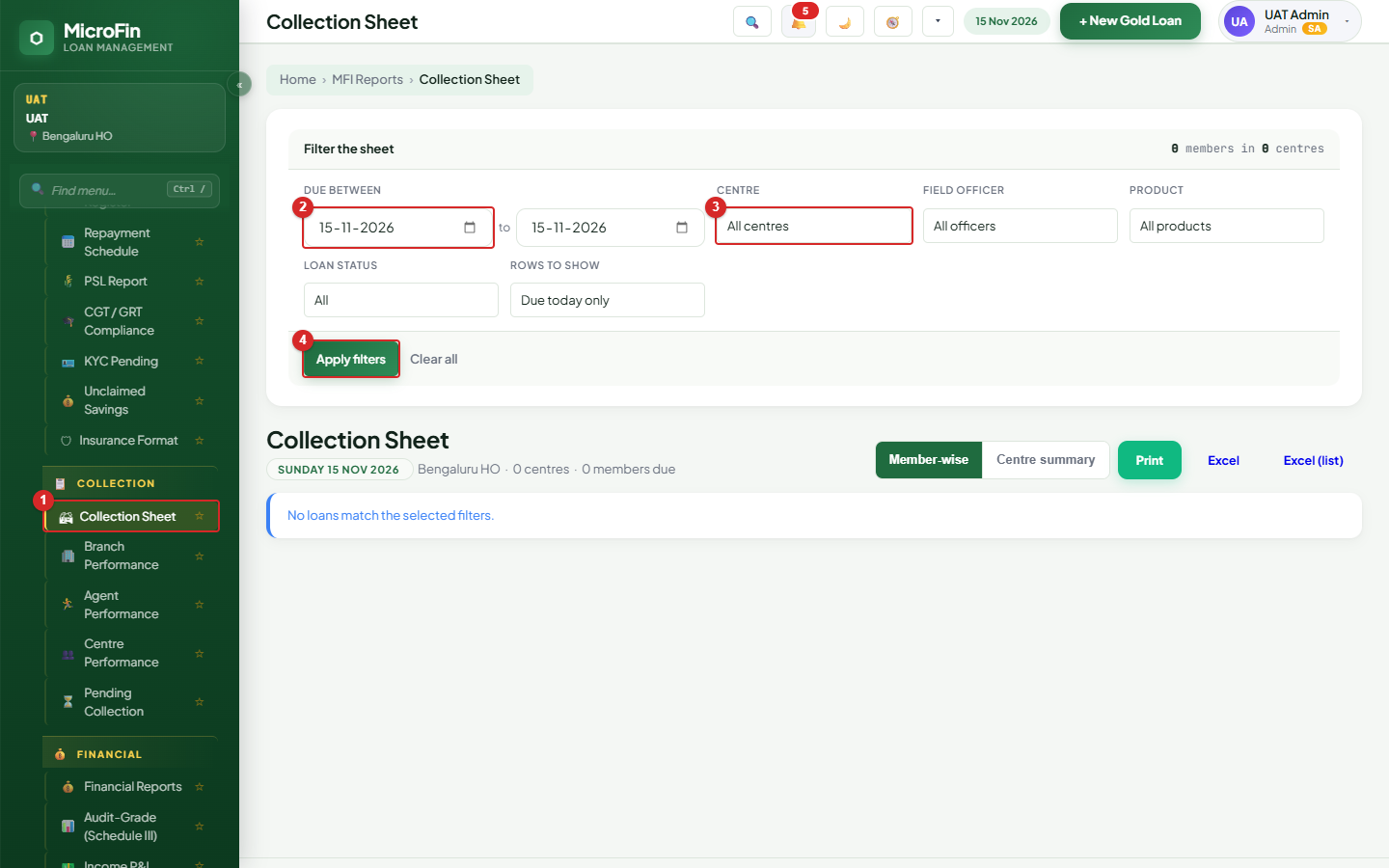
- Reports & Analytics > Collection
- From date
- Centre
- Apply filters
3. Before you start
- Permission: the reports screens need
CanViewReports. Live Monitor, Collection Progress and Collection Variance need the analytics right (CanViewAnalytics); the sidebar may show a row you cannot open until your administrator aligns the two. - Branch: non-HO users are held to their own branch (Branch Performance and Centre Performance use the user's granted branches). An HO user sees the sidebar branch first and can change it.
- Product scope: most screens here are MFI. Live Monitor and Overdue Tracking also cover gold.
- Words to keep straight: Demand is rupees of instalments due, except on Demand Monitoring where it is a head-count of loans. Advance means one thing on DCR (principal and interest paid for later instalments), another on Collection Progress and Live Monitor (money beyond everything due), and another on Staff Performance > Advance Collection.
4. Step-by-step instructions
Read the day's collection (Daily Collection Summary)
- Open
Dashboard > Daily Collection Summary. - Set Collection Date and Branch and click Apply filters (Reset clears).
- In Branch / Staff Breakdown read, per staff and product: Regular Demand, Regular Collection, Pending, Arrear Collection, Advance Collection, Loan Closed, Pen / Sav / Fee and Total Collection.
- Click Action on a row to see the receipts behind it. The day slip (columns Loan A/C, Member, Principal, Interest, Penalty, Savings, Total) can be printed with Print / Save PDF or exported with Excel; use Group by (Centre, Staff then Centre, Branch then Staff then Centre) to arrange it.
Watch today (Live Monitor)
- Open
Dashboard > Live Monitor. The page refreshes itself. - Demand vs collection shows, per branch: No of Demand, No of Paid, Progress, Demand, Collected, Shortfall, OD recovered, Advance. Demand vs collection · by staff adds Accounts pending and Last seen.
- Use the Excel link for the same figures in a file.
Compare demand with collection for a day or a week (Collection Progress)
- Open
Dashboard > Collection Progress. - Choose Period: FTD (the day) or WTD (the week), the Date and Branch.
- Set Arrears (OD) in demand: Included or Not included. FTD starts at Not included, WTD at Included.
- Switch between the branch view (branch, then area, then region) and the staff view. Click Apply.
- WTD also shows Day by day · difference (demand − collected) and Days total.
- Excel has the sheets FTD, FTD Staff, WTD, WTD Staff, WTD Daily, WTD Daily Staff and Notes.
Check whether a day's figures moved (Collection Variance)
- Open
Dashboard > Collection Variance. - Pick Week or a custom From – To, then Branch, Collection staff, Collection date, and Show all records or Show only changed.
- Read Original demand, Latest demand, Demand change, Original collection, Latest collection, Collection change. "Original" is the frozen figure for that day; "Latest" is recalculated now.
See which overdue loans paid today (Overdue Tracking)
- Open
Collections > Collection Entry > Overdue Tracking. The page title reads Overdue Pay-Off. - Set Report date (the collection date) and click Apply filters.
- Columns: Loan No, Module, Member, Mobile, DPD, Overdue, Collected, Mode, Agent, Status. Excel is available.
List unpaid instalments (Pending Collection)
- Open
Reports & Analytics > Collection > Pending Collection. - Set From, To, Branch, Staff, and Show: Due in From - To only or Due up to To (incl. earlier arrears). Equal From and To gives one demand date.
- Click Excel with totals for a file with a grand total row.
Compare branches, officers and centres
Reports & Analytics > Collection > Branch Performance: From / To. No branch box; every branch you may see is listed.Reports & Analytics > Collection > Agent Performance: Period, Branch (HO), Field agent. Export Excel is available.Reports & Analytics > Collection > Centre Performance: As of, Branch, Centre.
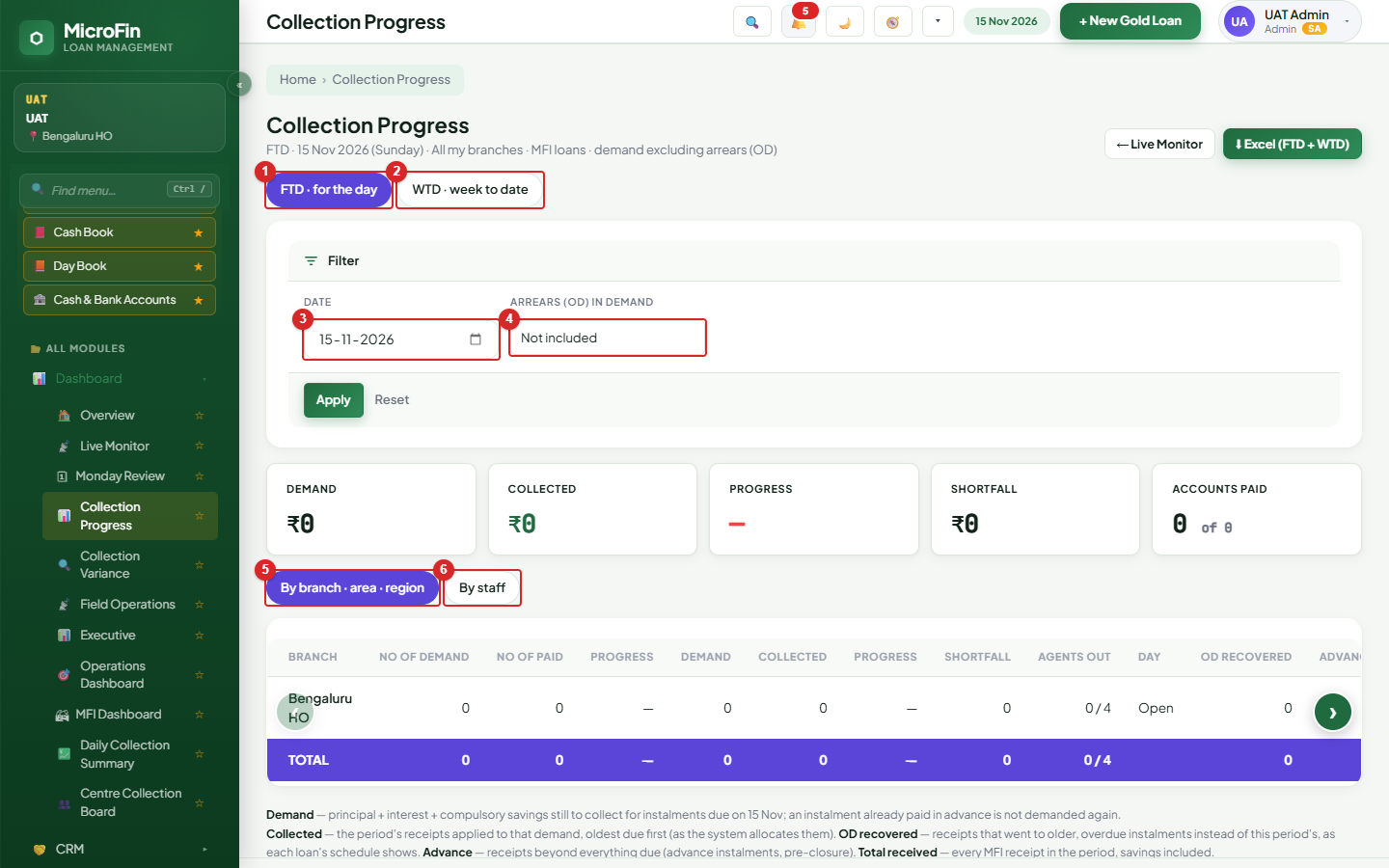
- FTD: for the day
- WTD: week to date
- Date
- Include overdue or not
- View by branch, area and region
- View by staff
5. Field explanation
Common filters:
| Field | Purpose | Required? | Expected input | Validation | Example |
|---|---|---|---|---|---|
| Period / From / To | Window to report | Yes (defaults differ by screen) | Dates | Branch performance and Agent performance default to the 1st of the month to today | 01-11-2026 to 15-11-2026 |
| As of | Date the figures describe (Centre Performance) | Optional | Date | Today shows live figures; an earlier date is rebuilt from today's counters and is an approximation; a future date becomes today | 31-10-2026 |
| Branch | Limit to a branch | HO only | Pick from list | Non-HO users held to their scope | Main Branch |
| Centre | Limit to one centre | Optional | Pick from list | A loan is in a centre by its own centre or its borrower's active membership. Not offered on Branch Performance, Agent Performance or Pending Collection | Rose Centre |
Key figures:
| Figure | Meaning |
|---|---|
| Collection Progress: Demand | What was still to collect on the period's own instalments, plus the arrears at the start if OD is included. An instalment paid ahead earlier is not demanded again. Compulsory savings is inside Demand and Collected |
| Collected / OD recovered / Advance | Receipts follow the schedule: what lands on today's instalments is Collected, on older ones OD recovered, beyond everything due is Advance |
| Paid account | Collected is at least Demand minus ₹0.50 |
| Agent Performance: Recovery % | Collection ÷ Demand. Demand follows the loan's owner; Collection follows who collected the receipt |
| Branch Performance: Coll Effi % | Collected (principal + interest) ÷ amount disbursed in the same period, not ÷ demand |
| Centre Performance: Default % | Overdue loans ÷ active loans (a count ratio, not rupees); red above 10 |
| Centre Performance: Savings | Today's balance, even for an earlier As of date |
| Demand Monitoring: Total | Number of open group loans in the officer's centres that meet that weekday. Not rupees |
6. Buttons and actions
| Button | What it does |
|---|---|
| Apply filters / Reset / Clear all | Run or reset the filters |
| Excel, Export Excel, Excel with totals | Server file with the same filters as the screen |
| Print / Save PDF | Prints the day slip (Daily Collection Summary) |
| Table toolbar (Copy, CSV, Excel, PDF, Print) | Added automatically to flat tables; exports the table as drawn |
Running, exporting and saving a report
- Set the filters and click Apply filters. Sort by clicking a column heading where the table toolbar is present.
- Export with the page's own button, or the toolbar.
- To build your own report, open
Reports & Analytics > Portfolio > Report Builder(needsCanBuildReports). Pick a data source, tick columns, add filters, then Run report. Use Save to keep it; Shared lets others run it. Only the author or an Admin can change or delete it. A plain list shows at most 10,000 rows, and a grouped run reads at most 50,000; a notice says when a cap is hit. The Report Builder has its own chapter.
7. Business rules and validations
8. Expected result
Each screen shows the figures for the filters you set, with totals, without changing any data. Numbers on different screens may differ because each counts different receipts (see chapters 34 and 35).
9. Troubleshooting
| Message or problem | Likely cause | What to do |
|---|---|---|
| Menu row missing | Screen not enabled on your version, or no permission | Ask your administrator |
| Opened a screen from the menu and got Access Denied | Menu and page rights differ for Live Monitor, Collection Progress, Collection Variance | Ask for the analytics right |
| Today's figures look too low | Collections still waiting for approval | Check the approval inbox |
| Variance shows "basis changed" | The calculation rule changed after the day froze | Not an edit; ask for support if unsure |
| Demand Monitoring shows counts, not rupees | By design: a head-count of loans | Use Collection Progress for rupees |
| Centre Performance savings differ from an old date | Savings is always today's balance | Normal; the page says so |
| Excel is wider than the page for an HO user | A few exports do not repeat the sidebar branch default | Pick the branch on the page and check the file |
10. Tamil explanation
The full Tamil version of this chapter follows in the Tamil block below.
11. Related modules
- Chapter 30: Collection Sheet. Chapter 31: Collection entry.
- Chapter 34: DCR. Chapter 35: DCB.
- Chapter 40: Accounting (Cash Book, End of Day).
- Report Builder chapter.
வசூல் அறிக்கைகள்
வசூல் அறிக்கைகளும் கண்காணிப்புகளும்
1. அறிமுகம்
வசூல் தாள் (அத்தியாயம் 30), DCR (34), DCB (35) தவிர, வசூல் எவ்வாறு நடக்கிறது என்பதைக் காட்டும் பல திரைகள் MicroFin-இல் உள்ளன. தணிக்கையில் உறுதிசெய்யப்பட்டவற்றை இந்த அத்தியாயம் விளக்கும். ஒவ்வொன்றும் எதை எண்ணுகிறது என்பதையும் சொல்லும்; ஏனெனில் ஒரே சொல் வெவ்வேறு திரைகளில் வெவ்வேறு பொருள் தரும்.
| திரை | எந்தக் கேள்விக்குப் பதில் | மெனு |
|---|---|---|
| Daily Collection Summary | இன்று எவ்வளவு வந்தது (கிளை, பணியாளர், தயாரிப்பு வாரியாக)? | Dashboard > Daily Collection Summary |
| Live Monitor | இன்றைய வசூல் இப்போது எப்படி? | Dashboard > Live Monitor |
| Collection Progress | ஒரு நாள் (FTD) அல்லது வாரத்தின் (WTD) தேவை எதிர் வசூல் | Dashboard > Collection Progress |
| Collection Variance | உறைந்த நாளின் எண்கள் பின்னர் மாறினவா? | Dashboard > Collection Variance |
| Demand Monitoring | ஒவ்வொரு அலுவலருக்கும் ஒவ்வொரு வாரநாளிலும் எத்தனை கடன்கள்? | Dashboard > Demand Monitoring |
| Overdue Tracking | நிலுவைக் கடன்களில் இன்று எவை செலுத்தின? | Collections > Collection Entry > Overdue Tracking |
| Pending Collection | எந்தத் தவணைகள் இன்னும் செலுத்தப்படவில்லை? | Reports & Analytics > Collection > Pending Collection |
| Branch / Agent / Centre Performance | கிளைகள், களப்பணி அலுவலர்கள், மையங்கள் எப்படிச் செயல்படுகின்றன? | Reports & Analytics > Collection |
இவை அனைத்தும் படிக்க மட்டும். எதையும் பதிவு செய்யாது, மாற்றாது. ஒரு எண்ணைத் திருத்த, அடிப்படை ரசீதைத் திருத்துங்கள் (அத்தியாயம் 31); பிறகு அறிக்கையை மீண்டும் இயக்குங்கள்.
2. வழிசெலுத்தல்
மேலே உள்ள அட்டவணையைப் பாருங்கள். Reports & Analytics > Collection கீழுள்ள அறிக்கைகளும் Dashboard கீழுள்ள திரைகளும் தனித்தனி மெனுக் குழுக்கள்.
- அறிக்கைகள் & பகுப்பாய்வு > வசூல்
- தொடக்கத் தேதி
- மையம்
- வடிகட்டிகளைப் பயன்படுத்து
3. தொடங்கும் முன்
- அனுமதி: அறிக்கைத் திரைகளுக்கு
CanViewReports. Live Monitor, Collection Progress, Collection Variance திரைகளுக்குப் பகுப்பாய்வு உரிமை (CanViewAnalytics) தேவை; நிர்வாகி இரண்டையும் ஒத்திசைக்கும் வரை, உங்களால் திறக்க முடியாத வரியும் பக்கப்பட்டியில் தெரியலாம். - கிளை: HO அல்லாத பயனர் தன் கிளையை மட்டுமே பார்க்க முடியும் (Branch Performance, Centre Performance ஆகியவை பயனருக்கு அனுமதிக்கப்பட்ட கிளைகளைப் பயன்படுத்தும்). HO பயனருக்கு முதலில் பக்கப்பட்டியில் உள்ள கிளை தெரியும்; அதை அவர் மாற்றலாம்.
- தயாரிப்பு: பெரும்பாலானவை MFI. Live Monitor, Overdue Tracking தங்கத்தையும் உள்ளடக்கும்.
- சொற்களை வேறுபடுத்துங்கள்: Demand என்பது செலுத்த வேண்டிய தவணைகளின் ரூபாய் மதிப்பு; Demand Monitoring-இல் மட்டும் அது கடன்களின் எண்ணிக்கை. Advance என்பது DCR-இல் பிந்தைய தவணைகளுக்குச் செலுத்திய அசலும் வட்டியும்; Collection Progress, Live Monitor-இல் செலுத்த வேண்டிய அனைத்துக்கும் மேல் வந்த தொகை; Staff Performance > Advance Collection-இல் வேறு பொருள்.
4. படிப்படியான வழிமுறைகள்
நாளின் வசூலைப் படிக்க (Daily Collection Summary)
Dashboard > Daily Collection Summaryதிறக்கவும்.- Collection Date, Branch அமைத்து Apply filters அழுத்தவும் (Reset வடிகட்டிகளை நீக்கும்).
- Branch / Staff Breakdown-இல் ஒவ்வொரு பணியாளர், தயாரிப்புக்கும்: Regular Demand, Regular Collection, Pending, Arrear Collection, Advance Collection, Loan Closed, Pen / Sav / Fee, Total Collection படியுங்கள்.
- வரியின் Action அழுத்தினால் அதன் ரசீதுகள் தெரியும். நாள் சீட்டை (Loan A/C, Member, Principal, Interest, Penalty, Savings, Total) Print / Save PDF மூலம் அச்சிடலாம், Excel மூலம் ஏற்றுமதி செய்யலாம்; Group by (Centre; Staff, பின் Centre; Branch, பின் Staff, பின் Centre) மூலம் வரிசைப்படுத்தலாம்.
இன்றைய வசூலைக் கண்காணிக்க (Live Monitor)
Dashboard > Live Monitorதிறக்கவும்; பக்கம் தானாகவே புதுப்பித்துக்கொள்ளும்.- Demand vs collection கிளை வாரியாகக் காட்டும்: No of Demand, No of Paid, Progress, Demand, Collected, Shortfall, OD recovered, Advance. Demand vs collection · by staff பணியாளர் வாரியாக Accounts pending, Last seen ஆகியவற்றையும் சேர்த்துக் காட்டும்.
- அதே எண்களைக் கோப்பாகப் பெற Excel இணைப்பைப் பயன்படுத்துங்கள்.
ஒரு நாள் அல்லது வாரத்தின் தேவை, வசூலை ஒப்பிட (Collection Progress)
Dashboard > Collection Progressதிறக்கவும்.- Period: FTD (நாள்) அல்லது WTD (வாரம்) தேர்ந்தெடுத்து, Date, Branch ஆகியவற்றையும் தேர்ந்தெடுக்கவும்.
- Arrears (OD) in demand: Included அல்லது Not included என அமைக்கவும். FTD-க்கு இயல்பு Not included; WTD-க்கு இயல்பு Included.
- கிளைக் காட்சி (கிளை, பின் பகுதி, பின் மண்டலம்), பணியாளர் காட்சி ஆகியவற்றுக்கிடையே மாறலாம். Apply அழுத்தவும்.
- WTD-இல் Day by day · difference (demand − collected), Days total ஆகியவையும் தெரியும்.
- Excel தாள்கள்: FTD, FTD Staff, WTD, WTD Staff, WTD Daily, WTD Daily Staff, Notes.
நாளின் எண்கள் மாறினவா எனப் பார்க்க (Collection Variance)
Dashboard > Collection Varianceதிறக்கவும்.- Week அல்லது தனிப்பயன் From – To, Branch, Collection staff, Collection date, பின் Show all records அல்லது Show only changed ஆகியவற்றைத் தேர்ந்தெடுக்கவும்.
- Original demand, Latest demand, Demand change, Original collection, Latest collection, Collection change படியுங்கள். "Original" என்பது அந்த நாளுக்கு உறைந்த எண்; "Latest" என்பது இப்போது மீண்டும் கணக்கிடப்பட்ட எண்.
எந்த நிலுவைக் கடன்கள் இன்று செலுத்தின எனப் பார்க்க (Overdue Tracking)
Collections > Collection Entry > Overdue Trackingதிறக்கவும்; பக்கத் தலைப்பு Overdue Pay-Off.- Report date (வசூல் தேதி) அமைத்து Apply filters அழுத்தவும்.
- நெடுவரிசைகள்: Loan No, Module, Member, Mobile, DPD, Overdue, Collected, Mode, Agent, Status. Excel உண்டு.
செலுத்தப்படாத தவணைகளைப் பட்டியலிட (Pending Collection)
Reports & Analytics > Collection > Pending Collectionதிறக்கவும்.- From, To, Branch, Staff அமைக்கவும்; Show-இல் Due in From - To only அல்லது Due up to To (incl. earlier arrears) தேர்ந்தெடுக்கவும். From, To இரண்டும் ஒரே தேதி எனில் ஒரு தேவைத் தேதி மட்டும் கிடைக்கும்.
- மொத்த வரியுடன் கூடிய கோப்புக்கு Excel with totals அழுத்தவும்.
கிளை, அலுவலர், மையங்களை ஒப்பிட
Reports & Analytics > Collection > Branch Performance: From / To; கிளைப் பெட்டி இல்லை, நீங்கள் காணக்கூடிய அனைத்துக் கிளைகளும் வரும்.Reports & Analytics > Collection > Agent Performance: Period, Branch (HO), Field agent; Export Excel உண்டு.Reports & Analytics > Collection > Centre Performance: As of, Branch, Centre.
- FTD: அன்றைய நாள்
- WTD: இந்த வாரம் இன்று வரை
- தேதி
- நிலுவையைச் சேர்க்கவா வேண்டாமா
- கிளை, பகுதி, மண்டலம் வாரியான பார்வை
- ஊழியர் வாரியான பார்வை
5. புலங்களின் விளக்கம்
பொது வடிகட்டிகள்:
| புலம் | நோக்கம் | கட்டாயமா? | உள்ளீடு | சரிபார்ப்பு | எடுத்துக்காட்டு |
|---|---|---|---|---|---|
| Period / From / To | அறிக்கைக் காலம் | ஆம் (திரைக்கேற்ப இயல்பு) | தேதிகள் | Branch, Agent Performance இயல்பு: மாதத்தின் 1 முதல் இன்று | 01-11-2026 முதல் 15-11-2026 |
| As of | எண்கள் எந்தத் தேதிக்கானவை (Centre Performance) | விருப்பம் | தேதி | இன்று எனில் நேரடி எண்கள்; முந்தைய தேதிக்கான எண்கள் இன்றைய கணக்கிலிருந்து மீண்டும் உருவாக்கப்படும் (தோராயமானவை); எதிர்காலத் தேதி இன்றைய தேதியாக மாற்றப்படும் | 31-10-2026 |
| Branch | ஒரு கிளைக்கு மட்டும் சுருக்க | HO மட்டும் | பட்டியலிலிருந்து தேர்வு | HO அல்லாத பயனர் தன் வரம்புக்குள் மட்டும் | Main Branch |
| Centre | ஒரு மையத்துக்கு மட்டும் சுருக்க | விருப்பம் | பட்டியலிலிருந்து தேர்வு | கடனின் சொந்த மையம் அல்லது கடன் பெற்றவரின் செயலில் உள்ள மைய உறுப்பினர் நிலையைக் கொண்டு கடன் ஒரு மையத்தைச் சேரும். Branch Performance, Agent Performance, Pending Collection-இல் இந்த வடிகட்டி இல்லை | Rose Centre |
முக்கிய எண்கள்:
| எண் | பொருள் |
|---|---|
| Collection Progress: Demand | அந்தக் காலத்துக்குரிய தவணைகளில் இன்னும் வசூலிக்க வேண்டிய தொகை; OD சேர்க்கப்பட்டால் காலத் தொடக்கத்தில் இருந்த முந்தைய நிலுவையும் சேரும். முன்பே முன்கூட்டிச் செலுத்தப்பட்ட தவணை மீண்டும் தேவையில் சேராது. கட்டாயச் சேமிப்பு Demand, Collected இரண்டுக்கும் உள்ளேயே அடங்கும் |
| Collected / OD recovered / Advance | ரசீதுகள் தவணை அட்டவணையைப் பின்பற்றும்: இன்றைய தவணைகளுக்குச் சென்றது Collected; பழைய தவணைகளுக்குச் சென்றது OD recovered; செலுத்த வேண்டிய அனைத்துக்கும் மேல் வந்தது Advance |
| Paid கணக்கு | Collected குறைந்தது Demand − ₹0.50 ஆக இருக்க வேண்டும் |
| Agent Performance: Recovery % | Collection ÷ Demand. Demand கடனுக்குப் பொறுப்பான அலுவலரின் கணக்கில் சேரும்; Collection ரசீதை வசூலித்தவரின் கணக்கில் சேரும் |
| Branch Performance: Coll Effi % | Collected (அசல்+வட்டி) ÷ அதே காலத்தில் வழங்கிய தொகை; தேவையால் வகுக்கப்படுவதில்லை |
| Centre Performance: Default % | நிலுவைக் கடன்கள் ÷ செயலில் உள்ள கடன்கள் (எண்ணிக்கை விகிதம், ரூபாய் அல்ல); 10-க்கு மேல் சிவப்பு |
| Centre Performance: Savings | முந்தைய As of தேதி கொடுத்தாலும் இன்றைய இருப்பே காட்டப்படும் |
| Demand Monitoring: Total | அலுவலரின் மையங்களில், அந்த வாரநாளில் கூட்டம் நடக்கும் மையங்களின் திறந்த குழுக் கடன்களின் எண்ணிக்கை. ரூபாய் அல்ல |
6. பொத்தான்களும் செயல்களும்
| பொத்தான் | செயல் |
|---|---|
| Apply filters / Reset / Clear all | வடிகட்டிகளை இயக்கும் / மீட்டமைக்கும் |
| Excel, Export Excel, Excel with totals | திரையில் உள்ள அதே வடிகட்டிகளுடன் சர்வர் உருவாக்கும் கோப்பு |
| Print / Save PDF | நாள் சீட்டை அச்சிடும் (Daily Collection Summary) |
| அட்டவணைக் கருவிப்பட்டி (Copy, CSV, Excel, PDF, Print) | எளிய அட்டவணைகளில் தானாகச் சேர்க்கப்படும்; அட்டவணையைத் திரையில் உள்ளபடியே ஏற்றுமதி செய்யும் |
அறிக்கையை இயக்குதல், ஏற்றுமதி செய்தல், சேமித்தல்
- வடிகட்டிகளை அமைத்து Apply filters அழுத்தவும். அட்டவணைக் கருவிப்பட்டி உள்ள இடங்களில் நெடுவரிசைத் தலைப்பை அழுத்தி வரிசைப்படுத்தலாம்.
- பக்கத்தின் சொந்தப் பொத்தான் அல்லது கருவிப்பட்டி மூலம் ஏற்றுமதி செய்யவும்.
- சொந்த அறிக்கை உருவாக்க
Reports & Analytics > Portfolio > Report Builderதிறக்கவும் (CanBuildReportsதேவை). தரவு மூலத்தைத் தேர்ந்தெடுத்து, நெடுவரிசைகளைத் தேர்வு செய்து, வடிகட்டிகளைச் சேர்த்து, Run report அழுத்தவும். Save மூலம் சேமிக்கலாம்; Shared ஆக்கினால் பிறரும் இயக்கலாம். உருவாக்கியவர் அல்லது Admin மட்டுமே மாற்றலாம் அல்லது நீக்கலாம். எளிய பட்டியல் அதிகபட்சம் 10,000 வரிகளைக் காட்டும்; குழுவாக்கிய அறிக்கை அதிகபட்சம் 50,000 வரிகளைப் படிக்கும்; வரம்பை எட்டினால் அறிவிப்பு வரும். Report Builder-க்குத் தனி அத்தியாயம் உண்டு.
7. வணிக விதிகளும் சரிபார்ப்புகளும்
8. எதிர்பார்க்கும் முடிவு
ஒவ்வொரு திரையும் நீங்கள் அமைத்த வடிகட்டிகளுக்கான எண்களை மொத்தங்களுடன், தரவை மாற்றாமல் காட்டும். ஒவ்வொன்றும் வெவ்வேறு ரசீதுகளை எண்ணுவதால் திரைகளுக்கிடையே எண்கள் மாறுபடலாம் (அத்தியாயம் 34, 35).
9. சிக்கல் தீர்வு
| செய்தி அல்லது சிக்கல் | சாத்தியமான காரணம் | செய்ய வேண்டியது |
|---|---|---|
| மெனு வரி இல்லை | உங்கள் பதிப்பில் இயக்கப்படவில்லை அல்லது அனுமதி இல்லை | நிர்வாகியைக் கேளுங்கள் |
| மெனுவிலிருந்து திரையைத் திறந்தால் Access Denied வருகிறது | Live Monitor, Collection Progress, Collection Variance ஆகியவற்றுக்கு மெனு உரிமையும் பக்க உரிமையும் வேறுபடுகின்றன | பகுப்பாய்வு உரிமையைக் கேளுங்கள் |
| இன்றைய எண்கள் மிகக் குறைவாகத் தெரிகின்றன | வசூல்கள் இன்னும் ஒப்புதலுக்காகக் காத்திருக்கின்றன | ஒப்புதல் உள்பெட்டியைப் (Approval Inbox) பாருங்கள் |
| Variance "basis changed" காட்டுகிறது | நாள் உறைந்த பின் கணக்கீட்டு விதி மாறியது | இது திருத்தம் அல்ல; ஐயம் இருந்தால் ஆதரவை அணுகுங்கள் |
| Demand Monitoring ரூபாயைக் காட்டாமல் எண்ணிக்கையைக் காட்டுகிறது | வடிவமைப்பே அப்படி: இது கடன்களின் எண்ணிக்கை | ரூபாய் மதிப்புக்கு Collection Progress பயன்படுத்துங்கள் |
| Centre Performance சேமிப்பு பழைய தேதியுடன் பொருந்தவில்லை | சேமிப்பு எப்போதும் இன்றைய இருப்பே | இது இயல்பே; பக்கமும் அதைக் குறிப்பிடும் |
| HO பயனருக்கு Excel கோப்பு பக்கத்தைவிட விரிவாக உள்ளது | சில ஏற்றுமதிகள் பக்கப்பட்டிக் கிளை இயல்பைப் பின்பற்றுவதில்லை | பக்கத்திலேயே கிளையைத் தேர்ந்தெடுத்து, கோப்பைச் சரிபாருங்கள் |
10. தமிழ் விளக்கம்
இந்த அத்தியாயத்தின் முழுத் தமிழ் வடிவம் இதுவே. ஆங்கிலப் பகுதியில் மேலே உள்ள அதே பிரிவுகள் (1–9, 11) இங்கு தமிழில் தரப்பட்டுள்ளன.
11. தொடர்புடைய தொகுதிகள்
- அத்தியாயம் 30: வசூல் தாள். அத்தியாயம் 31: வசூல் பதிவு.
- அத்தியாயம் 34: DCR. அத்தியாயம் 35: DCB.
- அத்தியாயம் 40: கணக்கியல் (Cash Book, நாள் முடிவு).
- Report Builder அத்தியாயம்.