CGT
Compulsory Group Training (CGT)
1. Overview
CGT is the training session a new centre must go through before it can borrow. The field officer schedules a session, conducts it (marks who attended and collects evidence), and completes it. The next step, the GRT test, is in the next chapter.
Real order: roster exists (Centre chapter) → schedule CGT → conduct and complete CGT → record GRT → GRT approved → centre loans open.
2. Navigation
- Schedule:
Centre Banking > CGT / GRT > CGT Schedule(the first row, "CGT / GRT", also opens it). Page title "Compulsory Group Training (CGT) — Schedule". - Conduct: Conduct → in the "Upcoming Sessions" card, or CGT on the row in
Centre Banking > CGT / GRT > CGT Register. - Register:
Centre Banking > CGT / GRT > CGT Register(all sessions, "Historical view for audit").
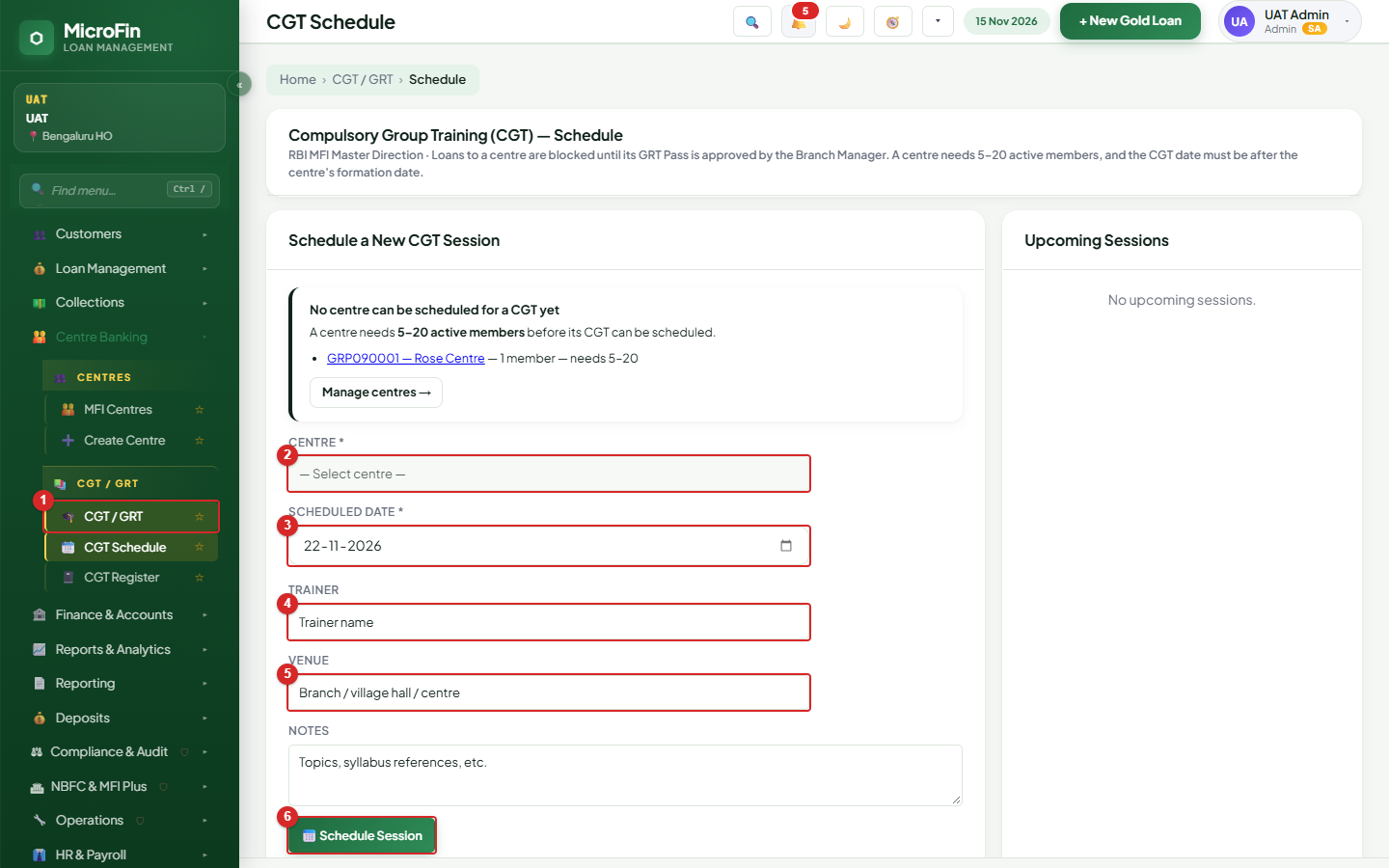
- Centre Banking > CGT / GRT > CGT Schedule
- Centre
- Session date
- Trainer name
- Venue
- Schedule Session
3. Before you start
- The centre must be Active, have at least one active member, and have a member count inside the company band (default 5–20). A centre outside the band is shown greyed out with the reason, for example "N members — needs 5–20".
- The date must respect the gap rule (section 7).
- Who may open the page: the audited version does not restrict the CGT pages beyond sign-in unless your company has switched the capability gate to "enforce" (
security.CapabilityGatePending). [TBC] Confirm with your administrator who your company allows to schedule and conduct. - For the conduct day, bring a phone or device that can take photos and capture GPS location.
4. Step-by-step instructions
Schedule a CGT session
- Open
Centre Banking > CGT / GRT > CGT Schedule. - In "Schedule a New CGT Session" choose Centre (— Select centre —), Scheduled Date (default is today plus 7 days), and optionally Trainer (up to 120 characters), Venue (up to 200) and Notes (up to 500).
- Click 📅 Schedule Session.
- Normally you see "CGT session #n scheduled." and land on the Conduct page. A roster row is created for every active member of the centre as it is on that day, with Attended not ticked.
- If your company has the CGT approval switched on you see "CGT session submitted for approval — it will be scheduled once approved." No session exists until the final approver approves, so the centre may still be offered meanwhile.
Conduct the CGT
- Open the session with Conduct →.
- Until the scheduled date the page is read-only: "This CGT is scheduled for dd-MMM-yyyy — attendance and evidence can be captured from that date."
- In Centre Photo upload "Photo of the centre at the CGT \*".
- In "Attendance & Evidence" tick Present for each member who attended (✓ Mark All Present and ✕ Mark All Absent help).
- For each present member fill Alt. Mobile (optional), Score (0–100, optional), Remarks, click 📍 Capture for the Location (GPS), and attach a House Photo.
- Add Trainer Notes if needed.
- Click 💾 Save Progress to keep what you have; the session stays Scheduled. You can return later.
- When everything is captured click ✓ Complete CGT & Continue to GRT.
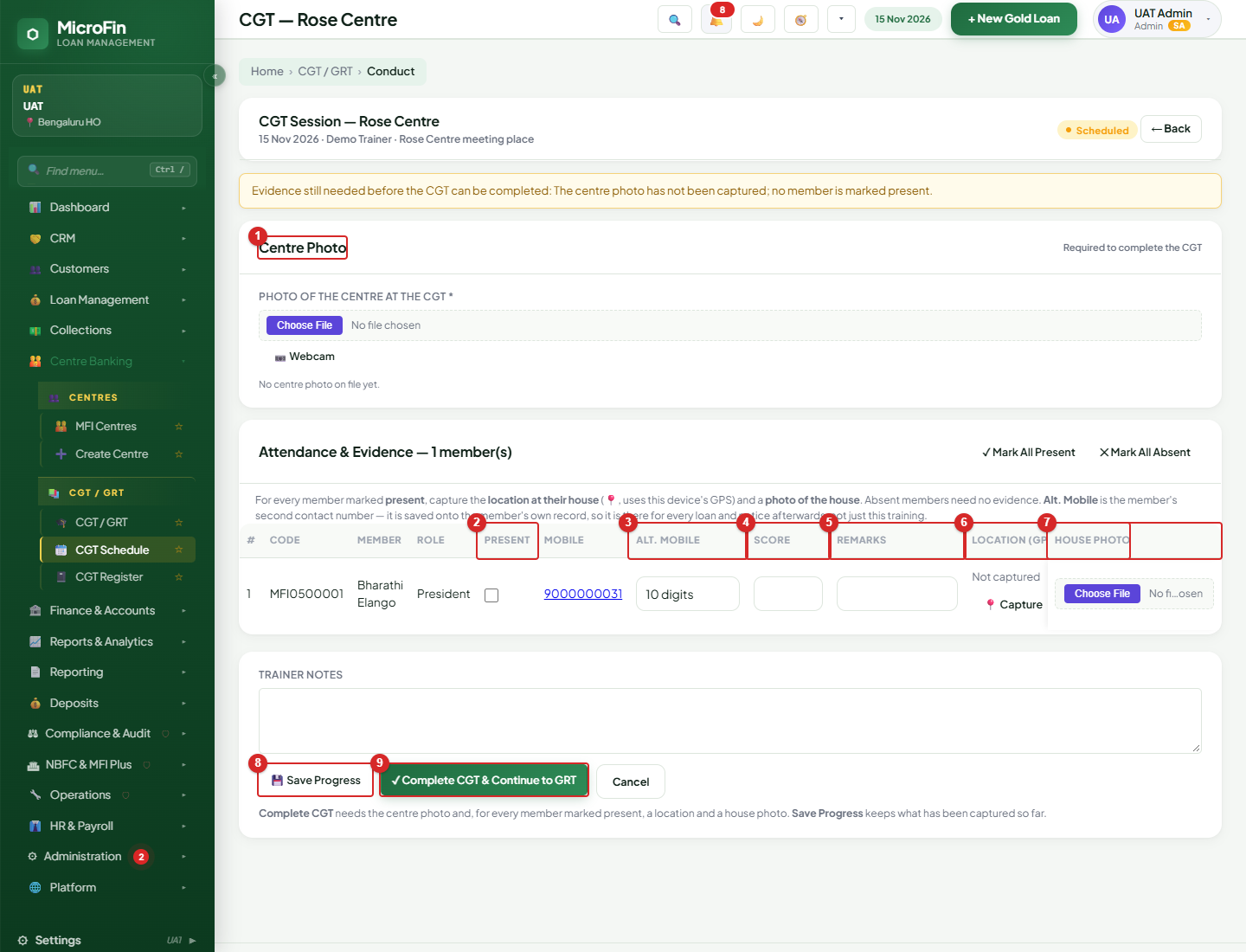
- Centre Photo card (needed to complete the CGT)
- Present: tick every member who attended
- Alt. Mobile: the member’s second contact number
- Score
- Remarks
- Location (GPS) of the member’s house
- House Photo of the member
- Save Progress: keeps your entries without finishing
- Complete CGT and continue to the GRT
What completion needs
To complete the CGT all of these must be true:
- the centre photo is uploaded;
- at least one member is marked present;
- every present member has a house photo;
- every present member has a GPS location (while your company requires it, section 7).
If something is missing, the progress is saved, the session stays Scheduled, and the page says exactly what is missing: "Progress saved, but the CGT is NOT complete yet — …" (for example "Centre photo has not been captured; no member is marked present; no location for …; no house photo for …").
On success you see "CGT completed — attendance and evidence captured. Now record the GRT result." The status becomes Conducted and you are taken to the GRT page.
After completion
The CGT can still be edited until the GRT is approved, but a save that would leave the evidence incomplete is refused. Once the GRT is approved: "The Branch Manager has approved this GRT, so the CGT and GRT record is closed and can no longer be changed."
Review all sessions
Open Centre Banking > CGT / GRT > CGT Register. Columns include Session (S-n), Centre, Scheduled, Attended (x/y), Trainer, CGT, GRT, BM Approval, GRT Date, Conducted By, Photos. Use + Schedule New to add a session.
5. Field explanation
| Field | Purpose | Required? | Expected input | Validation | Example |
|---|---|---|---|---|---|
| Centre | The centre to train | Yes | Pick from list | "Pick a centre to train." | Lakshmi Mahalir Centre |
| Scheduled Date | Date of the training | Yes (default today + 7) | Date | Not earlier than formation date + the gap; never refused for being in the past or far ahead | 22-11-2026 |
| Trainer | Name of the trainer | No | Up to 120 characters | — | Ravi (fictional) |
| Venue | Where | No | Up to 200 characters | — | Village hall |
| Notes | Topics, references | No | Up to 500 characters | — | — |
| Centre Photo | Evidence the centre was assembled | To complete | Image (JPG, PNG, WEBP, HEIC) | Needed to complete | — |
| Present | Attendance | At least one | Tick | At least one present to complete | Ticked |
| Alt. Mobile | Second contact, saved on the member's own record | No | 10 digits starting 6–9 | Must differ from the main mobile | 9XXXXXXXXX |
| Score | Trainer's mark | No | 0–100 | Range checked | 80 |
| Remarks | Note per member | No | Text | — | — |
| Location (GPS) | Where the member's home was visited | Per present member, unless relaxed | 📍 Capture | A valid pair of coordinates; 0,0 refused | — |
| House Photo | Photo of the member's house | Per present member | Image | Needed to complete | — |
| Trainer Notes | Notes for the whole session | No | Text | — | — |
6. Buttons and actions
| Button | What it does |
|---|---|
| 📅 Schedule Session | Creates the session (or sends it for approval). |
| Conduct → | Opens the session. |
| ✓ Mark All Present / ✕ Mark All Absent | Sets every Present tick at once. |
| 📍 Capture / 📍 Re-capture | Reads the device location for that member. |
| 💾 Save Progress | Saves anything entered; nothing is mandatory; status stays Scheduled. |
| ✓ Complete CGT & Continue to GRT | Checks the evidence and, if complete, sets Conducted and opens the GRT. |
| Register → (Centres Requiring CGT / GRT) | Opens the register for that centre. |
| ⏳ Pending BM approval | Shows the centres whose GRT is waiting for the Branch Manager. |
| Cancel | Leaves the page. |
7. Business rules and validations
Administration > UI & Settings > Accounting Policy > "Days between centre formation and CGT" (default 1, allowed 0 to 365; 0 means the same day is allowed). Changing it never re-dates existing sessions; it applies to the next one scheduled. Admin only.8. Expected result
- After scheduling: a Scheduled session and a roster of the centre's active members.
- After Save Progress: details stored, still Scheduled.
- After Complete CGT: status Conducted, who and when recorded, and the GRT page opens.
- Nothing is posted to accounts; CGT has no money effect.
9. Troubleshooting
| Message or problem | Likely cause | What to do |
|---|---|---|
| "A centre must have 5–20 members before you can schedule a CGT." | Active members outside the band | Fix the roster in the Centre chapter. |
| "The CGT date (x) must be after the centre's formation date (y)…" | Date inside the gap | Pick the date shown as the earliest. |
| Centre not in the picker | Not Active, or the GRT is an approved Pass or waiting for the Branch Manager | Check the centre status and the Register. |
| "CGT session submitted for approval…" and no session | Approval module is on | Ask the approver to decide it in the Approval Inbox. |
| "This CGT is scheduled for dd-MMM-yyyy — attendance and evidence can be captured from that date." | Before the scheduled date | Come back on the date. |
| "Progress saved, but the CGT is NOT complete yet — …" | Photo, attendance, house photo or GPS missing | Add what the message lists and complete again. |
| Cannot capture location | GPS blocked on the device, or coordinates invalid | Allow location in the browser or phone and capture again. |
| "The Branch Manager has approved this GRT, so the CGT and GRT record is closed…" | GRT already approved | The record is frozen; no change is possible. |
| Session scheduled by mistake | No cancel button | See the [TBC] note in section 7. |
11. Related modules
- Before: Creating and managing centres (roster and band).
- Next: GRT (the result is recorded on the Conducted session).
- Approvals: the optional CGT scheduling approval is decided in the Approval Inbox.
- Reports: [TBC] the "CGT / GRT Compliance" report does not read these CGT records. It infers CGT from recorded meetings and GRT from centre KYC, so it may show "Pending" for a centre that has really completed them. Use the CGT Register as the true record.
CGT
கட்டாயக் குழுப் பயிற்சி (CGT)
1. அறிமுகம்
CGT என்பது ஒரு புதிய மையம் கடன் பெறுவதற்கு முன் கட்டாயம் பெற வேண்டிய பயிற்சி அமர்வு. களப்பணி அலுவலர் CGT அமர்வைத் திட்டமிடுகிறார், நடத்துகிறார் (யார் யார் வந்தார்கள் என்று குறித்து, சான்றுகளைச் சேகரிக்கிறார்), பிறகு முடிக்கிறார். அடுத்த படியான GRT தேர்வு அடுத்த அத்தியாயத்தில் விளக்கப்படுகிறது.
நடைமுறை வரிசை: உறுப்பினர் பட்டியல் தயாராக உள்ளது (மைய அத்தியாயம்) → CGT திட்டமிடுதல் → CGT-ஐ நடத்தி முடித்தல் → GRT பதிவு செய்தல் → GRT அங்கீகரிக்கப்படுதல் → மையக் கடன்கள் வழங்க முடியும்.
2. வழிசெலுத்தல்
- திட்டமிட:
Centre Banking > CGT / GRT > CGT Schedule(முதல் வரியான "CGT / GRT"-உம் இதையே திறக்கும்). பக்கத் தலைப்பு "Compulsory Group Training (CGT) — Schedule". - நடத்த: "Upcoming Sessions" அட்டையில் உள்ள Conduct →, அல்லது
Centre Banking > CGT / GRT > CGT Register-இல் அமர்வின் வரியில் உள்ள CGT. - பதிவேடு (Register):
Centre Banking > CGT / GRT > CGT Register(அனைத்து அமர்வுகளும், "Historical view for audit").
- மைய வங்கி > CGT / GRT > CGT அட்டவணை
- மையம்
- அமர்வு தேதி
- பயிற்றுநர் பெயர்
- இடம்
- அமர்வை அட்டவணைப்படுத்து
3. தொடங்குவதற்கு முன்
- மையம் Active நிலையில் இருக்க வேண்டும்; செயலில் உள்ள உறுப்பினர் குறைந்தது ஒருவராவது இருக்க வேண்டும்; உறுப்பினர் எண்ணிக்கை நிறுவனத்தின் உறுப்பினர் வரம்புக்குள் (இயல்பு 5–20) இருக்க வேண்டும். வரம்புக்கு வெளியே உள்ள மையம், "N members — needs 5–20" போன்ற காரணத்துடன் மங்கலாக (தேர்ந்தெடுக்க முடியாதபடி) காட்டப்படும்.
- தேதி, இடைவெளி விதிக்கு (பிரிவு 7) உட்பட்டதாக இருக்க வேண்டும்.
- பக்கத்தை யார் திறக்கலாம்: ஆய்வு செய்த பதிப்பில், உங்கள் நிறுவனம் capability gate-ஐ "enforce" நிலைக்கு மாற்றியிருந்தால் (
security.CapabilityGatePending) தவிர, உள்நுழைந்த எவரும் CGT பக்கங்களைத் திறக்கலாம்; வேறு கட்டுப்பாடு இல்லை. [TBC] உங்கள் நிறுவனத்தில் யார் திட்டமிடலாம், யார் நடத்தலாம் என்பதை நிர்வாகியிடம் உறுதிசெய்துகொள்ளுங்கள். - CGT நடத்தும் நாளில், புகைப்படம் எடுக்கவும் GPS இடத்தைப் பதிவு செய்யவும் கூடிய கைபேசி அல்லது சாதனத்தை எடுத்துச் செல்லுங்கள்.
4. படிப்படியான வழிமுறைகள்
CGT அமர்வைத் திட்டமிட
Centre Banking > CGT / GRT > CGT Scheduleதிறங்கள்.- "Schedule a New CGT Session"-இல் Centre (— Select centre —), Scheduled Date (இயல்பாக இன்றிலிருந்து 7 நாள் கழித்த தேதி) ஆகியவற்றைத் தேர்ந்தெடுங்கள்; விரும்பினால் Trainer (120 எழுத்துகள் வரை), Venue (200 வரை), Notes (500 வரை) ஆகியவற்றையும் நிரப்புங்கள்.
- 📅 Schedule Session சொடுக்குங்கள்.
- வழக்கமாக "CGT session #n scheduled." என்று வந்து, Conduct பக்கம் திறக்கும். அன்றைய நாளில் மையத்தில் செயலில் உள்ள ஒவ்வோர் உறுப்பினருக்கும் அமர்வின் உறுப்பினர் பட்டியலில் ஒரு வரி உருவாகும்; அதில் Attended டிக் செய்யப்படாமல் இருக்கும்.
- உங்கள் நிறுவனத்தில் CGT ஒப்புதல் இயக்கத்தில் இருந்தால் "CGT session submitted for approval — it will be scheduled once approved." என்று வரும். கடைசி அங்கீகாரி ஒப்புதல் அளிக்கும் வரை அமர்வு உருவாகாது; எனவே அதுவரை அந்த மையம் தேர்வுப் பட்டியலில் தொடர்ந்து தெரியலாம்.
CGT-ஐ நடத்த
- Conduct → சொடுக்கி அமர்வைத் திறங்கள்.
- திட்டமிட்ட தேதி வரும் வரை அந்தப் பக்கத்தைப் பார்க்க மட்டுமே முடியும்; எதையும் உள்ளிட முடியாது: "This CGT is scheduled for dd-MMM-yyyy — attendance and evidence can be captured from that date."
- Centre Photo-இல் "Photo of the centre at the CGT \*" என்பதில் புகைப்படத்தைப் பதிவேற்றுங்கள்.
- "Attendance & Evidence"-இல், வந்திருந்த ஒவ்வோர் உறுப்பினருக்கும் Present-ஐ டிக் செய்யுங்கள் (✓ Mark All Present, ✕ Mark All Absent பொத்தான்களையும் பயன்படுத்தலாம்).
- வந்திருந்த ஒவ்வோர் உறுப்பினருக்கும் Alt. Mobile (விருப்பம்), Score (0–100, விருப்பம்), Remarks ஆகியவற்றை நிரப்புங்கள்; Location (GPS)-க்கு 📍 Capture சொடுக்குங்கள்; House Photo-வை இணையுங்கள்.
- தேவைப்பட்டால் Trainer Notes எழுதுங்கள்.
- இதுவரை உள்ளிட்டதைச் சேமிக்க 💾 Save Progress சொடுக்குங்கள்; அமர்வு Scheduled நிலையிலேயே இருக்கும். பிறகு வந்து தொடரலாம்.
- எல்லாவற்றையும் பதிவு செய்து முடித்ததும் ✓ Complete CGT & Continue to GRT சொடுக்குங்கள்.
- Centre Photo அட்டை (CGT முடிக்கத் தேவை)
- Present: வந்திருந்த ஒவ்வொரு உறுப்பினரையும் குறியிடுங்கள்
- Alt. Mobile: உறுப்பினரின் இரண்டாவது தொடர்பு எண்
- Score (மதிப்பெண்)
- Remarks (குறிப்புகள்)
- உறுப்பினர் வீட்டின் Location (GPS)
- உறுப்பினரின் House Photo
- Save Progress: முடிக்காமல் உள்ளீடுகளைச் சேமிக்கும்
- Complete CGT: GRT-க்குத் தொடரும்
CGT-ஐ முடிக்கத் தேவையானவை
CGT-ஐ முடிக்க, கீழே உள்ள அனைத்தும் நிறைவேறியிருக்க வேண்டும்:
- மையப் புகைப்படம் பதிவேற்றப்பட்டிருக்க வேண்டும்;
- குறைந்தது ஓர் உறுப்பினராவது Present எனக் குறிக்கப்பட்டிருக்க வேண்டும்;
- வந்திருந்த ஒவ்வோர் உறுப்பினருக்கும் வீட்டுப் புகைப்படம் இருக்க வேண்டும்;
- வந்திருந்த ஒவ்வோர் உறுப்பினருக்கும் GPS இடம் இருக்க வேண்டும் (உங்கள் நிறுவனம் இதைக் கட்டாயமாக வைத்திருக்கும் வரை; பிரிவு 7).
ஏதேனும் விடுபட்டிருந்தால், அதுவரை உள்ளிட்டவை சேமிக்கப்படும்; அமர்வு Scheduled நிலையிலேயே இருக்கும்; எது விடுபட்டுள்ளது என்பதைப் பக்கம் துல்லியமாகச் சொல்லும்: "Progress saved, but the CGT is NOT complete yet — …" (எ.கா. "Centre photo has not been captured; no member is marked present; no location for …; no house photo for …").
எல்லாம் சரியாக இருந்தால் "CGT completed — attendance and evidence captured. Now record the GRT result." என்று வரும்; நிலை Conducted ஆக மாறும்; GRT பக்கம் திறக்கும்.
முடித்த பிறகு
GRT அங்கீகரிக்கப்படும் வரை CGT-ஐத் திருத்த முடியும்; ஆனால் சான்றுகள் முழுமையற்றுப் போகும்படியான திருத்தத்தைச் சேமிக்க முடியாது. GRT அங்கீகரிக்கப்பட்ட பிறகு: "The Branch Manager has approved this GRT, so the CGT and GRT record is closed and can no longer be changed."
எல்லா அமர்வுகளையும் பார்க்க
Centre Banking > CGT / GRT > CGT Register திறங்கள். அதிலுள்ள நெடுவரிசைகளில் சில: Session (S-n), Centre, Scheduled, Attended (x/y), Trainer, CGT, GRT, BM Approval, GRT Date, Conducted By, Photos. புதிய அமர்வைச் சேர்க்க + Schedule New பயன்படுத்துங்கள்.
5. புல விளக்கம்
| புலம் | நோக்கம் | கட்டாயமா? | உள்ளிட வேண்டியது | சரிபார்ப்பு | எடுத்துக்காட்டு |
|---|---|---|---|---|---|
| Centre | பயிற்சி பெறப்போகும் மையம் | ஆம் | பட்டியலிலிருந்து தேர்வு | "Pick a centre to train." | Lakshmi Mahalir Centre |
| Scheduled Date | பயிற்சி நடக்கும் தேதி | ஆம் (இயல்பு இன்று + 7 நாள்) | தேதி | மையம் உருவான தேதி + இடைவெளி நாட்களுக்கு முந்தையதாக இருக்கக் கூடாது; கடந்த தேதி என்பதற்காகவோ மிகத் தொலைவிலுள்ள தேதி என்பதற்காகவோ ஒருபோதும் மறுக்கப்படாது | 22-11-2026 |
| Trainer | பயிற்றுநரின் பெயர் | இல்லை | 120 எழுத்துகள் வரை | — | ரவி (கற்பனைப் பெயர்) |
| Venue | பயிற்சி நடக்கும் இடம் | இல்லை | 200 எழுத்துகள் வரை | — | கிராம மண்டபம் |
| Notes | பயிற்சித் தலைப்புகள், குறிப்புகள் | இல்லை | 500 எழுத்துகள் வரை | — | — |
| Centre Photo | மையம் ஒன்றுகூடியதற்கான சான்று | CGT-ஐ முடிக்கத் தேவை | படம் (JPG, PNG, WEBP, HEIC) | இது இல்லாமல் முடிக்க முடியாது | — |
| Present | வருகை | குறைந்தது ஒருவருக்கு | டிக் | முடிக்க, குறைந்தது ஒருவராவது வந்திருக்க வேண்டும் | டிக் செய்யப்பட்டது |
| Alt. Mobile | இரண்டாவது தொடர்பு எண்; உறுப்பினரின் சொந்தப் பதிவிலேயே சேமிக்கப்படும் | இல்லை | 6–9-இல் தொடங்கும் 10 இலக்கங்கள் | முதன்மைக் கைபேசி எண்ணிலிருந்து வேறுபட்டதாக இருக்க வேண்டும் | 9XXXXXXXXX |
| Score | பயிற்றுநர் அளிக்கும் மதிப்பெண் | இல்லை | 0–100 | வரம்பு சரிபார்க்கப்படும் | 80 |
| Remarks | ஒவ்வோர் உறுப்பினருக்குமான குறிப்பு | இல்லை | உரை | — | — |
| Location (GPS) | உறுப்பினரின் வீட்டுக்குச் சென்று பார்த்த இடம் | வந்திருந்த ஒவ்வோர் உறுப்பினருக்கும் (விதி தளர்த்தப்படாத வரை) | 📍 Capture | சரியான GPS ஆயங்கள் (coordinates) இருக்க வேண்டும்; 0,0 ஏற்கப்படாது | — |
| House Photo | உறுப்பினரின் வீட்டுப் புகைப்படம் | வந்திருந்த ஒவ்வோர் உறுப்பினருக்கும் | படம் | இது இல்லாமல் முடிக்க முடியாது | — |
| Trainer Notes | முழு அமர்வுக்குமான குறிப்புகள் | இல்லை | உரை | — | — |
6. பொத்தான்களும் செயல்களும்
| பொத்தான் | செயல் |
|---|---|
| 📅 Schedule Session | அமர்வை உருவாக்கும் (அல்லது ஒப்புதலுக்கு அனுப்பும்). |
| Conduct → | அமர்வைத் திறக்கும். |
| ✓ Mark All Present / ✕ Mark All Absent | எல்லா உறுப்பினர்களின் Present டிக்கையும் ஒரே நேரத்தில் இடும் அல்லது நீக்கும். |
| 📍 Capture / 📍 Re-capture | அந்த உறுப்பினருக்காகச் சாதனத்தின் GPS இடத்தைப் பதிவு செய்யும். |
| 💾 Save Progress | உள்ளிட்டது எதுவாயினும் சேமிக்கும்; எதுவும் கட்டாயமில்லை; நிலை Scheduled ஆகவே இருக்கும். |
| ✓ Complete CGT & Continue to GRT | சான்றுகளைச் சரிபார்க்கும்; அவை முழுமையாக இருந்தால் நிலையை Conducted ஆக்கி, GRT பக்கத்தைத் திறக்கும். |
| Register → (Centres Requiring CGT / GRT) | அந்த மையத்துக்கான பதிவேட்டைத் (Register) திறக்கும். |
| ⏳ Pending BM approval | கிளை மேலாளரின் ஒப்புதலுக்காக GRT காத்திருக்கும் மையங்களைக் காட்டும். |
| Cancel | பக்கத்தை விட்டு வெளியேறும். |
7. வணிக விதிகளும் சரிபார்ப்புகளும்
Administration > UI & Settings > Accounting Policy > "Days between centre formation and CGT" (இயல்பு 1; 0 முதல் 365 வரை அனுமதி; 0 என்றால் மையம் உருவான அதே நாளிலும் CGT நடத்தலாம்). இதை மாற்றுவதால் ஏற்கெனவே உள்ள அமர்வுகளின் தேதி மாறாது; இனி திட்டமிடும் அமர்வுகளுக்கு மட்டுமே பொருந்தும். Admin மட்டுமே மாற்ற முடியும்.8. எதிர்பார்க்கும் முடிவு
- திட்டமிட்ட பின்: Scheduled நிலையில் ஓர் அமர்வும், மையத்தில் செயலில் உள்ள உறுப்பினர்களின் பட்டியலும் உருவாகும்.
- Save Progress-க்குப் பின்: விவரங்கள் சேமிக்கப்படும்; நிலை இன்னும் Scheduled.
- Complete CGT-க்குப் பின்: நிலை Conducted ஆகும்; யார், எப்போது முடித்தார் என்பது பதிவாகும்; GRT பக்கம் திறக்கும்.
- கணக்குகளில் எதுவும் பதிவாகாது; CGT-ஆல் பணம் தொடர்பான எந்த மாற்றமும் ஏற்படாது.
9. சிக்கல் தீர்வு
| செய்தி அல்லது சிக்கல் | சாத்தியமான காரணம் | செய்ய வேண்டியது |
|---|---|---|
| "A centre must have 5–20 members before you can schedule a CGT." | செயலில் உள்ள உறுப்பினர்களின் எண்ணிக்கை வரம்புக்கு வெளியே உள்ளது | மைய அத்தியாயத்தில் சொன்னபடி உறுப்பினர் பட்டியலைச் சரிசெய்யுங்கள். |
| "The CGT date (x) must be after the centre's formation date (y)…" | தேர்ந்தெடுத்த தேதி இடைவெளி நாட்களுக்குள் உள்ளது | தேர்ந்தெடுக்கக்கூடிய மிக முந்தைய தேதி எனச் செய்தியில் காட்டப்படும் தேதியைத் தேர்ந்தெடுங்கள். |
| தேர்வுப் பட்டியலில் மையம் இல்லை | மையம் Active நிலையில் இல்லை; அல்லது அதன் GRT அங்கீகரிக்கப்பட்ட Pass ஆக உள்ளது, அல்லது கிளை மேலாளரின் ஒப்புதலுக்காகக் காத்திருக்கிறது | மையத்தின் நிலையையும் Register-ஐயும் சரிபாருங்கள். |
| "CGT session submitted for approval…" என்று வருகிறது; ஆனால் அமர்வு உருவாகவில்லை | ஒப்புதல் தொகுதி இயக்கத்தில் உள்ளது | ஒப்புதல் உள்பெட்டியில் (Approval Inbox) அதை முடிவு செய்யுமாறு அங்கீகாரியிடம் கேளுங்கள். |
| "This CGT is scheduled for dd-MMM-yyyy — attendance and evidence can be captured from that date." | திட்டமிட்ட தேதி இன்னும் வரவில்லை | அந்தத் தேதியில் மீண்டும் திறங்கள். |
| "Progress saved, but the CGT is NOT complete yet — …" | மையப் புகைப்படம், வருகை, வீட்டுப் புகைப்படம் அல்லது GPS இடம் விடுபட்டுள்ளது | செய்தியில் பட்டியலிடப்பட்டவற்றைச் சேர்த்து, மீண்டும் முடியுங்கள். |
| GPS இடத்தைப் பதிவு செய்ய முடியவில்லை | சாதனத்தில் GPS தடுக்கப்பட்டுள்ளது; அல்லது GPS ஆயங்கள் தவறானவை | உலாவியிலோ கைபேசியிலோ இருப்பிட (location) அனுமதியை வழங்கி, மீண்டும் பதிவு செய்யுங்கள். |
| "The Branch Manager has approved this GRT, so the CGT and GRT record is closed…" | GRT ஏற்கெனவே அங்கீகரிக்கப்பட்டுவிட்டது | பதிவு பூட்டப்பட்டுவிட்டது; எந்த மாற்றமும் செய்ய முடியாது. |
| அமர்வு தவறுதலாகத் திட்டமிடப்பட்டுவிட்டது | ரத்து செய்யும் பொத்தான் இல்லை | பிரிவு 7-இல் உள்ள [TBC] குறிப்பைப் பாருங்கள். |
10. தமிழ் விளக்கம்
இந்த அத்தியாயத்தின் முழுத் தமிழ் வடிவம் இதுவே. ஆங்கிலப் பகுதியில் மேலே உள்ள அதே பிரிவுகள் (1–9, 11) இங்கு தமிழில் தரப்பட்டுள்ளன.
11. தொடர்புடைய தொகுதிகள்
- இதற்கு முன்: மையங்களை உருவாக்குதல் மற்றும் நிர்வகித்தல் (உறுப்பினர் பட்டியல், உறுப்பினர் வரம்பு).
- அடுத்து: GRT (Conducted நிலையில் உள்ள அமர்வின் மீதே GRT முடிவு பதிவு செய்யப்படும்).
- ஒப்புதல்கள்: CGT திட்டமிடலுக்கான ஒப்புதல் (நிறுவனம் இயக்கியிருந்தால் மட்டும்) ஒப்புதல் உள்பெட்டியில் (Approval Inbox) முடிவு செய்யப்படும்.
- அறிக்கைகள்: [TBC] "CGT / GRT Compliance" அறிக்கை இந்த CGT பதிவுகளைப் பயன்படுத்துவதில்லை. பதிவான கூட்டங்களை வைத்து CGT-ஐயும், மைய KYC-ஐ வைத்து GRT-ஐயும் அது ஊகிக்கிறது; எனவே உண்மையில் இவற்றை முடித்துவிட்ட மையத்துக்கும் "Pending" எனக் காட்டக்கூடும். சரியான பதிவுக்கு CGT Register-ஐயே பாருங்கள்.