GRT
Group Recognition Test (GRT)
1. Overview
The GRT is the test of the centre after its CGT. The field officer records the result (PASS or FAIL) with a photo of the centre; a Branch Manager (or an Admin or other manager-level role) then approves or rejects it. Only an approved Pass opens centre loans.
Real order: CGT Conducted → record GRT (Pending) → Branch Manager approves or rejects (directly, or through the Approval Inbox if your company uses the "GRT" approval) → approved Pass → centre loans allowed.
2. Navigation
- Record: ✓ Complete CGT & Continue to GRT on the CGT page, or
Centre Banking > CGT / GRT > CGT Registerthen GRT on the session's row (or GRT → on a Conducted session's Conduct page). - Approve: Review → on the row in the Register, or
Administration > Approvals > CGT / GRT Approvals(opens the Register with "⏳ Pending BM approval (your queue)"). - Through the Approval Inbox:
Administration > Approvals > Pending Approvals, type "🏅 GRT Result".
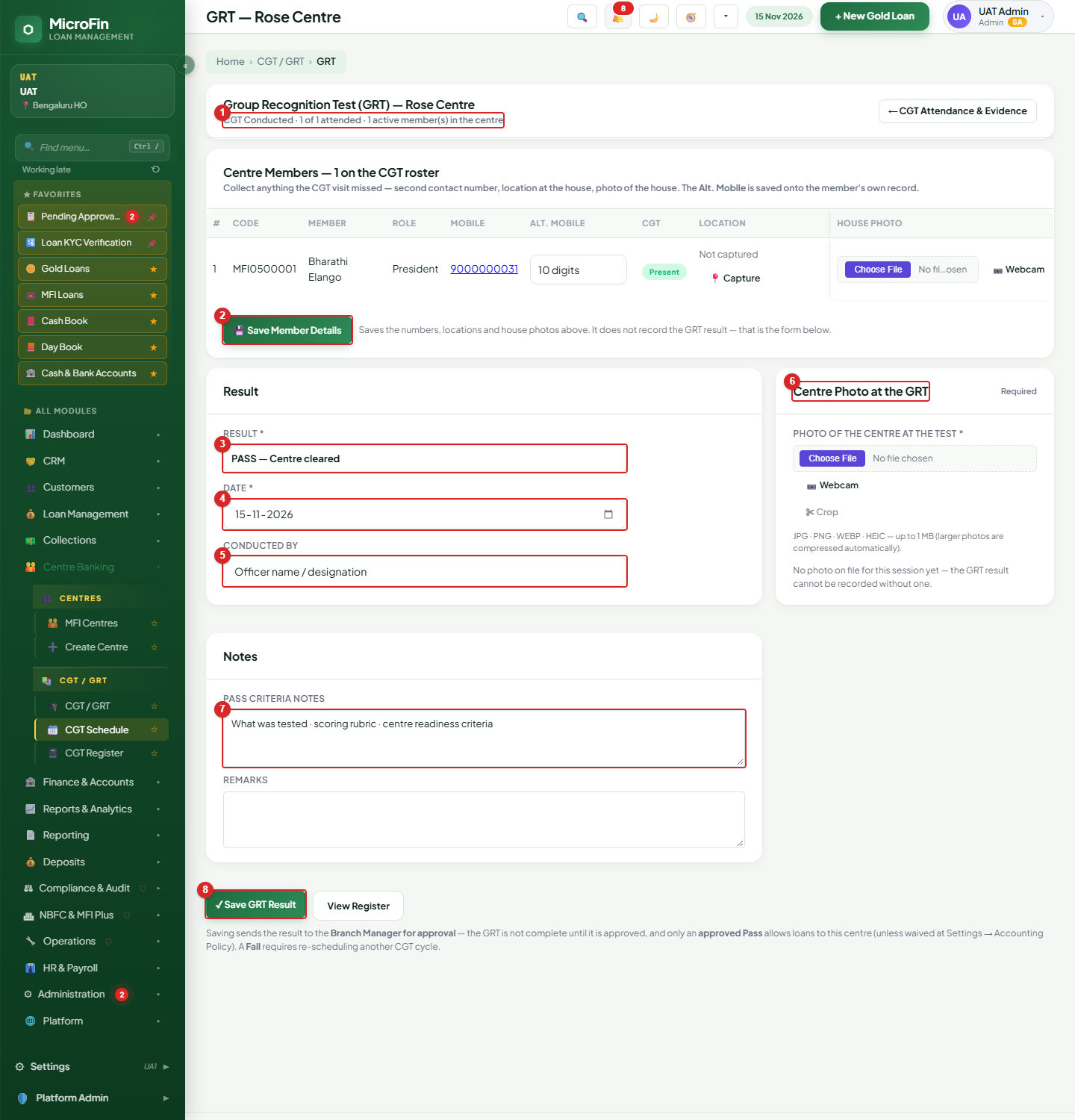
- CGT status and attendance in the header
- Save Member Details: saves the roster details only, not the result
- Result of the test
- Date of the test
- Conducted By
- Centre Photo at the GRT (required)
- Notes
- Save GRT Result
3. Before you start
- The CGT session must be Conducted (see the CGT chapter), and its roster must exist.
- The centre's active member count today must be inside the company band (default 5–20), even if it was inside when the CGT was held.
- Have a photo of the centre taken at the test.
- Who approves: only an Admin, SuperAdmin or a manager-level role (Manager, Branch, Area, Divisional, Regional or Zonal Manager, Managing Director, or any role with "manager" in its name). Others see "Only a Branch Manager (or an Admin) can approve a GRT."
- Which sign-off route your company uses: the direct buttons on the GRT page, or the Approval Inbox (section 7).
4. Step-by-step instructions
Record the GRT result
- Open the GRT page for the Conducted session. The header reads "CGT {status} · x of y attended · n active member(s) in the centre".
- In the Result card choose Result \* ("PASS — Centre cleared" or "FAIL — Re-train required"), the Date \* and, if you wish, Conducted By (free text).
- In Centre Photo at the GRT upload the photo (JPG, PNG, WEBP or HEIC, up to 1 MB; larger photos are compressed). It is required unless one is already stored.
- In Notes add Pass Criteria Notes and Remarks (up to 800 characters each).
- Click ✓ Save GRT Result.
- If the company has no GRT approval module you see "GRT result recorded: Pass — pending Branch Manager approval." If it has, you see "GRT result recorded: Pass — sent for approval. It will be signed off from the Approval Inbox."
Collect member details at the GRT (optional)
In the card "Centre Members — N on the CGT roster" you can enter Alt. Mobile, re-capture Location and add a House Photo for each member, then click 💾 Save Member Details. This is its own form beside the result form. It does not record the GRT, does not need the GRT photo, and cannot change attendance, score or remarks.
Approve or reject — direct buttons
- Open the GRT page from Review →. In the card Branch Manager Approval read the instruction "Ring the members below on their mobile numbers and check the evidence before approving."
- To approve, add optional Approval remarks (optional) and click ✓ Approve GRT. You see "GRT approved — the CGT / GRT record is now closed."
- To reject, type Reason for rejection \* (at least 5 characters) and click ✕ Reject. You see "GRT rejected — the field officer can re-record it."
Approve or reject — Approval Inbox
When the company's "GRT" approval module is on and the result was recorded on the web, the GRT page shows "🗂 In the approval workflow" with a button Open Approval Inbox →. The holder of the configured rung (by default one rung, Branch Manager) decides it in Administration > Approvals > Pending Approvals. The final approval runs the same checks as the direct button; a rejection sets the GRT to Rejected with the approver's words.
Member-by-member decisions (optional)
- On the GRT page open the card Member Approval — one member at a time (web only, manager-level roles).
- For each member click ✓ Approve, ✕ Reject (type "Reason (needed to reject)", at least 5 characters) or ↺ Clear. A member left undecided "Follows centre".
If the GRT fails or is rejected
- Fail: saved Pending like a Pass. The Branch Manager still approves or rejects it. The page says "A Fail requires re-scheduling another CGT cycle." After an approved Fail (or a Rejected result) the centre is offered again in the CGT picker, so schedule a new CGT.
- Rejected by the Branch Manager: the Register shows "GRT Rejected by BM". The field officer corrects and saves the GRT again on the same session (or starts a new CGT cycle). The re-save returns it to Pending.
- Approved results cannot be changed or un-approved from the screens.
5. Field explanation
| Field | Purpose | Required? | Expected input | Validation | Example |
|---|---|---|---|---|---|
| Result | Outcome of the test | Yes | PASS — Centre cleared / FAIL — Re-train required | "Result must be Pass or Fail." | PASS |
| Date | Date of the test | Yes | Date | Not compared with the CGT date | 29-11-2026 |
| Conducted By | Who ran the test | No | Free text | Not checked against a user | Ravi (fictional) |
| Centre Photo at the GRT | Evidence the centre was assembled and tested | Yes, unless one is stored | JPG, PNG, WEBP, HEIC up to 1 MB | "A centre photo is required before the GRT result can be recorded…" | — |
| Pass Criteria Notes | Basis of the decision | No | Up to 800 characters | — | — |
| Remarks | General notes | No | Up to 800 characters | — | — |
| Alt. Mobile / Location / House Photo (member grid) | Re-collect member details | No | As on the CGT page | Same guards as the CGT sheet | — |
| Approval remarks (optional) | Note on approval | No | Up to 500 characters | — | — |
| Reason for rejection | Why rejected | Yes, to reject | At least 5 characters | "Say why the GRT is being rejected (at least 5 characters)…" | Photo shows only 4 members |
| Reason / remarks (member) | Why a member is rejected | Yes, to reject | At least 5 characters, up to 300 | "Say why this member is being rejected (at least 5 characters)." | — |
6. Buttons and actions
| Button | What it does |
|---|---|
| ✓ Save GRT Result | Stores the result as Pending (and parks an approval request if the module is on). |
| 💾 Save Member Details | Saves member numbers, locations and house photos only. |
| ✓ Approve GRT | Approves and closes the record; opens centre lending if the result is Pass. |
| ✕ Reject | Rejects with the typed reason. |
| ✓ Approve / ✕ Reject / ↺ Clear (member) | Records or removes a member-level decision. |
| Open Approval Inbox → | Goes to the inbox when the request is in the approval workflow. |
| View Register | Opens the CGT / GRT Register. |
7. Business rules and validations
Administration > UI & Settings > Accounting Policy > "CGT / GRT (Centre Lending)". This waives it for the whole company. Individual loans without a centre are never gated.8. Expected result
- After recording: the result is saved as Pending; the Register shows PASS or FAIL with "BM Approval: Pending".
- After approval: "GRT approved — the CGT / GRT record is now closed." The CGT and GRT can no longer be edited. A Pass opens centre loans.
- After rejection: status Rejected, the field officer re-records, and it returns to Pending.
- No accounting entries are made by the GRT.
9. Troubleshooting
| Message or problem | Likely cause | What to do |
|---|---|---|
| "Complete the CGT first…" | CGT not Conducted | Complete the CGT. |
| "A centre photo is required before the GRT result can be recorded…" | No photo attached | Attach the photo taken at the test and save. |
| "A centre must have N–M members before you can record / approve the GRT." | Centre fell outside the band | Correct the roster, or ask an Admin about the band. |
| "Only a Branch Manager (or an Admin) can approve a GRT." | Your role is not manager-level | Ask a Branch Manager to approve. |
| "This GRT is in the approval workflow (request #n)…" | The approval module owns it | Approve from the Approval Inbox. |
| "The CGT evidence is incomplete — …" | Evidence was changed after completion | Fix the CGT evidence, then approve. |
| "Say why the GRT is being rejected…" | Reason under 5 characters | Write a fuller reason. |
| Loan refused: "no approved Group Recognition Test (GRT) Pass on file" | Not approved yet, Fail, or Rejected | Get a Pass approved, or ask an Admin whether the gate is to be waived. |
| Loan refused for one member | Member rejected at the GRT | Clear the rejection on the GRT page, or re-run the CGT / GRT. |
| Result Pending for a long time | Waiting for the Branch Manager | Open the Register with "⏳ Pending BM approval" and follow up. |
11. Related modules
- Before: CGT (the session must be Conducted) and Creating and managing centres.
- After: Loan Request and Centre Batch Loan, which are gated by an approved Pass.
- Approvals: Approval Inbox for the optional GRT module; Settings > Approval Workflows to set the rung.
- Settings:
Administration > UI & Settings > Accounting Policyfor the band, the gap, the GPS rule and the lending gate. - [TBC] The "CGT / GRT Compliance" report does not read the GRT records; use the CGT Register.
GRT
குழு அங்கீகாரத் தேர்வு (GRT)
1. அறிமுகம்
GRT என்பது CGT முடிந்த பிறகு மையத்துக்கு நடத்தப்படும் தேர்வு. களப்பணி அலுவலர் தேர்வின் முடிவை (PASS அல்லது FAIL) மையத்தின் புகைப்படத்துடன் பதிவு செய்கிறார்; பிறகு கிளை மேலாளர் (அல்லது Admin, அல்லது மேலாளர் நிலையிலுள்ள வேறு பணிப்பொறுப்பு) அதை அங்கீகரிக்கிறார் அல்லது நிராகரிக்கிறார். அங்கீகரிக்கப்பட்ட Pass இருந்தால் மட்டுமே மையக் கடன்கள் வழங்க முடியும்.
நடைமுறை வரிசை: CGT Conducted → GRT பதிவு செய்தல் (Pending) → கிளை மேலாளர் அங்கீகரிக்கிறார் அல்லது நிராகரிக்கிறார் (நேரடியாக; அல்லது உங்கள் நிறுவனம் "GRT" ஒப்புதலைப் பயன்படுத்தினால் ஒப்புதல் உள்பெட்டி (Approval Inbox) வழியாக) → அங்கீகரிக்கப்பட்ட Pass → மையக் கடன்கள் வழங்க அனுமதி.
2. வழிசெலுத்தல்
- பதிவு செய்ய: CGT பக்கத்தில் ✓ Complete CGT & Continue to GRT; அல்லது
Centre Banking > CGT / GRT > CGT Register-இல் அமர்வின் வரியில் உள்ள GRT (அல்லது Conducted அமர்வின் Conduct பக்கத்தில் GRT →). - அங்கீகரிக்க: Register-இல் அமர்வின் வரியில் உள்ள Review →; அல்லது
Administration > Approvals > CGT / GRT Approvals(இது "⏳ Pending BM approval (your queue)" வடிகட்டியுடன் Register-ஐத் திறக்கும்). - ஒப்புதல் உள்பெட்டி (Approval Inbox) வழியாக:
Administration > Approvals > Pending Approvals, வகை "🏅 GRT Result".
- தலைப்பில் CGT நிலை மற்றும் வருகை
- Save Member Details: பட்டியல் விவரங்களை மட்டும் சேமிக்கும், முடிவை அல்ல
- சோதனையின் முடிவு (Result)
- சோதனைத் தேதி
- நடத்தியவர் (Conducted By)
- GRT-இல் எடுத்த Centre Photo (கட்டாயம்)
- குறிப்புகள் (Notes)
- Save GRT Result
3. தொடங்குவதற்கு முன்
- CGT அமர்வு Conducted நிலையில் இருக்க வேண்டும் (CGT அத்தியாயத்தைப் பாருங்கள்); அதன் உறுப்பினர் பட்டியலும் இருக்க வேண்டும்.
- மையத்தில் இன்று செயலில் உள்ள உறுப்பினர்களின் எண்ணிக்கை நிறுவனத்தின் உறுப்பினர் வரம்புக்குள் (இயல்பு 5–20) இருக்க வேண்டும் — CGT நடந்தபோது வரம்புக்குள் இருந்திருந்தாலும்கூட.
- தேர்வின்போது எடுத்த மையப் புகைப்படத்தை தயாராக வைத்திருங்கள்.
- யார் அங்கீகரிக்கலாம்: Admin, SuperAdmin அல்லது மேலாளர் நிலைப் பணிப்பொறுப்பு உள்ளவர் மட்டுமே (Manager; Branch, Area, Divisional, Regional அல்லது Zonal Manager; Managing Director; அல்லது பெயரில் "manager" என்ற சொல் உள்ள எந்தப் பணிப்பொறுப்பும்). மற்றவர்களுக்கு "Only a Branch Manager (or an Admin) can approve a GRT." என்று வரும்.
- உங்கள் நிறுவனம் எந்த ஒப்புதல் வழியைப் பயன்படுத்துகிறது என்பதைத் தெரிந்துகொள்ளுங்கள்: GRT பக்கத்தில் உள்ள நேரடிப் பொத்தான்களா, அல்லது ஒப்புதல் உள்பெட்டியா (Approval Inbox) (பிரிவு 7).
4. படிப்படியான வழிமுறைகள்
GRT முடிவைப் பதிவு செய்ய
- Conducted நிலையில் உள்ள அமர்வின் GRT பக்கத்தைத் திறங்கள். பக்கத்தின் மேற்பகுதியில் "CGT {status} · x of y attended · n active member(s) in the centre" என்று காட்டப்படும்.
- Result அட்டையில் Result \* ("PASS — Centre cleared" அல்லது "FAIL — Re-train required"), Date \* ஆகியவற்றைத் தேர்ந்தெடுங்கள்; விரும்பினால் Conducted By (விரும்பியபடி தட்டச்சிடலாம்) நிரப்புங்கள்.
- Centre Photo at the GRT-இல் புகைப்படத்தைப் பதிவேற்றுங்கள் (JPG, PNG, WEBP அல்லது HEIC; 1 MB வரை; அதைவிடப் பெரிய புகைப்படங்கள் தானாகச் சுருக்கப்படும்). ஏற்கெனவே ஒரு புகைப்படம் சேமிக்கப்பட்டிருந்தால் தவிர, இது கட்டாயம்.
- Notes-இல் Pass Criteria Notes, Remarks ஆகியவற்றை எழுதுங்கள் (ஒவ்வொன்றும் 800 எழுத்துகள் வரை).
- ✓ Save GRT Result சொடுக்குங்கள்.
- உங்கள் நிறுவனத்தில் GRT ஒப்புதல் தொகுதி இல்லையெனில் "GRT result recorded: Pass — pending Branch Manager approval." என்று வரும்; இருந்தால் "GRT result recorded: Pass — sent for approval. It will be signed off from the Approval Inbox." என்று வரும்.
GRT-இன்போது உறுப்பினர் விவரங்களைச் சேகரிக்க (விருப்பம்)
"Centre Members — N on the CGT roster" அட்டையில் ஒவ்வோர் உறுப்பினருக்கும் Alt. Mobile உள்ளிடலாம், Location-ஐ மீண்டும் பதிவு செய்யலாம், House Photo சேர்க்கலாம்; பிறகு 💾 Save Member Details சொடுக்குங்கள். இது முடிவுப் படிவத்துக்கு அருகில் உள்ள தனிப் படிவம். இது GRT-ஐப் பதிவு செய்யாது; இதற்கு GRT புகைப்படம் தேவையில்லை; வருகை, மதிப்பெண், குறிப்புகள் எதையும் இதன் மூலம் மாற்ற முடியாது.
அங்கீகரிக்க அல்லது நிராகரிக்க — நேரடிப் பொத்தான்கள்
- Review → சொடுக்கி GRT பக்கத்தைத் திறங்கள். Branch Manager Approval அட்டையில் உள்ள "Ring the members below on their mobile numbers and check the evidence before approving." என்ற அறிவுறுத்தலைப் படியுங்கள்.
- அங்கீகரிக்க, விரும்பினால் Approval remarks (optional) எழுதி, ✓ Approve GRT சொடுக்குங்கள். "GRT approved — the CGT / GRT record is now closed." என்று வரும்.
- நிராகரிக்க, Reason for rejection \* (குறைந்தது 5 எழுத்துகள்) எழுதி, ✕ Reject சொடுக்குங்கள். "GRT rejected — the field officer can re-record it." என்று வரும்.
அங்கீகரிக்க அல்லது நிராகரிக்க — ஒப்புதல் உள்பெட்டி (Approval Inbox)
உங்கள் நிறுவனத்தில் "GRT" ஒப்புதல் தொகுதி இயக்கத்தில் இருந்து, முடிவு இணையத் திரையில் (web) பதிவு செய்யப்பட்டிருந்தால், GRT பக்கத்தில் "🗂 In the approval workflow" என்ற குறிப்பும் Open Approval Inbox → பொத்தானும் தெரியும். அமைக்கப்பட்டுள்ள ஒப்புதல் படியில் உள்ளவர் (இயல்பாக ஒரே ஒரு படி: Branch Manager) அதை Administration > Approvals > Pending Approvals-இல் முடிவு செய்வார். இறுதி ஒப்புதலின்போது, நேரடிப் பொத்தானில் நடக்கும் அதே சரிபார்ப்புகள் நடக்கும்; நிராகரித்தால், அங்கீகாரி எழுதிய காரணத்துடன் GRT, Rejected நிலைக்கு மாறும்.
உறுப்பினர் வாரியான முடிவுகள் (விருப்பம்)
- GRT பக்கத்தில் Member Approval — one member at a time அட்டையைத் திறங்கள் (இணையத் திரையில் மட்டும்; மேலாளர் நிலைப் பணிப்பொறுப்புகளுக்கு மட்டும்).
- ஒவ்வோர் உறுப்பினருக்கும் ✓ Approve, ✕ Reject ("Reason (needed to reject)"-இல் குறைந்தது 5 எழுத்துகள் எழுத வேண்டும்) அல்லது ↺ Clear சொடுக்குங்கள். முடிவு செய்யப்படாத உறுப்பினருக்கு "Follows centre" என்று இருக்கும்.
GRT-இல் Fail ஆனால் அல்லது GRT நிராகரிக்கப்பட்டால்
- Fail: Pass போலவே Pending நிலையில் சேமிக்கப்படும். அதையும் கிளை மேலாளர் அங்கீகரிக்கவோ நிராகரிக்கவோ வேண்டும். பக்கத்தில் "A Fail requires re-scheduling another CGT cycle." என்று இருக்கும். Fail அங்கீகரிக்கப்பட்ட பிறகு (அல்லது முடிவு Rejected ஆன பிறகு) அந்த மையம் CGT-க்கான தேர்வுப் பட்டியலில் மீண்டும் வரும்; எனவே புதிய CGT-ஐத் திட்டமிடுங்கள்.
- கிளை மேலாளர் நிராகரித்தால்: Register-இல் "GRT Rejected by BM" என்று காட்டப்படும். களப்பணி அலுவலர் அதே அமர்வில் GRT-ஐத் திருத்தி மீண்டும் சேமிப்பார் (அல்லது புதிய CGT சுற்றைத் தொடங்குவார்). மீண்டும் சேமித்ததும் அது Pending நிலைக்குத் திரும்பும்.
- Approved ஆன முடிவுகளை திரைகளின் மூலம் மாற்றவோ, அங்கீகாரத்தைத் திரும்பப் பெறவோ முடியாது.
5. புல விளக்கம்
| புலம் | நோக்கம் | கட்டாயமா? | உள்ளிட வேண்டியது | சரிபார்ப்பு | எடுத்துக்காட்டு |
|---|---|---|---|---|---|
| Result | தேர்வின் முடிவு | ஆம் | PASS — Centre cleared / FAIL — Re-train required | "Result must be Pass or Fail." | PASS |
| Date | தேர்வு நடந்த தேதி | ஆம் | தேதி | CGT தேதியுடன் ஒப்பிட்டுச் சரிபார்க்கப்படுவதில்லை | 29-11-2026 |
| Conducted By | தேர்வை நடத்தியவர் | இல்லை | விரும்பியபடி தட்டச்சிடலாம் | பயனர் பட்டியலுடன் ஒப்பிட்டுச் சரிபார்க்கப்படுவதில்லை | ரவி (கற்பனைப் பெயர்) |
| Centre Photo at the GRT | மையம் ஒன்றுகூடித் தேர்வு நடந்ததற்கான சான்று | ஆம்; ஏற்கெனவே ஒன்று சேமிக்கப்பட்டிருந்தால் தவிர | JPG, PNG, WEBP, HEIC; 1 MB வரை | "A centre photo is required before the GRT result can be recorded…" | — |
| Pass Criteria Notes | முடிவுக்கான அடிப்படை | இல்லை | 800 எழுத்துகள் வரை | — | — |
| Remarks | பொதுவான குறிப்புகள் | இல்லை | 800 எழுத்துகள் வரை | — | — |
| Alt. Mobile / Location / House Photo (உறுப்பினர் அட்டவணை) | உறுப்பினர் விவரங்களை மீண்டும் சேகரிக்க | இல்லை | CGT பக்கத்தில் உள்ளது போலவே | CGT பக்கத்தில் உள்ள அதே சரிபார்ப்புகள் | — |
| Approval remarks (optional) | அங்கீகரிக்கும்போது எழுதும் குறிப்பு | இல்லை | 500 எழுத்துகள் வரை | — | — |
| Reason for rejection | ஏன் நிராகரிக்கப்படுகிறது | நிராகரிக்க வேண்டுமானால் கட்டாயம் | குறைந்தது 5 எழுத்துகள் | "Say why the GRT is being rejected (at least 5 characters)…" | புகைப்படத்தில் 4 உறுப்பினர்கள் மட்டுமே உள்ளனர் |
| Reason / remarks (உறுப்பினர்) | உறுப்பினர் ஏன் நிராகரிக்கப்படுகிறார் | நிராகரிக்க வேண்டுமானால் கட்டாயம் | குறைந்தது 5 எழுத்துகள், 300 வரை | "Say why this member is being rejected (at least 5 characters)." | — |
6. பொத்தான்களும் செயல்களும்
| பொத்தான் | செயல் |
|---|---|
| ✓ Save GRT Result | முடிவை Pending நிலையில் சேமிக்கும் (ஒப்புதல் தொகுதி இயக்கத்தில் இருந்தால், ஒப்புதல் கோரிக்கையையும் உருவாக்கும்). |
| 💾 Save Member Details | உறுப்பினர்களின் கைபேசி எண்கள், GPS இடங்கள், வீட்டுப் புகைப்படங்கள் ஆகியவற்றை மட்டும் சேமிக்கும். |
| ✓ Approve GRT | அங்கீகரித்துப் பதிவை மூடும்; முடிவு Pass என்றால் மையத்துக்குக் கடன் வழங்க வழி திறக்கும். |
| ✕ Reject | தட்டச்சிட்ட காரணத்துடன் நிராகரிக்கும். |
| ✓ Approve / ✕ Reject / ↺ Clear (உறுப்பினர்) | உறுப்பினர் வாரியான முடிவைப் பதிவு செய்யும் அல்லது நீக்கும். |
| Open Approval Inbox → | கோரிக்கை ஒப்புதல் நடைமுறையில் (approval workflow) இருக்கும்போது ஒப்புதல் உள்பெட்டிக்குக் கொண்டுசெல்லும். |
| View Register | CGT / GRT Register-ஐத் திறக்கும். |
7. வணிக விதிகளும் சரிபார்ப்புகளும்
Administration > UI & Settings > Accounting Policy > "CGT / GRT (Centre Lending)"-இல் உள்ள Require the CGT / GRT process before centre loans (அதன் அருகில் "RBI default ON" என்ற குறி இருக்கும்) என்பதன் டிக்கை Admin நீக்கலாம். அப்படிச் செய்தால் முழு நிறுவனத்துக்கும் இந்த விதி தளர்த்தப்படும். மையம் இல்லாத தனிநபர் கடன்களுக்கு இந்த வாயில் ஒருபோதும் பொருந்தாது.8. எதிர்பார்க்கும் முடிவு
- பதிவு செய்த பின்: முடிவு Pending நிலையில் சேமிக்கப்படும்; Register-இல் PASS அல்லது FAIL என்பதுடன் "BM Approval: Pending" என்று காட்டப்படும்.
- அங்கீகரித்த பின்: "GRT approved — the CGT / GRT record is now closed." என்று வரும். அதன் பிறகு CGT-ஐயும் GRT-ஐயும் திருத்த முடியாது. முடிவு Pass என்றால் மையக் கடன்கள் வழங்க முடியும்.
- நிராகரித்த பின்: நிலை Rejected ஆகும்; களப்பணி அலுவலர் மீண்டும் பதிவு செய்வார்; அது மீண்டும் Pending நிலைக்குத் திரும்பும்.
- GRT-ஆல் எந்தக் கணக்குப் பதிவும் உருவாகாது.
9. சிக்கல் தீர்வு
| செய்தி அல்லது சிக்கல் | சாத்தியமான காரணம் | செய்ய வேண்டியது |
|---|---|---|
| "Complete the CGT first…" | CGT இன்னும் Conducted நிலைக்கு வரவில்லை | முதலில் CGT-ஐ முடியுங்கள். |
| "A centre photo is required before the GRT result can be recorded…" | புகைப்படம் இணைக்கப்படவில்லை | தேர்வின்போது எடுத்த புகைப்படத்தை இணைத்துச் சேமியுங்கள். |
| "A centre must have N–M members before you can record / approve the GRT." | மையத்தின் உறுப்பினர் எண்ணிக்கை வரம்புக்கு வெளியே சென்றுவிட்டது | உறுப்பினர் பட்டியலைச் சரிசெய்யுங்கள்; அல்லது உறுப்பினர் வரம்பு பற்றி Admin-இடம் கேளுங்கள். |
| "Only a Branch Manager (or an Admin) can approve a GRT." | உங்கள் பணிப்பொறுப்பு மேலாளர் நிலையில் இல்லை | அங்கீகரிக்குமாறு கிளை மேலாளரிடம் கேளுங்கள். |
| "This GRT is in the approval workflow (request #n)…" | அது ஒப்புதல் தொகுதியின் கட்டுப்பாட்டில் உள்ளது | ஒப்புதல் உள்பெட்டியில் (Approval Inbox) அங்கீகரியுங்கள். |
| "The CGT evidence is incomplete — …" | CGT-ஐ முடித்த பிறகு சான்றுகள் மாற்றப்பட்டுள்ளன | CGT சான்றுகளைச் சரிசெய்த பிறகு அங்கீகரியுங்கள். |
| "Say why the GRT is being rejected…" | காரணம் 5 எழுத்துகளுக்கும் குறைவாக உள்ளது | காரணத்தை இன்னும் விளக்கமாக எழுதுங்கள். |
| கடன் மறுக்கப்படுகிறது: "no approved Group Recognition Test (GRT) Pass on file" | GRT இன்னும் அங்கீகரிக்கப்படவில்லை; அல்லது முடிவு Fail; அல்லது Rejected | Pass-க்கு அங்கீகாரம் பெறுங்கள்; அல்லது வாயிலைத் தளர்த்த வேண்டுமா என Admin-இடம் கேளுங்கள். |
| ஓர் உறுப்பினருக்கு மட்டும் கடன் மறுக்கப்படுகிறது | அந்த உறுப்பினர் GRT-இல் நிராகரிக்கப்பட்டவர் | GRT பக்கத்தில் அந்த நிராகரிப்பை நீக்குங்கள் (Clear); அல்லது CGT / GRT-ஐ மீண்டும் நடத்துங்கள். |
| முடிவு நீண்ட காலமாக Pending நிலையிலேயே உள்ளது | கிளை மேலாளரின் ஒப்புதலுக்காகக் காத்திருக்கிறது | "⏳ Pending BM approval" வடிகட்டியுடன் Register-ஐத் திறந்து, கிளை மேலாளரிடம் நினைவூட்டுங்கள். |
10. தமிழ் விளக்கம்
இந்த அத்தியாயத்தின் முழுத் தமிழ் வடிவம் இதுவே. ஆங்கிலப் பகுதியில் மேலே உள்ள அதே பிரிவுகள் (1–9, 11) இங்கு தமிழில் தரப்பட்டுள்ளன.
11. தொடர்புடைய தொகுதிகள்
- இதற்கு முன்: CGT (அமர்வு Conducted நிலையில் இருக்க வேண்டும்), மையங்களை உருவாக்குதல் மற்றும் நிர்வகித்தல்.
- இதற்குப் பின்: கடன் கோரிக்கை, மைய கடன் தொகுப்பு (Centre Batch Loan); அங்கீகரிக்கப்பட்ட Pass இருந்தால் மட்டுமே இவை அனுமதிக்கப்படும்.
- ஒப்புதல்கள்: GRT ஒப்புதல் தொகுதிக்கு (நிறுவனம் இயக்கியிருந்தால் மட்டும்) ஒப்புதல் உள்பெட்டி (Approval Inbox); ஒப்புதல் படியை அமைக்க Settings > Approval Workflows.
- அமைப்புகள்: உறுப்பினர் வரம்பு, இடைவெளி, GPS விதி, கடன் வழங்கும் வாயில் ஆகியவற்றுக்கு
Administration > UI & Settings > Accounting Policy. - [TBC] "CGT / GRT Compliance" அறிக்கை GRT பதிவுகளைப் பயன்படுத்துவதில்லை; CGT Register-ஐயே பாருங்கள்.