Mobile App
The MicroFin Staff mobile app
1. Overview
MicroFin Staff is the Android app (package com.microfingold.app, version 1.0.6) that field officers, managers, administrators and appraisers use away from the office. It lets you collect at a centre, register a member, raise a loan request, approve requests, mark attendance and read reports from the phone. It uses the same company, users and data as the web software.
A separate app, MicroFin (package com.microfingold.customer), is for borrowers and investors: Home, Loans, Payments and Profile for customers; Dashboard, Payouts, Statements and Profile for investors. Customers can see loans and EMI schedules, pay online and view receipts. This chapter is about the staff app; the customer app is not covered further.
Many parts of the app were added recently and are not confirmed live on every company's server (Smart Collection, branch switch, approvals on the phone, deposit collection). If a screen below is missing or shows a server error, ask your administrator whether your server has been updated.
2. Navigation
After sign-in the bottom tabs depend on your role.
| Role | Bottom tabs |
|---|---|
| Field officer | Home, Customers, Collection, Loans, More |
| Manager (Manager, Branch Manager, Staff, Cashier, Auditor) | Branch, Approvals (only if you are an approver), Collect, Cash (Manager roles only), Menu, Profile |
| Admin / Head Office | Executive, Branches, Collect, Menu (with an approvals count badge), Users, Profile |
| Appraiser | Queue, New, Log, Profile (Eligibility, Leave and Attendance inside) |
- A Head-Office user with a custom role opens the Admin tabs.
- Which screens you may open also depends on your role's permissions and your company's settings, so two people with the same tabs can see different options.
- Menu (manager and admin) has a search box that finds screens, loans, members and centres.
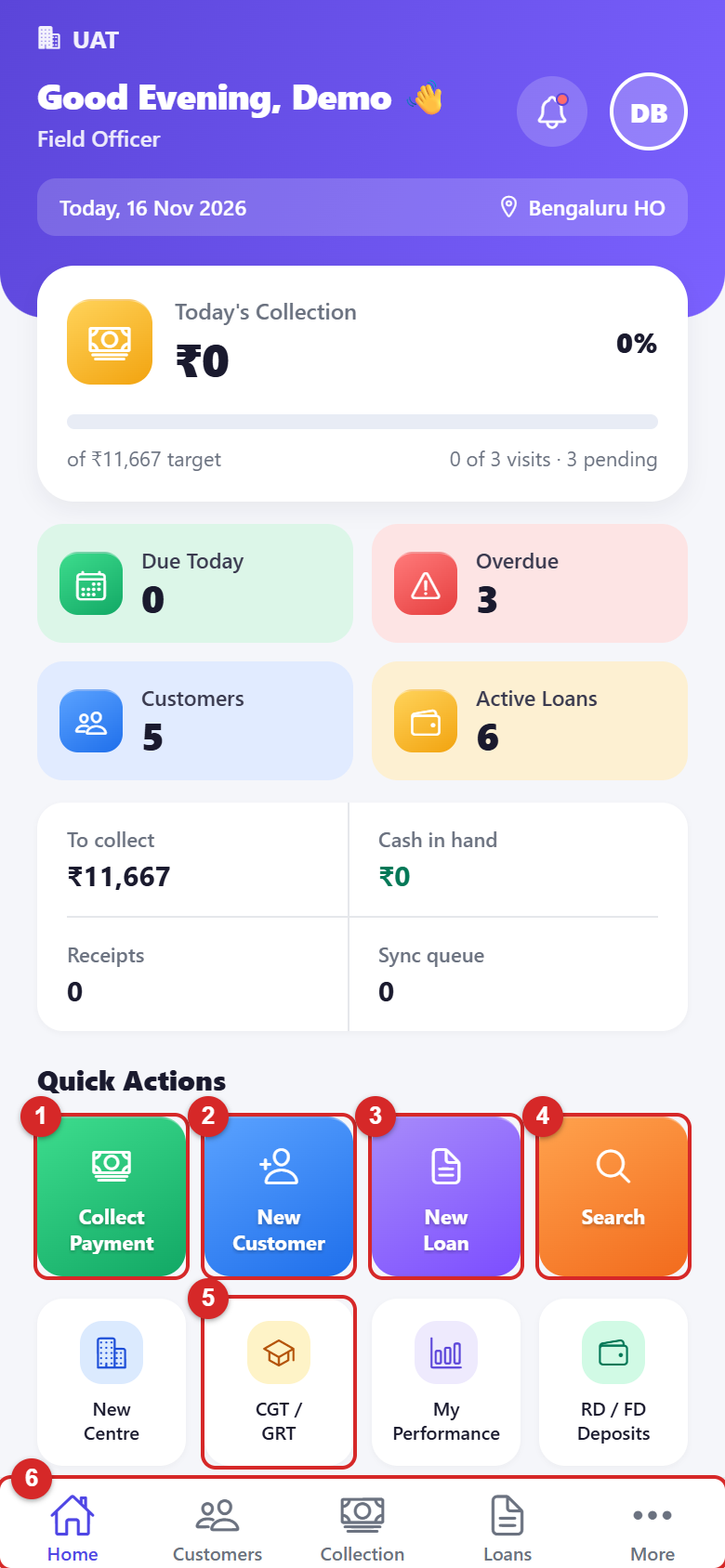
- Collect Payment: record a payment from one customer
- New Customer: register a member on the phone
- New Loan: raise a loan request
- Search: find a customer, loan or centre
- CGT / GRT: centre training and recognition test
- Bottom tabs for a field officer: Home, Customers, Collection, Loans, More
3. Before you start
- Your administrator must have switched the mobile app on for your company. If it is off you see MOBILE_DISABLED at sign-in.
- Use the same company code, username and password as on the web. A first-time user may instead be given a one-time code (see step 1 below).
- Location: staff must keep the phone's location on while using the app (company setting). The app shows a full-screen block until location is on. Your movement may be recorded for the Field Operations reports.
- A field officer needs a field-agent link on their login to see their own book. Without it the app refuses and tells you to ask for the staff login to be linked.
- Collections are always dated today. There is no back-date option for Regular, Overdue or Advance collections on the phone; use the web for those.
4. Step-by-step instructions
4.1 Sign in
- Open the app and choose the Staff tab.
- Password: enter company code, username and password, then sign in. If your user has an authenticator (MFA) the app asks for the Authenticator code; enter it within five minutes.
- First time with a code: an administrator opens the web
Settings > Userslist (/User) and presses Mobile OTP for you (your mobile number must be on file). A 6-digit code is sent by SMS and works for 24 hours. In the app choose Mobile + OTP, enter company code, your 10-digit mobile and the code. - The app may ask you to set a 4-digit PIN (Skip for now is offered). Change PIN and Fingerprint Login are under More (field officer) or Profile (manager).
- Forgot password opens the web reset page in your browser.
4.2 Switch branch
If your login is allowed in several branches: Profile > Switch branch (manager) or tap the branch badge on Home. The screens reload for the chosen branch.
4.3 Collect at a centre (Smart Collection)
Open the Collection tab (field officer) or Menu > Collection (manager, admin). The hub shows one tile for each kind of collection, Today's submissions, a Centre report & WhatsApp and a Branch report.
Regular Collection
- Tap Regular Collection and pick a centre. Only centres with an instalment due today are listed.
- Rows are prefilled with today's due. Edit Principal, Interest or Savings if needed, or Skip a customer and give a reason (Not at meeting, Will pay later, Refused to pay, Other). You can scan a loan card (QR) or type a loan number to jump to a row.
- Tap Review N customers. It stays blocked while any row has an error or is undecided. The dialog Check before you continue lists changed amounts and customers who already paid today.
- On Review & submit choose Cash or UPI (UPI reference optional), the account to deposit to if you have more than one, confirm the savings left behind, and switch on I have received Rs….
- Tap Submit. The server checks every line first. If any line fails nothing is posted: Nothing was posted - fix these first.
- The result is either Posted or Partial, or Pending when your company's collection approval applies to this amount. A Pending collection is not applied and you should not give a receipt.
- If the network drops, your entries and a unique key are kept. Tap Submit again; it will not post twice.
OD Collection (overdue) works the same way but shows one box per overdue instalment, oldest first, with penalty in its own column. Boxes start empty.
Advance Collection takes the whole next instalment, one per customer, or you can leave a customer out.
Foreclosure Request
Collection > Foreclosure Request, pick the centre, then the loan.- A quote appears (closure amount, rebate, penalty, charge). Choose Without savings or With savings adjustment and type a reason of at least 5 characters.
- Confirm Raise foreclosure request?. The request goes to the approval chain. No cash is taken on the phone; the money is collected later at the branch counter.
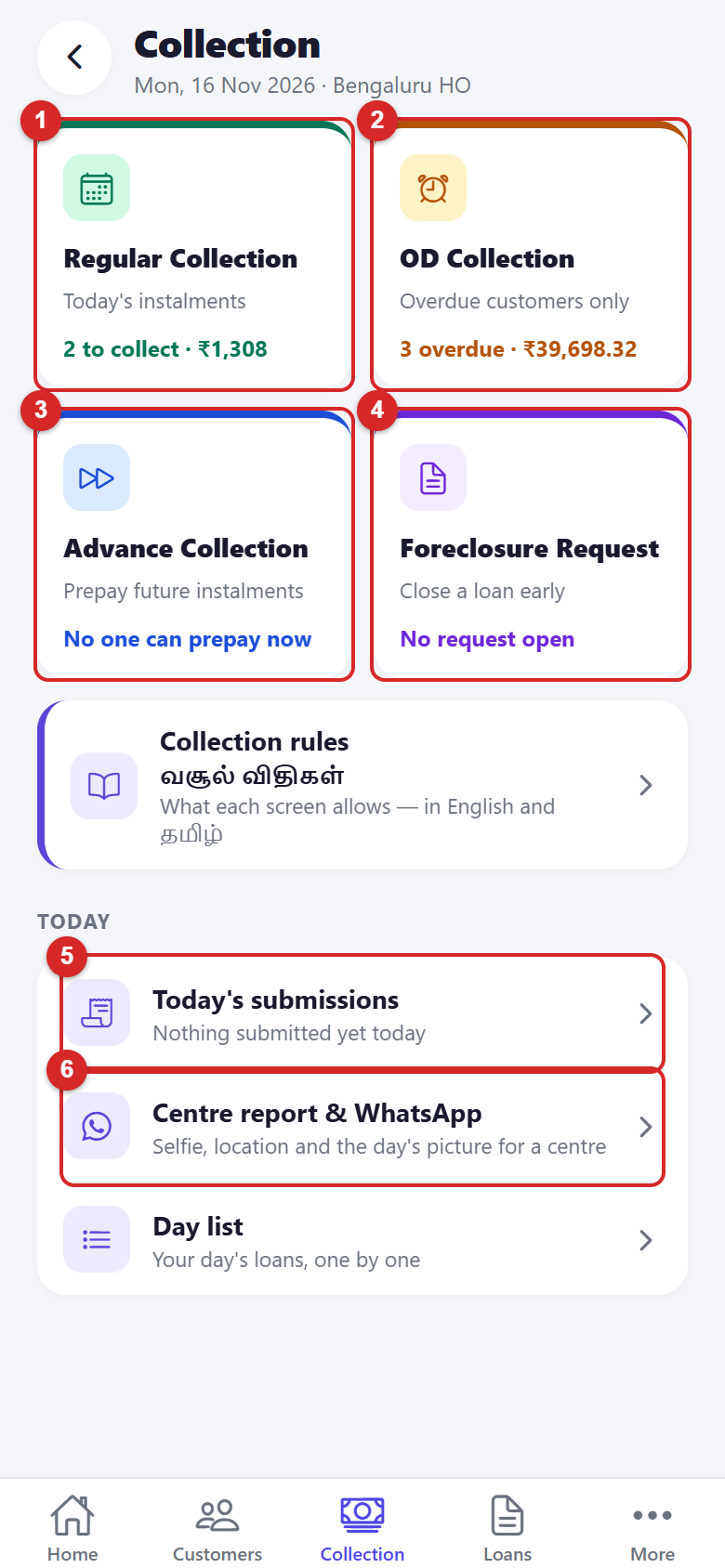
- Regular Collection: today's instalments for your centres
- OD Collection: overdue customers only
- Advance Collection: take the next instalment in advance
- Foreclosure Request: raise a request to close a loan early (no cash is taken on the phone)
- Today's submissions: what you have already sent today
- Centre report & WhatsApp: selfie, location and the day's picture for a centre
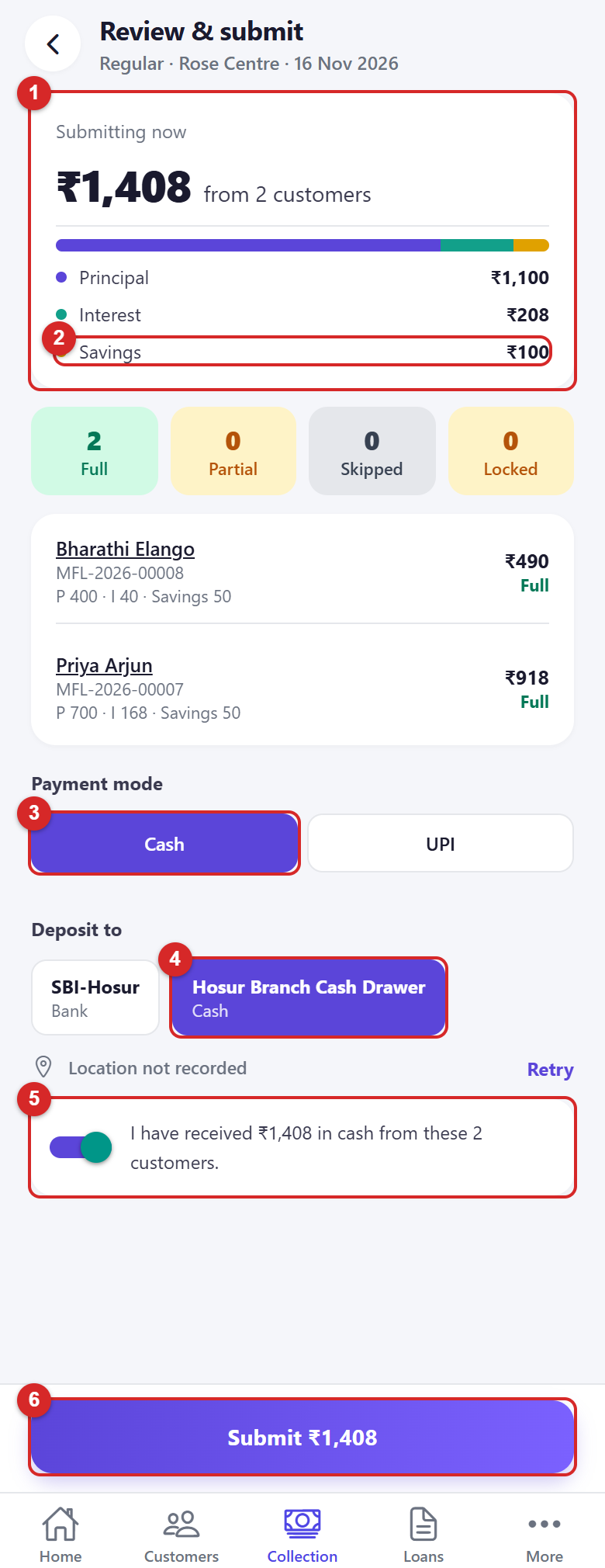
- Total being submitted, split into Principal, Interest and Savings
- Savings: the compulsory savings collected with these instalments
- Payment mode: Cash or UPI
- Deposit to: the account this money goes into (shown when there is more than one)
- The "I have received" switch: turn it on only after you have counted the money
- Submit: sends the collection; the server checks every line first
Single customer payments. Field officers can also open Customers > customer > Collect for Daily collection or Record Payment. Managers and admins use the Collect tab, Scan & Collect or the loan's Record Payment screen, which shows Principal, Interest and Savings boxes and a Due figure. Record Payment is the only screen that works offline: payments are queued and sent when the network returns.
4.4 Register a member on the phone
Home > New Customer(orMenu > Onboard Member).- Optional cards at the top: Scan Aadhaar QR, DigiLocker, PAN, Aadhaar OTP and a credit score check. These fill details for you to review.
- Fill the sections. The phone checks formats and your company's mandatory fields before sending.
- If a subscription fee block is shown, enter the fee.
- Tap Register member. The server checks duplicates, nominee, centre capacity, mandatory fields and fee. If member-registration approval is on, the request is parked and the member is created at final approval; otherwise the member exists at once.
On a customer's page you can Collect, Call, WhatsApp, show the Map, run a Credit check, Edit or add a Remark.
4.5 Centres, CGT and GRT
More > Centreslists your centres; the + button creates a centre and you can add members.- Home tile "New Centre" is a different thing. It creates a Center-Banking Centre (a cluster), not the centre of members your loans use. [REC] Create ordinary centres from
More > Centres > +. Home > CGT / GRT: Schedule CGT (pick centre and date; the centre needs enough members). If CGT approval is on you see "Sent for approval" and the session appears once approved. To conduct it, mark attendance for every member, capture each member's location and house photo, add the centre photo, then Complete CGT.- GRT result: Pass or Fail, test date, conducted by, notes and a group photo. It is saved as pending Branch Manager approval, who can Approve or Reject (reason needed).
4.6 Loan request and approvals
- Field officer:
Home > New Loan. Pick the member, scheme, amount, instalments and purpose, add a note and tap Send for approval. The loan becomes PendingApproval. Fees and rates come from the scheme, not from the phone. - Manager or admin: the MFI Loan wizard (Borrower, Terms, Fees, KYC, Review) and the Gold Loan wizard (Borrower, Items, Terms, Disburse, Review) are under
Menu. A gold loan of Rs 50,000 or more entered by a non-super-admin goes to pending approval, as on the web. - Approvals: manager
Approvalstab or adminMenu > Approvals. Open a request and tap Approve (you confirm) or Reject (reason of at least 5 characters). The queue covers workflow requests and older types such as loan, foreclosure, collection, gold loan, centre batch, voucher, rescheduling, write-off, loan void, savings closure, master data and End-of-Day unlock/reopen. - The phone does not disburse a field-officer loan request; that is done in bulk disbursement on the web.
4.7 Attendance, leave, location
More > Attendance(field officer) orProfile > Attendance(manager, appraiser). Tap check-in; a selfie and GPS are taken when your company requires them. The server checks the time window, the branch geo-fence and the face match. The result is Recorded, Recorded - needs review (saved and flagged for your supervisor) or refused when blocking is on. Check-out works the same way.- Leave:
Profile > Leave(manager, admin, appraiser). The field-officer app has no Leave screen. Approvers useProfile > Leave approvals. - Location pings are sent in the background according to company settings, and queued if you are offline.
4.8 Reports and other screens
- Reports:
Menu > Reports(manager, admin) has about 35 reports (MFI, Gold, Finance, Compliance). You can email a report to yourself. - Branch dashboard, Cash position, Agent performance, My Performance are on the manager tabs; field officers have My Performance only.
- Overdue:
More > Overdueor the Home Overdue tile. - Deposits: RD instalment collection and FD interest payout under
Home > RD / FD Depositswhen deposits are on for your company. - CRM: Leads, My Day and Pipeline tiles. On the phone only Admin sees every lead; others see leads they own or created.
- End of Day (cash in hand, hand over cash) is reachable from
Menusearch for managers and admins. See the warning below for field officers.
5. Field explanation
| Task | Where in the app | Same as web? |
|---|---|---|
| Sign in | Login > Staff > Password or Mobile + OTP | Same credentials; the OTP is issued on web /User |
| Switch branch | Profile > Switch branch / branch badge | Phone only [TBC] |
| Regular, OD, Advance collection for a centre | Collection > tile | Same posting rules; always dated today; no back-date on the phone |
| Foreclosure request | Collection > Foreclosure Request | Raises the request only; cash is taken at the counter |
| Single loan payment | Customers > customer > Collect > Record Payment; Collect tab | Dated today; works offline |
| Payment reversal or amend | Not on the phone | Use the web |
| ₹0 collection (nothing paid, with reason) | No form on the phone | Web only; the phone can only decide an approval of that type |
| New member | Home > New Customer | Same field rules and checks as web |
| New centre (members) | More > Centres > + | Same data as web centres |
| New Centre tile | Home | Creates a Center-Banking cluster, not a normal centre |
| CGT schedule and conduct | Home > CGT / GRT | Same; follows CGT approval |
| GRT result | Home > CGT / GRT | Differs: no GRT workflow request raised [TBC] |
| Loan request | Home > New Loan | Same scheme-driven terms |
| MFI / Gold loan wizard | Menu > New MFI Loan / New Gold Loan | Managers and admins only |
| Approve or reject | Approvals tab / Menu > Approvals | Same chain; reject reason 5+ characters |
| Attendance | More or Profile > Attendance | Same company settings |
| Leave | Profile > Leave | Manager, admin and appraiser only |
| Reports | Menu > Reports | About 35 of the web reports |
| End of Day | Menu search (manager, admin) | Field-officer app cannot open it |
| Customer Documents (customer app) | Profile > KYC Documents | Not working; always empty. Do not rely on it |
| Appraiser Submit Appraisal | Appraiser > New | Always fails; nothing is stored. Do not rely on it |
6. Buttons and actions
| Button | What it does |
|---|---|
| Review N customers | Opens the check dialog before the review screen; blocked while rows have errors. |
| Skip | Leaves a customer out of the collection with a reason. |
| Submit | Sends the whole centre; all-or-nothing validation; safe to repeat after a network failure. |
| Today's submissions | Lists what you sent today and its status (Posted, Partial, Pending, Failed, Rejected). |
| Send for approval | Sends a loan request to the approver. |
| Approve / Reject | Decides an approval; Reject needs a reason. |
| Register member | Saves a new member (or parks it for approval). |
| Raise foreclosure request | Sends the closure request for approval. |
| Mobile OTP (web) | Admin issues the 24-hour first-login code. |
7. Business rules and validations
8. Expected result
You can sign in, collect for a centre and see a Posted, Partial or Pending result in Today's submissions; new members and loan requests appear on the web for approval; approvals decided on the phone update the web queue.
9. Troubleshooting
| Message or problem | Likely cause | What to do |
|---|---|---|
| MOBILE_DISABLED | Mobile app switched off for your company | Ask your administrator. |
| Wrong app screen | Your role is not carried by this build | Install the correct app. |
| Authenticator code asked | Your user has MFA | Enter the code from your authenticator within five minutes. |
| Location block on a full screen | Location off or not allowed | Turn on location for the app. |
| Location is required to record this collection... | Company requires GPS on collections | Turn on location and retry. |
| Nothing was posted - fix these first | At least one line failed validation | Fix the listed rows and submit again. |
| Submit shows no answer | Network lost | Tap Submit again; it will not post twice. |
| Collection says Pending | Approval chain applies | Do not issue a receipt until approved. |
| Collection refused for the day | Day closed or outside working date | Ask the manager; use the web if a back-date is allowed. |
| Stuck on "Queued" | Offline payment waiting, or refused by the server | Reconnect, then check the web for the receipt. |
| Link your login to a field agent | Own-book scope without a field-agent link | Ask an administrator to link the staff login. |
| New app version prompt | Server publishes a newer APK | Download and install it; required if below the minimum. |
| A screen is missing | Server not yet updated, or no permission | Ask your administrator. |
11. Related modules
- Members: chapter 05. Centres: chapter 10. CGT and GRT: chapters 11 and 12. Loan request and approval: chapters 20 and 21.
- Collection on the web: chapters 30 to 34 (corrections and reversals are web-only).
கைபேசி செயலி
MicroFin Staff மொபைல் செயலி
1. அறிமுகம்
MicroFin Staff என்பது களப்பணி அலுவலர்கள், மேலாளர்கள், நிர்வாகிகள், மதிப்பீட்டாளர்கள் அலுவலகத்துக்கு வெளியே பயன்படுத்தும் Android செயலி (package com.microfingold.app, பதிப்பு 1.0.6). மையத்தில் வசூல் செய்தல், உறுப்பினரைப் பதிவு செய்தல், கடன் கோரிக்கை எழுப்புதல், ஒப்புதல் அளித்தல், வருகை பதிவு செய்தல், அறிக்கைகளைப் பார்த்தல் ஆகியவற்றை இதில் செய்யலாம். வலைத்தள மென்பொருளில் உள்ள அதே நிறுவனம், பயனர்கள், தரவையே இதுவும் பயன்படுத்துகிறது.
கடன் பெறுவோர், முதலீட்டாளர்களுக்கு MicroFin (package com.microfingold.customer) என்ற தனிச் செயலி உள்ளது. வாடிக்கையாளருக்கு Home, Loans, Payments, Profile; முதலீட்டாளருக்கு Dashboard, Payouts, Statements, Profile. வாடிக்கையாளர்கள் தங்கள் கடன்களையும் தவணை (EMI) அட்டவணையையும் பார்க்கலாம், ஆன்லைனில் பணம் செலுத்தலாம், ரசீதுகளைப் பார்க்கலாம். இந்த அத்தியாயம் Staff செயலி பற்றியது மட்டுமே; வாடிக்கையாளர் செயலி இதற்கு மேல் விளக்கப்படவில்லை.
செயலியின் பல பகுதிகள் சமீபத்தில் சேர்க்கப்பட்டவை; எல்லா நிறுவனங்களின் சர்வரிலும் இவை இயங்குகின்றன என்பது உறுதி செய்யப்படவில்லை (Smart Collection, கிளை மாற்றம், கைபேசியில் ஒப்புதல்கள், வைப்பு வசூல்). கீழே சொல்லப்படும் ஒரு திரை இல்லையென்றாலோ சர்வர் பிழை காட்டினாலோ, சர்வர் புதுப்பிக்கப்பட்டுள்ளதா என நிர்வாகியிடம் கேளுங்கள்.
2. வழிசெலுத்தல்
உள்நுழைந்த பின், கீழே உள்ள tabs உங்கள் பணிப்பொறுப்பைப் பொறுத்து அமையும்.
| பணிப்பொறுப்பு | கீழ் tabs |
|---|---|
| களப்பணி அலுவலர் | Home, Customers, Collection, Loans, More |
| Manager (Manager, Branch Manager, Staff, Cashier, Auditor) | Branch, Approvals (அங்கீகாரியாக இருந்தால் மட்டும்), Collect, Cash (Manager பணிப்பொறுப்புகளுக்கு மட்டும்), Menu, Profile |
| Admin / தலைமை அலுவலகம் (HO) | Executive, Branches, Collect, Menu (ஒப்புதல் எண்ணிக்கை badge உடன்), Users, Profile |
| மதிப்பீட்டாளர் (Appraiser) | Queue, New, Log, Profile (உள்ளே Eligibility, Leave, Attendance) |
- தனிப்பயன் (custom) பணிப்பொறுப்பு கொண்ட தலைமை அலுவலக (HO) பயனருக்கு Admin tabs திறக்கும்.
- எந்தத் திரைகளைத் திறக்கலாம் என்பது உங்கள் பணிப்பொறுப்பின் அனுமதிகளையும் நிறுவன அமைப்புகளையும் பொறுத்தது; எனவே ஒரே tabs உள்ள இருவருக்கு வெவ்வேறு தேர்வுகள் தெரியலாம்.
- Menu-வில் (manager, admin) திரைகள், கடன்கள், உறுப்பினர்கள், மையங்களைத் தேடும் பெட்டி உண்டு.
- Collect Payment: ஒரு வாடிக்கையாளரிடமிருந்து செலுத்தலைப் பதிவு செய்ய
- New Customer: கைபேசியிலேயே புதிய உறுப்பினரைப் பதிவு செய்ய
- New Loan: கடன் கோரிக்கையை உருவாக்க
- Search: வாடிக்கையாளர், கடன் அல்லது மையத்தைத் தேட
- CGT / GRT: கட்டாயக் குழுப் பயிற்சி மற்றும் குழு அங்கீகாரத் தேர்வு
- களப்பணி அலுவலருக்கான கீழ்த் தாவல்கள்: Home, Customers, Collection, Loans, More
3. தொடங்கும் முன்
- உங்கள் நிறுவனத்துக்கு மொபைல் செயலியை நிர்வாகி இயக்கியிருக்க வேண்டும். அணைக்கப்பட்டிருந்தால் உள்நுழையும்போது MOBILE_DISABLED தெரியும்.
- வலைத்தளத்தில் பயன்படுத்தும் அதே company code, username, password-ஐப் பயன்படுத்துங்கள். முதல் முறை உள்நுழையும் பயனருக்கு, அதற்குப் பதிலாக ஒருமுறைக் குறியீடு (one-time code) வழங்கப்படலாம் (கீழே படி 1-ஐப் பார்க்கவும்).
- Location: பணியாளர்கள் செயலியைப் பயன்படுத்தும்போது கைபேசியின் location-ஐ இயக்கத்தில் வைத்திருக்க வேண்டும் (நிறுவன அமைப்பு). Location இயக்கப்படும் வரை செயலி முழுத்திரைத் தடையைக் காட்டும். உங்கள் நகர்வு Field Operations அறிக்கைகளுக்காகப் பதிவாகலாம்.
- களப்பணி அலுவலர் தம் சொந்தக் கடன் பட்டியலைப் பார்க்க, அவரது உள்நுழைவில் களப்பணியாளர் இணைப்பு (field-agent link) இருக்க வேண்டும். அது இல்லையெனில் செயலி மறுத்து, staff login-ஐ இணைக்கக் கேட்குமாறு சொல்லும்.
- வசூல்கள் எப்போதும் இன்றைய தேதியிலேயே பதிவாகும். Regular, Overdue, Advance வசூல்களுக்குக் கைபேசியில் பின்தேதி வசதி இல்லை; அவற்றுக்கு வலைத்தளத்தைப் பயன்படுத்துங்கள்.
4. படிப்படியான வழிமுறைகள்
4.1 உள்நுழைவு
- செயலியைத் திறந்து Staff tab-ஐத் தேர்வு செய்யுங்கள்.
- Password: company code, username, password உள்ளிட்டு உள்நுழையுங்கள். உங்கள் பயனருக்கு authenticator (MFA) இருந்தால் செயலி Authenticator code கேட்கும்; ஐந்து நிமிடத்துக்குள் உள்ளிடுங்கள்.
- குறியீட்டுடன் முதல் முறை: நிர்வாகி வலைத்தள
Settings > Usersபட்டியலில் (/User) உங்களுக்காக Mobile OTP அழுத்துவார் (உங்கள் மொபைல் எண் பதிவில் இருக்க வேண்டும்). 24 மணி நேரம் செல்லும் 6 இலக்கக் குறியீடு SMS-இல் வரும். செயலியில் Mobile + OTP தேர்வு செய்து company code, 10 இலக்க மொபைல் எண், குறியீடு உள்ளிடுங்கள். - 4 இலக்க PIN அமைக்கச் செயலி கேட்கலாம் (Skip for now உண்டு). Change PIN, Fingerprint Login ஆகியவை More (களப்பணி அலுவலர்) அல்லது Profile (manager) கீழ் உள்ளன.
- Forgot password வலைத்தள மீட்டமைப்புப் பக்கத்தை உலாவியில் திறக்கும்.
4.2 கிளை மாற்றம் (Branch switch)
உங்கள் உள்நுழைவுக்குப் பல கிளைகளில் அனுமதி இருந்தால்: Profile > Switch branch (manager) திறக்கவும், அல்லது Home-இல் உள்ள கிளை badge-ஐத் தொடுங்கள். தேர்ந்தெடுத்த கிளைக்கு ஏற்பத் திரைகள் மீண்டும் ஏற்றப்படும்.
4.3 மையத்தில் வசூல் (Smart Collection)
Collection tab (களப்பணி அலுவலர்) அல்லது Menu > Collection (manager, admin) திறக்கவும். ஒவ்வொரு வசூல் வகைக்கும் ஒரு tile, Today's submissions, Centre report & WhatsApp, Branch report ஆகியவை இந்த hub-இல் இருக்கும்.
Regular Collection
- Regular Collection-ஐத் தொட்டு மையத்தைத் தேர்வு செய்யுங்கள். இன்று தவணை செலுத்த வேண்டிய மையங்கள் மட்டுமே பட்டியலில் வரும்.
- வரிசைகளில் இன்று செலுத்த வேண்டிய தொகை முன்கூட்டியே நிரப்பப்பட்டிருக்கும். தேவைப்பட்டால் Principal, Interest, Savings-ஐ மாற்றுங்கள்; அல்லது வாடிக்கையாளரை Skip செய்து காரணம் தாருங்கள் (Not at meeting, Will pay later, Refused to pay, Other). கடன் அட்டையின் QR-ஐ ஸ்கேன் செய்து அல்லது கடன் எண்ணைத் தட்டச்சு செய்து நேரடியாக அந்த வரிசைக்குச் செல்லலாம்.
- Review N customers தொடுங்கள். ஏதேனும் வரிசையில் பிழை இருக்கும் வரை அல்லது முடிவு செய்யப்படாமல் இருக்கும் வரை அது தடுக்கப்பட்டிருக்கும். Check before you continue உரையாடல் பெட்டி, மாற்றப்பட்ட தொகைகளையும், இன்று ஏற்கெனவே செலுத்திய வாடிக்கையாளர்களையும் காட்டும்.
- Review & submit திரையில் Cash அல்லது UPI (UPI reference விருப்பம்), ஒன்றுக்கு மேற்பட்ட கணக்கு இருந்தால் பணத்தைச் செலுத்தும் கணக்கு ஆகியவற்றைத் தேர்வு செய்யுங்கள்; வசூலிக்காமல் விடப்படும் சேமிப்பை உறுதி செய்து, I have received Rs… சுவிட்சை இயக்குங்கள்.
- Submit தொடுங்கள். சர்வர் முதலில் ஒவ்வொரு வரியையும் சரிபார்க்கும். ஒரு வரி தோல்வியடைந்தாலும் எதுவும் பதிவாகாது: Nothing was posted - fix these first.
- முடிவு Posted அல்லது Partial ஆக இருக்கும்; இந்தத் தொகைக்கு உங்கள் நிறுவனத்தின் வசூல் ஒப்புதல் பொருந்தினால் Pending ஆக இருக்கும். Pending வசூல் கடன் கணக்கில் இன்னும் சேர்க்கப்படவில்லை; எனவே ரசீது தர வேண்டாம்.
- நெட்வொர்க் துண்டிக்கப்பட்டால் உங்கள் உள்ளீடுகளும் ஒரு தனித்துவக் குறியீடும் (unique key) சேமித்து வைக்கப்படும். மீண்டும் Submit தொடுங்கள்; இரண்டு முறை பதிவாகாது.
OD Collection (நிலுவை) இதே வழியில் செயல்படும்; ஆனால் ஒவ்வொரு நிலுவைத் தவணைக்கும் ஒரு பெட்டி காட்டும் (பழையது முதலில்); அபராதம் தனி நெடுவரிசையில் இருக்கும். பெட்டிகள் தொடக்கத்தில் காலியாக இருக்கும்.
Advance Collection அடுத்த தவணையை முழுமையாக, ஒரு வாடிக்கையாளருக்கு ஒன்று என்ற அளவில் பெறும்; ஒரு வாடிக்கையாளரை விட்டுவிடவும் முடியும்.
Foreclosure Request
Collection > Foreclosure Requestதிறந்து, மையத்தையும் பின்னர் கடனையும் தேர்வு செய்யுங்கள்.- முடிப்புக் கணக்கு விவரம் (quote) தோன்றும் (முடிப்புத் தொகை, rebate, அபராதம், கட்டணம்). Without savings அல்லது With savings adjustment தேர்வு செய்து, குறைந்தது 5 எழுத்துகள் கொண்ட காரணத்தைத் தட்டச்சு செய்யுங்கள்.
- Raise foreclosure request? என்பதை உறுதி செய்யுங்கள். கோரிக்கை ஒப்புதல் சங்கிலிக்குச் செல்லும். கைபேசியில் பணம் பெறப்படாது; பணம் பின்னர் கிளையின் கவுண்டரில் வசூலிக்கப்படும்.
- Regular Collection: உங்கள் மையங்களின் இன்றைய தவணைகள்
- OD Collection: நிலுவையில் உள்ள வாடிக்கையாளர்கள் மட்டும்
- Advance Collection: அடுத்த தவணையை முன்கூட்டியே பெற
- Foreclosure Request: கடனை முன்கூட்டியே முடிக்கக் கோரிக்கை எழுப்ப (கைபேசியில் பணம் பெறப்படாது)
- Today's submissions: இன்று நீங்கள் ஏற்கெனவே அனுப்பியவை
- Centre report & WhatsApp: ஒரு மையத்திற்கான செல்ஃபி, இருப்பிடம் மற்றும் அன்றைய படம்
- சமர்ப்பிக்கப்படும் மொத்தத் தொகை; Principal, Interest, Savings எனப் பிரித்துக் காட்டப்படும்
- Savings: இந்தத் தவணைகளுடன் வசூலிக்கப்படும் கட்டாயச் சேமிப்பு
- Payment mode: Cash அல்லது UPI
- Deposit to: பணம் சேரும் கணக்கு (ஒன்றுக்கு மேற்பட்ட கணக்கு இருந்தால் காட்டப்படும்)
- "I have received" சுவிட்ச்: பணத்தை எண்ணிய பிறகு மட்டுமே இயக்குங்கள்
- Submit: வசூலை அனுப்பும்; சர்வர் முதலில் ஒவ்வொரு வரியையும் சரிபார்க்கும்
ஒரு வாடிக்கையாளரின் செலுத்தல்கள். களப்பணி அலுவலர்கள் Customers > customer > Collect திறந்து Daily collection அல்லது Record Payment-ஐயும் பயன்படுத்தலாம். Manager, admin ஆகியோர் Collect tab, Scan & Collect அல்லது கடனின் Record Payment திரையைப் பயன்படுத்துவார்கள்; அதில் Principal, Interest, Savings பெட்டிகளும் Due தொகையும் இருக்கும். இணையம் இல்லாதபோதும் செயல்படும் ஒரே திரை Record Payment மட்டுமே: செலுத்தல்கள் வரிசையில் சேமிக்கப்பட்டு, நெட்வொர்க் திரும்பியதும் அனுப்பப்படும்.
4.4 கைபேசியில் உறுப்பினர் பதிவு
Home > New Customer(அல்லதுMenu > Onboard Member).- மேலே உள்ள விருப்ப அட்டைகள்: Scan Aadhaar QR, DigiLocker, PAN, Aadhaar OTP, credit score சரிபார்ப்பு. இவை விவரங்களைத் தாமாக நிரப்பும்; நீங்கள் அவற்றைச் சரிபார்க்க வேண்டும்.
- பிரிவுகளை நிரப்புங்கள். அனுப்பும் முன், கைபேசி உள்ளீட்டு வடிவங்களையும் (format) உங்கள் நிறுவனத்தின் கட்டாயப் புலங்களையும் சரிபார்க்கும்.
- சந்தாக் கட்டணப் (subscription fee) பகுதி தெரிந்தால் கட்டணத்தை உள்ளிடுங்கள்.
- Register member தொடுங்கள். சர்வர் நகல் பதிவுகள், நாமினி, மையத்தின் உறுப்பினர் வரம்பு, கட்டாயப் புலங்கள், கட்டணம் ஆகியவற்றைச் சரிபார்க்கும். உறுப்பினர் பதிவு ஒப்புதல் இயக்கத்தில் இருந்தால் கோரிக்கை நிறுத்தி வைக்கப்பட்டு, இறுதி ஒப்புதலின்போது உறுப்பினர் உருவாக்கப்படுவார்; இல்லையெனில் உறுப்பினர் உடனே உருவாகிவிடுவார்.
வாடிக்கையாளரின் பக்கத்தில் Collect, Call, WhatsApp பயன்படுத்தலாம்; Map பார்க்கலாம்; Credit சரிபார்ப்பு செய்யலாம்; Edit செய்யலாம் அல்லது Remark சேர்க்கலாம்.
4.5 மையம், CGT, GRT
More > Centresஉங்கள் மையங்களைப் பட்டியலிடும்; + பொத்தான் மூலம் மையம் உருவாக்கி, உறுப்பினர்களைச் சேர்க்கலாம்.- Home-இல் உள்ள "New Centre" tile வேறு விஷயம். அது Center-Banking Centre (cluster) ஒன்றை உருவாக்கும்; உங்கள் கடன்கள் பயன்படுத்தும் உறுப்பினர் மையத்தை அல்ல. [REC] சாதாரண மையங்களை
More > Centres > +மூலம் உருவாக்குங்கள். Home > CGT / GRT: Schedule CGT (மையத்தையும் தேதியையும் தேர்வு செய்யுங்கள்; மையத்தில் போதுமான உறுப்பினர்கள் இருக்க வேண்டும்). CGT ஒப்புதல் இயக்கத்தில் இருந்தால் "Sent for approval" தெரியும்; ஒப்புதல் கிடைத்ததும் அமர்வு தோன்றும். அதை நடத்த, ஒவ்வொரு உறுப்பினருக்கும் வருகையைப் பதிவு செய்து, ஒவ்வொரு உறுப்பினரின் இருப்பிடத்தையும் வீட்டுப் புகைப்படத்தையும் எடுத்து, மையப் புகைப்படத்தைச் சேர்த்து, பின் Complete CGT தொடுங்கள்.- GRT முடிவு: Pass அல்லது Fail, தேர்வுத் தேதி, நடத்தியவர், குறிப்புகள், குழுப் புகைப்படம். இது கிளை மேலாளரின் ஒப்புதலுக்காகக் காத்திருக்கும் நிலையில் சேமிக்கப்படும்; அவர் Approve அல்லது Reject செய்யலாம் (காரணம் தேவை).
4.6 கடன் கோரிக்கை, ஒப்புதல்கள்
- களப்பணி அலுவலர்:
Home > New Loan. உறுப்பினர், திட்டம், தொகை, தவணைகள், நோக்கம் ஆகியவற்றைத் தேர்வு செய்து, குறிப்பு சேர்த்து Send for approval தொடுங்கள். கடன் PendingApproval நிலைக்குச் செல்லும். கட்டணங்களும் வட்டி விகிதங்களும் திட்டத்திலிருந்து வரும்; கைபேசியிலிருந்து அல்ல. - Manager அல்லது admin:
Menu-வில் MFI Loan wizard (Borrower, Terms, Fees, KYC, Review), Gold Loan wizard (Borrower, Items, Terms, Disburse, Review) உள்ளன. SuperAdmin அல்லாதவர் உள்ளிடும் Rs 50,000 அல்லது அதற்கு மேற்பட்ட தங்கக் கடன், வலைத்தளத்தில் போலவே ஒப்புதலுக்காகக் காத்திருக்கும் நிலைக்குச் செல்லும். - Approvals: manager-இன்
Approvalstab அல்லது admin-இன்Menu > Approvals. கோரிக்கையைத் திறந்து Approve (உறுதி செய்வீர்கள்) அல்லது Reject (குறைந்தது 5 எழுத்துகளில் காரணம்) தொடுங்கள். வரிசையில் workflow கோரிக்கைகளும், loan, foreclosure, collection, gold loan, centre batch, voucher, rescheduling, write-off, loan void, savings closure, master data, End-of-Day unlock/reopen போன்ற பழைய வகைகளும் இருக்கும். - களப்பணி அலுவலரின் கடன் கோரிக்கைக்குக் கைபேசியில் கடன் வழங்கல் (disbursement) நடக்காது; அது வலைத்தளத்தின் bulk disbursement-இல் செய்யப்படும்.
4.7 வருகை, விடுப்பு, இருப்பிடம்
More > Attendance(களப்பணி அலுவலர்) அல்லதுProfile > Attendance(manager, appraiser). check-in தொடுங்கள்; உங்கள் நிறுவனம் கட்டாயமாக்கியிருந்தால் selfie-யும் GPS-உம் எடுக்கப்படும். நேர வரம்பு, கிளையின் geo-fence, முக ஒப்பீடு ஆகியவற்றைச் சர்வர் சரிபார்க்கும். முடிவு Recorded, Recorded - needs review (சேமிக்கப்பட்டு, உங்கள் மேற்பார்வையாளரின் கவனத்துக்குக் குறியிடப்படும்) என இருக்கும்; அல்லது தடுத்தல் (blocking) இயக்கத்தில் இருந்தால் மறுக்கப்படும். Check-out-உம் இதே போலச் செயல்படும்.- Leave:
Profile > Leave(manager, admin, appraiser). களப்பணி அலுவலர் செயலியில் Leave திரை இல்லை. அங்கீகாரிகள்Profile > Leave approvalsபயன்படுத்துவார்கள். - நிறுவன அமைப்புகளின்படி location பதிவுகள் பின்னணியில் அனுப்பப்படும்; இணையம் இல்லாவிட்டால் வரிசையில் சேமிக்கப்படும்.
4.8 அறிக்கைகள், பிற திரைகள்
- Reports:
Menu > Reports(manager, admin) பகுதியில் சுமார் 35 அறிக்கைகள் உள்ளன (MFI, Gold, Finance, Compliance). ஓர் அறிக்கையை உங்கள் மின்னஞ்சலுக்கே அனுப்பிக்கொள்ளலாம். - Branch dashboard, Cash position, Agent performance, My Performance manager tabs-இல் உள்ளன; களப்பணி அலுவலருக்கு My Performance மட்டும்.
- Overdue:
More > Overdueஅல்லது Home-இன் Overdue tile. - Deposits: உங்கள் நிறுவனத்துக்கு deposits இயக்கத்தில் இருந்தால்,
Home > RD / FD Deposits-இல் தொடர் வைப்பு (RD) தவணை வசூலும் நிலை வைப்பு (FD) வட்டி வழங்கலும் இருக்கும். - CRM: Leads, My Day, Pipeline tiles. கைபேசியில் Admin மட்டுமே எல்லா leads-ஐயும் பார்ப்பார்; மற்றவர்கள் தமக்குரிய அல்லது தாம் உருவாக்கிய leads-ஐ மட்டும் பார்ப்பார்கள்.
- End of Day (கையிருப்புப் பணம், பணம் ஒப்படைப்பு) திரையை manager, admin ஆகியோர்
Menuதேடல் வழியாகத் திறக்கலாம். களப்பணி அலுவலருக்கான எச்சரிக்கையைக் கீழே பாருங்கள்.
5. புல விளக்கம்
| பணி | செயலியில் எங்கே | வலைத்தளத்தில் போலவேயா? |
|---|---|---|
| உள்நுழைவு | Login > Staff > Password அல்லது Mobile + OTP | அதே உள்நுழைவு விவரங்கள்; OTP வலைத்தள /User-இல் வழங்கப்படும் |
| கிளை மாற்றம் | Profile > Switch branch / கிளை badge | கைபேசியில் மட்டும் [TBC] |
| மையத்துக்கு Regular, OD, Advance வசூல் | Collection > tile | பதிவு விதிகள் ஒன்றே; எப்போதும் இன்றைய தேதி; கைபேசியில் பின்தேதி இல்லை |
| Foreclosure request | Collection > Foreclosure Request | கோரிக்கையை மட்டும் எழுப்பும்; பணம் கவுண்டரில் பெறப்படும் |
| ஒரு கடனுக்கான செலுத்தல் | Customers > customer > Collect > Record Payment; Collect tab | இன்றைய தேதி; இணையமின்றியும் செயல்படும் |
| செலுத்தலைத் திருப்பிக் கழித்தல் (Reversal) அல்லது திருத்தம் | கைபேசியில் இல்லை | வலைத்தளத்தைப் பயன்படுத்துங்கள் |
| ₹0 வசூல் (எதுவும் செலுத்தவில்லை, காரணத்துடன்) | கைபேசியில் படிவம் இல்லை | வலைத்தளத்தில் மட்டும்; அந்த வகை ஒப்புதலை முடிவு செய்ய மட்டுமே கைபேசியில் முடியும் |
| புதிய உறுப்பினர் | Home > New Customer | வலைத்தளத்தின் அதே புல விதிகளும் சரிபார்ப்புகளும் |
| புதிய மையம் (உறுப்பினர் மையம்) | More > Centres > + | வலைத்தள மையங்களின் அதே தரவு |
| New Centre tile | Home | Center-Banking cluster உருவாக்கும்; சாதாரண மையம் அல்ல |
| CGT அட்டவணை, நடத்துதல் | Home > CGT / GRT | அதே; CGT ஒப்புதலைப் பின்பற்றும் |
| GRT முடிவு | Home > CGT / GRT | வேறுபடுகிறது: GRT workflow கோரிக்கை எழுப்பப்படாது [TBC] |
| கடன் கோரிக்கை | Home > New Loan | திட்டத்தின்படி அமையும் அதே விதிமுறைகள் |
| MFI / Gold loan wizard | Menu > New MFI Loan / New Gold Loan | Manager, admin மட்டும் |
| ஒப்புதல் அல்லது நிராகரிப்பு | Approvals tab / Menu > Approvals | அதே ஒப்புதல் சங்கிலி; நிராகரிக்க 5+ எழுத்துகள் கொண்ட காரணம் |
| வருகை | More அல்லது Profile > Attendance | அதே நிறுவன அமைப்புகள் |
| விடுப்பு | Profile > Leave | Manager, admin, appraiser மட்டும் |
| அறிக்கைகள் | Menu > Reports | வலைத்தள அறிக்கைகளில் சுமார் 35 |
| End of Day | Menu தேடல் (manager, admin) | களப்பணி அலுவலர் செயலியில் இதைத் திறக்க முடியாது |
| Customer Documents (வாடிக்கையாளர் செயலி) | Profile > KYC Documents | வேலை செய்யவில்லை; எப்போதும் காலியாக இருக்கும். இதை நம்ப வேண்டாம் |
| Appraiser Submit Appraisal | Appraiser > New | எப்போதும் தோல்வியடையும்; எதுவும் சேமிக்கப்படாது. இதை நம்ப வேண்டாம் |
6. பொத்தான்களும் செயல்களும்
| பொத்தான் | செய்வது |
|---|---|
| Review N customers | review திரைக்கு முன் சரிபார்ப்பு உரையாடல் பெட்டியைத் திறக்கும்; வரிசைகளில் பிழை இருக்கும் வரை தடுக்கப்பட்டிருக்கும். |
| Skip | காரணத்துடன் ஒரு வாடிக்கையாளரை வசூலிலிருந்து விட்டுவிடும். |
| Submit | மையம் முழுவதையும் அனுப்பும்; எல்லா வரிகளும் சரியாக இருந்தால் மட்டுமே பதிவாகும் (all-or-nothing); நெட்வொர்க் தோல்விக்குப் பின் மீண்டும் தொடுவது பாதுகாப்பானது. |
| Today's submissions | இன்று நீங்கள் அனுப்பியவற்றையும் அவற்றின் நிலையையும் (Posted, Partial, Pending, Failed, Rejected) பட்டியலிடும். |
| Send for approval | கடன் கோரிக்கையை அங்கீகாரிக்கு அனுப்பும். |
| Approve / Reject | ஒப்புதல் கோரிக்கையை முடிவு செய்யும்; Reject-க்குக் காரணம் தேவை. |
| Register member | புதிய உறுப்பினரைச் சேமிக்கும் (அல்லது ஒப்புதலுக்காக நிறுத்தி வைக்கும்). |
| Raise foreclosure request | முன்கூட்டிய முடிப்புக் கோரிக்கையை ஒப்புதலுக்கு அனுப்பும். |
| Mobile OTP (வலைத்தளம்) | முதல் உள்நுழைவுக்கான, 24 மணி நேரம் செல்லும் குறியீட்டை நிர்வாகி வழங்குவார். |
7. வணிக விதிகளும் சரிபார்ப்புகளும்
8. எதிர்பார்க்கும் முடிவு
நீங்கள் உள்நுழையலாம், மையத்துக்கு வசூல் செய்து Today's submissions-இல் Posted, Partial அல்லது Pending முடிவைக் காணலாம்; புதிய உறுப்பினர்களும் கடன் கோரிக்கைகளும் ஒப்புதலுக்காக வலைத்தளத்தில் தெரியும்; கைபேசியில் முடிவு செய்த ஒப்புதல்கள் வலைத்தள வரிசையைப் புதுப்பிக்கும்.
9. சிக்கல் தீர்வு
| செய்தி அல்லது சிக்கல் | சாத்தியமான காரணம் | செய்ய வேண்டியது |
|---|---|---|
| MOBILE_DISABLED | நிறுவனத்துக்கு மொபைல் செயலி அணைக்கப்பட்டுள்ளது | நிர்வாகியிடம் கேளுங்கள். |
| Wrong app திரை | உங்கள் பணிப்பொறுப்பை இந்த build ஏற்கவில்லை | சரியான செயலியை நிறுவுங்கள். |
| Authenticator code கேட்கிறது | உங்கள் பயனருக்கு MFA உள்ளது | ஐந்து நிமிடத்துக்குள் authenticator குறியீட்டை உள்ளிடுங்கள். |
| முழுத்திரை Location தடை | Location அணைந்துள்ளது அல்லது அனுமதிக்கப்படவில்லை | செயலிக்கு location-ஐ இயக்குங்கள். |
| Location is required to record this collection... | வசூலுக்கு GPS கட்டாயம் என நிறுவனம் அமைத்துள்ளது | Location-ஐ இயக்கி மீண்டும் முயலுங்கள். |
| Nothing was posted - fix these first | குறைந்தது ஒரு வரி சரிபார்ப்பில் தோல்வி | பட்டியலிடப்பட்ட வரிசைகளைத் திருத்தி மீண்டும் Submit செய்யுங்கள். |
| Submit செய்தும் பதில் இல்லை | நெட்வொர்க் துண்டிப்பு | மீண்டும் Submit தொடுங்கள்; இரண்டு முறை பதிவாகாது. |
| வசூல் Pending எனக் காட்டுகிறது | ஒப்புதல் சங்கிலி பொருந்துகிறது | ஒப்புதல் கிடைக்கும் வரை ரசீது தர வேண்டாம். |
| அந்த நாளுக்கான வசூல் மறுக்கப்பட்டது | நாள் மூடப்பட்டுள்ளது அல்லது வேலை நாள் தேதிக்கு வெளியே உள்ளது | மேலாளரிடம் கேளுங்கள்; பின்தேதி அனுமதிக்கப்பட்டால் வலைத்தளத்தைப் பயன்படுத்துங்கள். |
| "Queued" என்றே நிற்கிறது | இணையமின்றிச் சேர்ந்த செலுத்தல் காத்திருக்கிறது, அல்லது சர்வர் அதை மறுத்துவிட்டது | இணையத்துடன் மீண்டும் இணைந்து, பின் வலைத்தளத்தில் ரசீது உள்ளதா எனப் பாருங்கள். |
| Link your login to a field agent | சொந்தப் பட்டியலை மட்டும் பார்க்கும் உள்நுழைவில் களப்பணியாளர் இணைப்பு இல்லை | staff login-ஐ இணைக்க நிர்வாகியிடம் கேளுங்கள். |
| புதிய செயலிப் பதிப்பு அறிவிப்பு | சர்வர் புதிய APK-ஐ வெளியிட்டுள்ளது | பதிவிறக்கி நிறுவுங்கள்; குறைந்தபட்சப் பதிப்புக்குக் கீழ் இருந்தால் கட்டாயம். |
| ஒரு திரை காணவில்லை | சர்வர் புதுப்பிக்கப்படவில்லை அல்லது அனுமதி இல்லை | நிர்வாகியிடம் கேளுங்கள். |
10. தமிழ் விளக்கம்
இந்த அத்தியாயத்தின் முழுத் தமிழ் வடிவம் இதுவே. ஆங்கிலப் பகுதியில் மேலே உள்ள அதே பிரிவுகள் (1–9, 11) இங்கு தமிழில் தரப்பட்டுள்ளன.
11. தொடர்புடைய தொகுதிகள்
- உறுப்பினர்கள்: அத்தியாயம் 05. மையங்கள்: அத்தியாயம் 10. CGT, GRT: அத்தியாயங்கள் 11, 12. கடன் கோரிக்கை, ஒப்புதல்: அத்தியாயங்கள் 20, 21.
- வலைத்தளத்தில் வசூல்: அத்தியாயங்கள் 30 முதல் 34 (திருத்தங்களும் திருப்பிக் கழித்தல்களும் (Reversal) வலைத்தளத்தில் மட்டுமே).